

Gravit Designer
About Gravit Designer
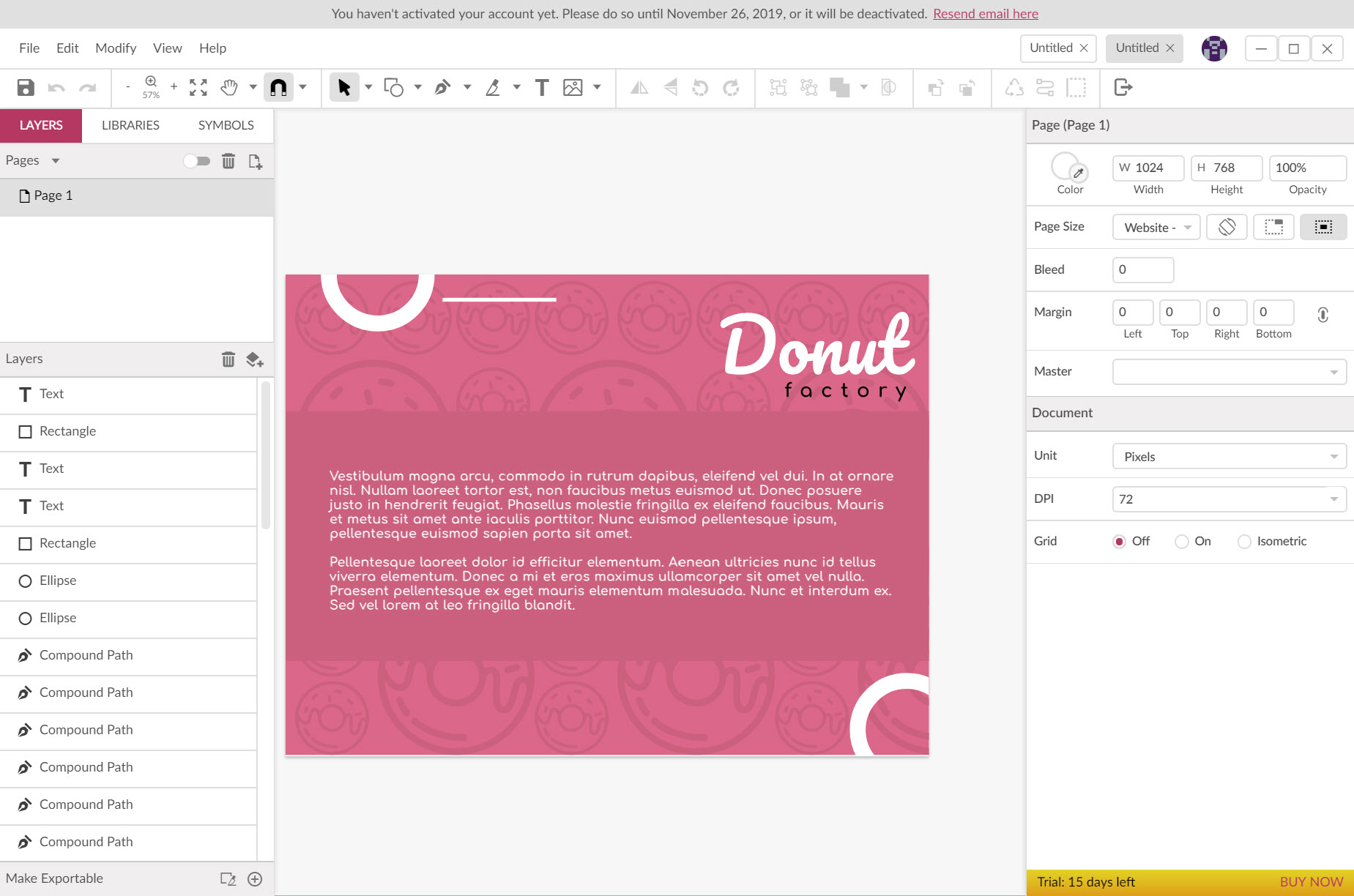
Gravit Designer is a vector drawing program for logos, icons, illustrations, interface mockups and print layouts. It draws with a pen, with a bezigon tool that snaps smooth curves through the points you click, with a knife that cuts paths and with shapes that carry smart handles.
It combines all of those through non-destructive boolean operations that can be undone long after. Documents hold several pages with master pages behind them, plus real layers and reusable symbols with shared styles.
The result exports to SVG, PDF, PNG and JPG through slices that cut one drawing into many assets. It runs as a desktop program and, identically, in a browser, and both open the same files from the same cloud account.
The comparison is with Inkscape on one side and the paid design suites on the other. Inkscape is deeper in pure vector work and asks more of the user. Gravit Designer is easier to learn and better at screen design with grids and auto layouts.
It also holds several of its features behind a Pro account, including colour modes for print and working without a connection. That last division is the thing to understand before adopting it, and it is where the rest of this review starts.
Drawing tools and booleans
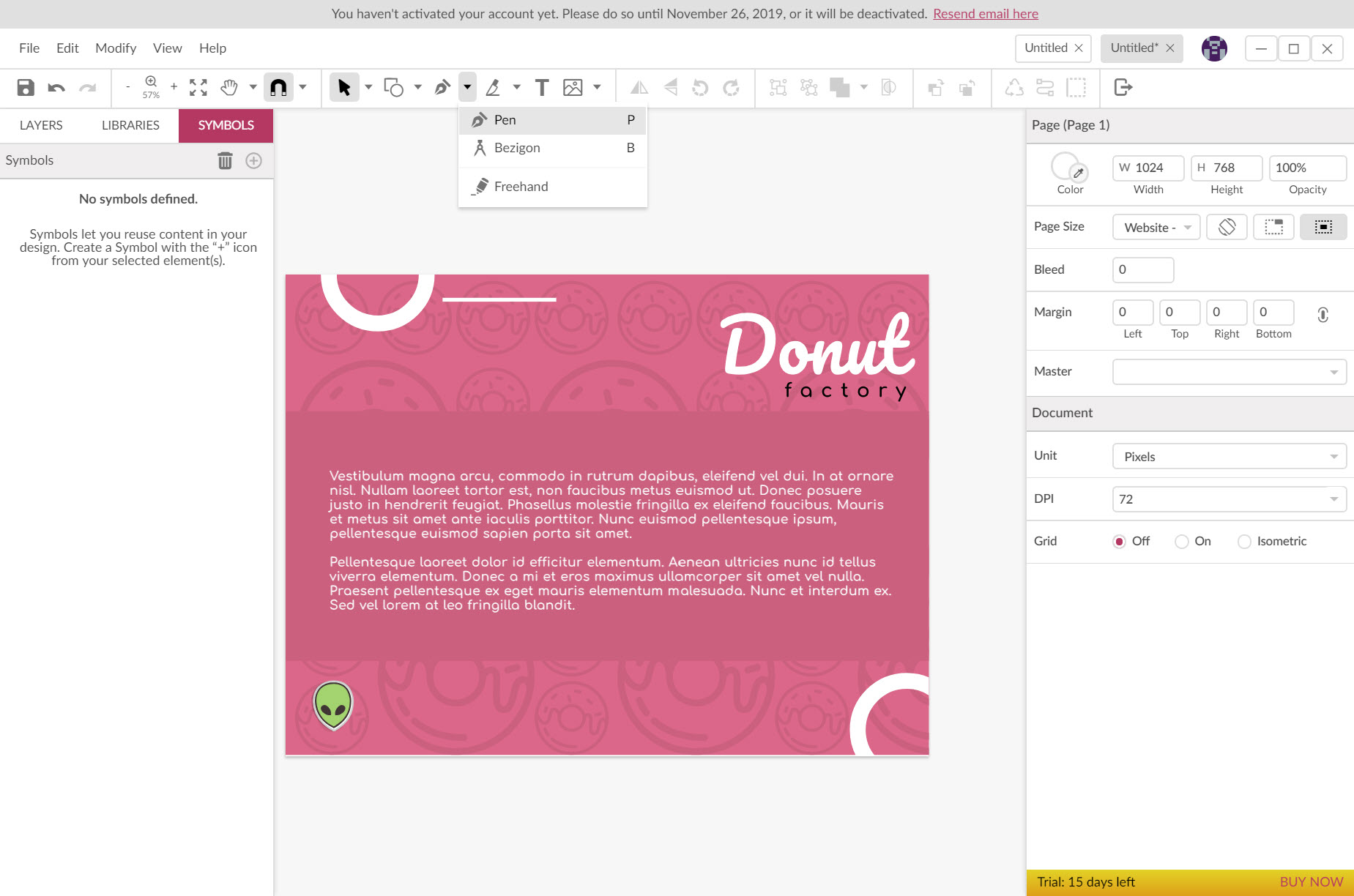
The pen tool places anchor points and drags handles the way every vector program does, and the bezigon tool is the beginner’s version, placing points that the program joins with smooth curves automatically. A freehand tool draws with the mouse or a stylus, a knife cuts any path where you click, and a lasso selects nodes across shapes. Preset shapes carry smart controls for corner radius or point count, editable after placement.
Booleans are the Gravit Designer strong point. The four operations combine shapes into a compound, and the combination stays live. The original shapes remain editable inside it and the operation can be changed or removed.
Path graphs show the structure of a compound shape. Borders can be converted to filled shapes and paths offset inward or outward, which is how a stroke becomes an editable outline for cutting or printing.
Pages and symbols, plus shared styles
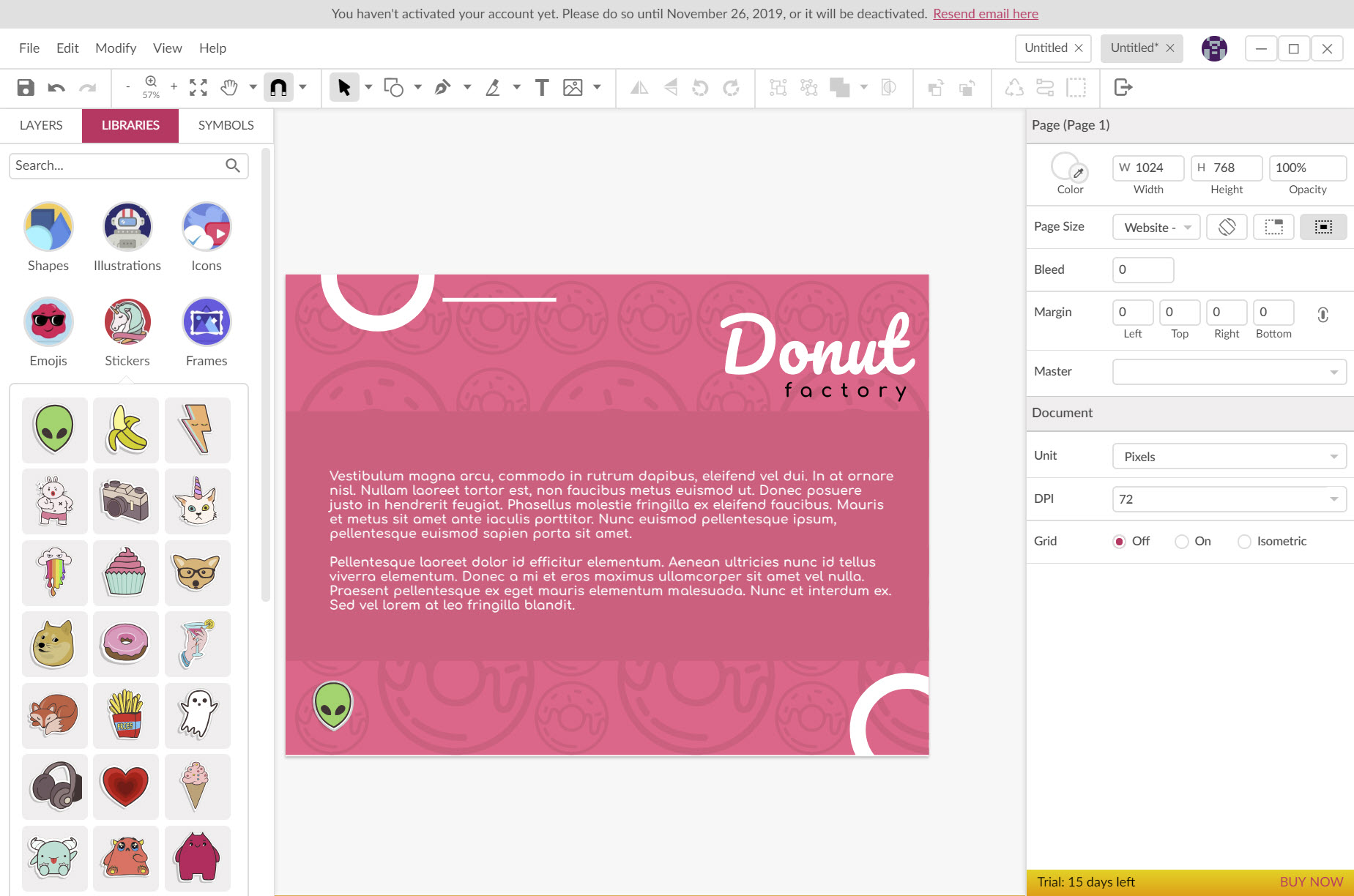
A Gravit Designer document can hold many pages, each with its own size and orientation. Master pages carry the elements that repeat onto every page that uses them. Layers work as they do in an image editor with layers, with groups nested to any depth and with clipping paths. Symbols are reusable objects, an icon or a button placed a dozen times that updates everywhere when the master changes. That is the feature that makes the program usable for interface design rather than only illustration.
Shared styles do the same for appearance. Define an appearance once, name it, and apply it across the document, then change the definition and every object follows. Multiple fills and borders stack on a single object, blending modes and opacity apply per object or per fill, and effects such as blur or shadow sit on top non-destructively.
It is a design-system way of working, and it explains why people who arrive from screen design tools settle in quickly.
Type and screen layout
The Gravit Designer text engine sets type on a path and applies web fonts as well as the fonts installed on the machine. Kerning and spacing are under control, with non-destructive case changes. Grids and anchors with auto layouts are built for pixel-exact screen work. Set a grid, snap to it and anchor an element to the edges of its parent. It stays in place when the parent resizes, which is what a button in a resizing mockup needs.
Units run from pixels through millimetres to points, and precision holds from drawing to export. A print layout at exact dimensions and a screen mockup at exact pixels come from the same tool. A library of templates and assets gives a starting point for social posts or device mockups.
For painted textures to drop into a design, a painting program with natural brushes fills the gap the vector tools leave.
Exporting and the cloud
Gravit Designer export produces PDF, SVG, PNG and JPG, plus a Sketch file for hand-off to that ecosystem. Slices define regions of the canvas that export as separate assets at several resolutions in one pass. That is the icon-set and app-asset workflow. SVG export has an option to preserve editing information so the file reopens with everything intact. EPS and Sketch files import.
Files save either to disk in the program’s own format or to the account’s cloud storage, where they open from any machine in the desktop program or the browser. The cloud keeps a version history of recent saves.
Without an account the desktop program still runs, but the cloud and the version history and the sharing links do not. A vector editor that works entirely from local files is the comparison for people who want nothing in a cloud at all.
What Pro holds back
Several features belong to the Pro account. CMYK and HSB colour modes, so print work in the standard colour space needs it. Working offline in the desktop program, since the standard account expects a connection.
Higher quality PDF export and advanced export options, unlimited cloud storage against a capped amount, and more fonts. For print work without a subscription, a vector and layout tool sold once is the usual alternative. Gravit Designer remains a complete vector editor without any of that for screen work in RGB with a connection, and it becomes a print tool only with Pro.
The honest position is that the standard account is for people designing for screens who are online, and the Pro account is for print designers and anyone who works on a train. Screen designers will notice the limits rarely. Print designers hit the colour mode wall in the first hour.
Conclusion
Gravit Designer is for the screen designer, the small business owner making social graphics and the illustrator who wants booleans and symbols in a clean interface without a large suite’s learning curve. Working in RGB with a connection, it is a complete and pleasant vector tool, and the browser version means the work follows you.
Print designers and anyone who needs to work unplugged should decide about the Pro account before starting. The colour mode and the offline switch are exactly the features they need. Everyone else can draw for an afternoon and find out whether the cloud suits them.
Pros & Cons
- Non-destructive booleans with editable compounds, plus knife and bezigon tools
- Pages with master pages, plus symbols and shared styles, for design-system work
- Grids and anchors with auto layouts for pixel-exact screen mockups
- Text on a path with full typographic controls
- Slice-based export to SVG, PDF, PNG and JPG at several resolutions
- Same files and interface on the desktop and in a browser
- CMYK colour and offline use belong to the Pro account
- Cloud storage, version history and sharing need an account
- Standard account caps cloud storage and PDF export quality
- Less depth in advanced illustration than the dedicated vector editors
Frequently asked questions
The desktop program opens and edits local files, but working offline as a supported mode belongs to the Pro account, and the cloud files, version history and sharing need a connection in any case.
Only with the Pro account, which adds CMYK and HSB colour modes and higher quality PDF export. The standard account works in RGB, which suits screens and not presses.
It imports EPS and Sketch files and exports to Sketch. Native Illustrator files are not opened directly and should be saved as EPS or SVG first.
Draw a slice around each icon, name the slices and choose the sizes, then export. Each slice becomes its own file at every size in one operation.


