

FreeFixer
About FreeFixer
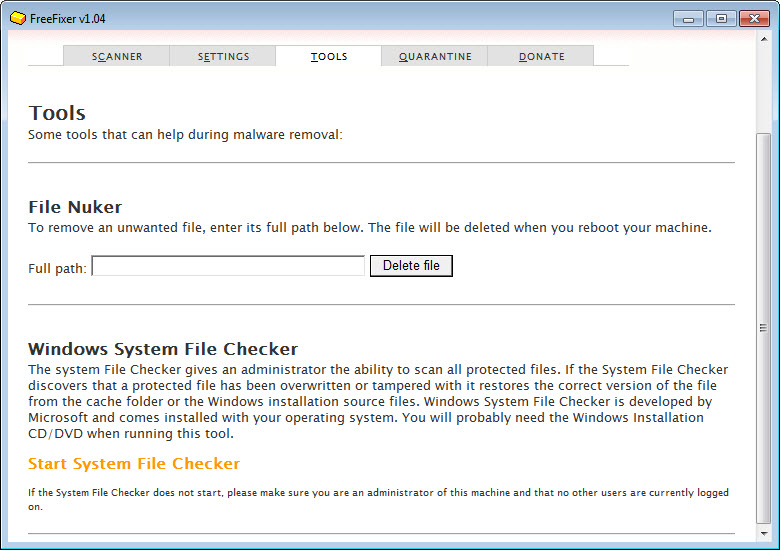
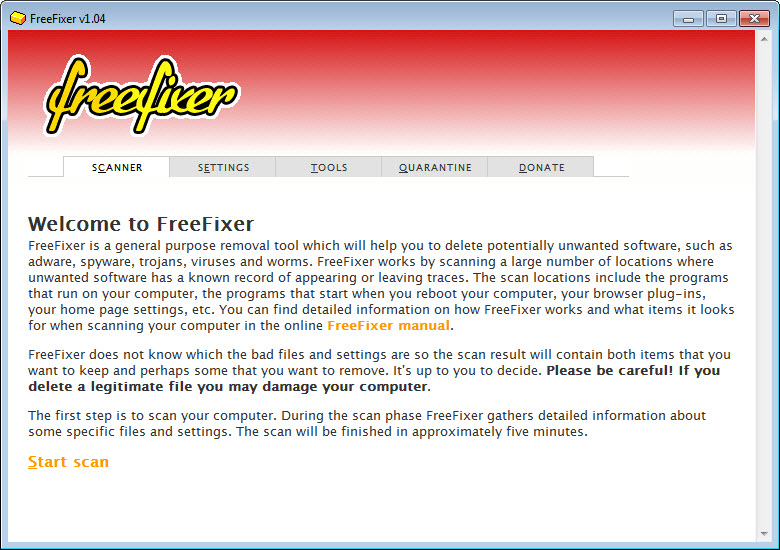
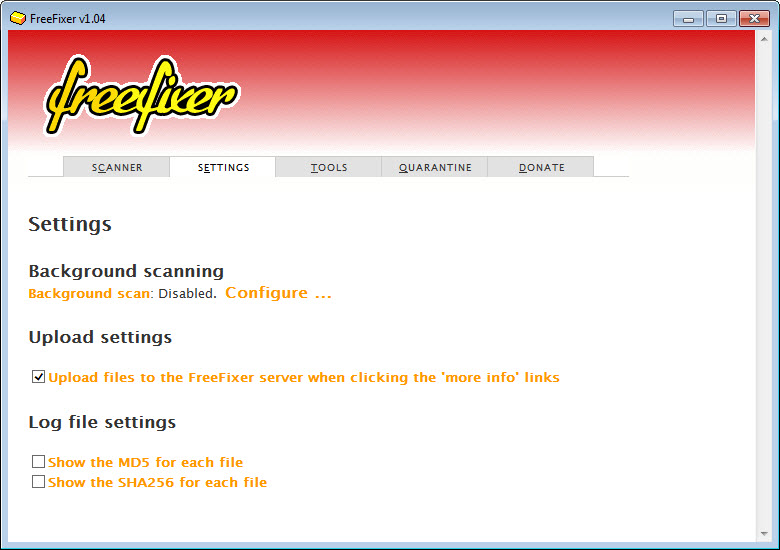
FreeFixer is a powerful system inspection and cleanup tool designed to help users identify and remove unwanted software, malware remnants, browser hijackers, and suspicious components that other security tools might miss. Rather than acting as a traditional antivirus that automatically deletes threats, this utility takes a different approach by presenting detailed information about what is running on your computer and letting you make informed decisions about what to keep or remove.
For users dealing with persistent infections, mysterious browser changes, or general system instability that resists standard cleanup approaches, this tool provides the deep visibility and manual control needed to track down and eliminate problems that automated solutions sometimes leave behind.
Comprehensive system scanning
The defining feature of FreeFixer is its thorough scanning approach, which examines dozens of different areas where unwanted software typically hides on a computer.
Browser extensions, startup programs, scheduled tasks, services, drivers, browser helper objects, hosts file entries, and many other locations are all inspected during a single scan. The result is a comprehensive picture of what is actually running and configured on your system, far beyond what most users would ever discover through manual investigation.
This breadth of coverage matters enormously when dealing with sophisticated unwanted software, since modern threats often plant themselves in multiple locations to make removal harder. Catching them all requires looking everywhere they might hide.
User-driven removal decisions
Unlike automated security tools that decide for you what to remove, this software puts you in control by presenting findings clearly and waiting for your explicit choices.
Each item discovered during a scan can be marked for removal, left alone, or investigated further before any action is taken. This approach is particularly valuable for advanced users and technicians who want to verify what is happening on a system rather than trusting automated decisions that occasionally remove legitimate software or leave actual threats untouched.
The trade-off is that you need some knowledge to make good decisions, but the tool provides enough context to support informed choices rather than leaving you guessing.
Detailed information for each finding
For every item discovered during a scan, FreeFixer displays detailed information including file paths, digital signatures, file size, creation dates, and any community feedback available about the file.
Direct links to online resources let you research specific findings further when something looks suspicious or unfamiliar. This research-friendly approach helps users build understanding while making cleanup decisions, which is genuinely educational for anyone interested in learning more about what runs on their computer and why.
Browser hijacker removal
A particular strength of this tool is its effectiveness against browser hijackers, the persistent unwanted software that changes search engines, redirects new tabs, or installs unwanted toolbars without clear permission.
These programs are often deliberately difficult to remove through normal uninstall methods, since their authors design them to resist cleanup. By scanning all the locations where browser hijackers typically embed themselves and giving users granular control over what to remove, this software succeeds where simpler approaches fail. Recovering a hijacked browser becomes a tractable problem rather than a frustrating ordeal.
Hosts file inspection
Modifications to the hosts file are a common technique used by malware to redirect traffic, block security software updates, or interfere with legitimate websites.
This software inspects the hosts file thoroughly and flags suspicious entries that might indicate compromise. Users can review the entries individually and remove only the unwanted ones while preserving any legitimate customizations they have made themselves, which avoids the all-or-nothing approach that some cleanup tools take with this critical system file.
Process and service analysis
Running processes and Windows services receive detailed attention during scans, with this tool identifying both well-known legitimate components and suspicious or unfamiliar ones.
The information provided helps users distinguish between essential system processes that should never be touched and questionable programs that deserve investigation or removal. For users who have ever wondered what some unfamiliar process is doing on their computer, this depth of analysis turns mysterious activity into something understandable and manageable.
Free and lightweight design
This software is genuinely free to use without artificial limitations, ads, or upsells that plague many cleanup utilities.
The installation footprint is small, and the application uses minimal system resources during operation. You can run scans when needed and close the application afterward without any background processes lingering or constant nagging to upgrade to a paid version, which is a refreshing approach in a category that often relies on aggressive monetization tactics.
Online community and support
Beyond the application itself, FreeFixer maintains a community where users can share scan results, ask for help interpreting findings, and learn from others dealing with similar issues.
This collaborative element adds significant value for users tackling unfamiliar problems, since experienced community members and the developer himself often weigh in on tricky cases. For anyone frustrated by impenetrable security software that offers no real explanation of what it is doing, this transparency and community support feel genuinely refreshing.
Conclusion
FreeFixer stands out as a genuinely useful tool for users who want to take an active role in cleaning up their computer rather than relying entirely on automated solutions.
Its comprehensive scanning, detailed reporting, and user-driven removal philosophy make it particularly valuable for tackling persistent browser hijackers, leftover malware components, and the kind of stubborn unwanted software that often defeats simpler approaches. For technically inclined users, IT professionals helping friends and family, and anyone willing to invest a little time learning to interpret scan results, FreeFixer offers a level of control and visibility that most cleanup utilities simply do not provide.
Pros & Cons
- Comprehensive scanning covers many locations where unwanted software typically hides
- User-driven removal decisions give advanced users full control over cleanup actions
- Detailed information about each finding supports informed decision-making
- Particularly effective against browser hijackers and persistent unwanted software
- Hosts file inspection identifies malicious modifications without disrupting legitimate entries
- Free to use with no artificial limitations or aggressive upsell tactics
- Active community provides help interpreting scan results and tackling difficult cases
- Requires some technical knowledge to interpret findings and make good removal decisions
- Not a replacement for traditional antivirus protection against active threats
- Manual approach can feel slow compared to automated cleanup tools
- Interface design feels dated compared to more polished modern utilities
- Removing legitimate software by mistake is possible without careful evaluation
Frequently asked questions
This tool is particularly useful for cleaning up browser hijackers, removing leftover components from malware infections, identifying unwanted programs that resist normal uninstallation, and inspecting suspicious system modifications. It excels at problems where automated tools have already failed or missed important details.
This tool requires some technical understanding to use safely, since removing the wrong items could affect legitimate programs or system stability. Users without much technical background should research findings before removing them or seek help from the community when uncertain about what they are seeing.
No, this software is not designed as antivirus protection against active threats. It complements traditional security tools by providing deeper inspection and manual cleanup capabilities, but you should still maintain a proper antivirus solution for ongoing protection against new threats.
Yes, this tool is particularly effective against persistent browser hijackers thanks to its thorough scanning of all locations where such software typically hides. By giving users control over what to remove, it can succeed where automated tools fail or only partially clean infected browsers.
No, scanning is a read-only process that gathers information without changing anything on your system. Removal actions only happen after you explicitly select items and confirm the cleanup, so simply running a scan poses no risk to your computer.
This software provides file paths, digital signatures, dates, and community feedback for each finding, along with links to additional research resources. When in doubt, the safest approach is to research individual items before removing them or post questions in the community for guidance from experienced users.
This tool inspects many locations where unwanted software hides, but extremely sophisticated rootkits that operate at the kernel level may require specialized anti-rootkit tools. For typical browser hijackers, adware, and persistent unwanted programs, the scanning approach handles most common scenarios effectively.
Removal works at the level of registry entries, services, files, and configuration items that the scan identifies. While thorough, complete cleanup of every trace of removed software is not always possible, especially when malicious programs have spread components widely across the system.
This software creates backups of removed items, allowing recovery if you discover that something legitimate was removed by mistake. This safety net makes the manual removal approach considerably less risky than it would otherwise be for users still building their evaluation skills.
For most users, this software is best used as needed when problems arise rather than as a regular maintenance tool. If your computer is behaving normally and traditional antivirus protection is in place, periodic deep scans every few months or when you notice unusual behavior should be sufficient.


