

Format Factory
About Format Factory
Format Factory is the multimedia converter that quietly became one of the most-downloaded media tools in the world by doing one thing thoroughly. It converts video, audio, image, and document files between dozens of formats without asking you to learn codec terminology or pay for a license.
The interface looks dated, the workflow follows the same drag-drop-convert pattern it always has, and the conversion engine handles enough format permutations that most users never need a second tool for routine conversion tasks.
The application has been around since 2008 and has accumulated a feature set that goes well beyond format conversion. CD and DVD ripping, audio extraction from video, video joining and trimming, basic format repair for partially corrupted files, image conversion with batch resize options, and an ISO file creator are all included in the same package.
None of these features are best-in-class on their own, but having them under one roof with no nag screens and no premium tier is what makes the tool stick around.
What conversion actually covers
The format support reads like a tour of media history. For video, the list includes MP4, AVI, WMV, MKV, FLV, MOV, VOB, MPG, 3GP, WebM, and several others, with the encoder offering H.264, H.265, MPEG-4, and various codecs depending on the chosen container. For audio, MP3, WMA, AAC, AC3, FLAC, OGG, WAV, OPUS, and AMR all work in both directions. Image conversion handles JPG, PNG, BMP, GIF, TIFF, WebP, AVIF, ICO, and HEIC. Document conversion covers PDF as both input and output along with a smattering of other formats.
The actual conversion engine is built on FFmpeg underneath the GUI, which is the same workhorse that powers most other converters in this category including HandBrake and XMedia Recode. What Format Factory adds on top is the format permutation logic, the device-specific presets (convert to iPhone, convert to PSP, convert to Xbox, with the device list reflecting whichever decade you were last paying attention), and the batch queue that lets you drop fifty files in and walk away.
The presets matter for casual users. Instead of choosing a codec, bitrate, resolution, and audio settings, you pick “MP4 for general use” or “MP3 high quality” and the application fills in sensible defaults.
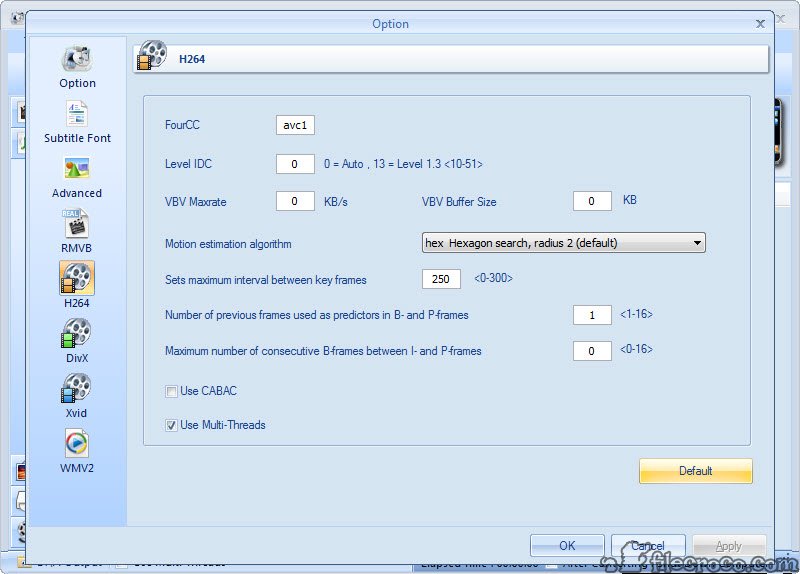
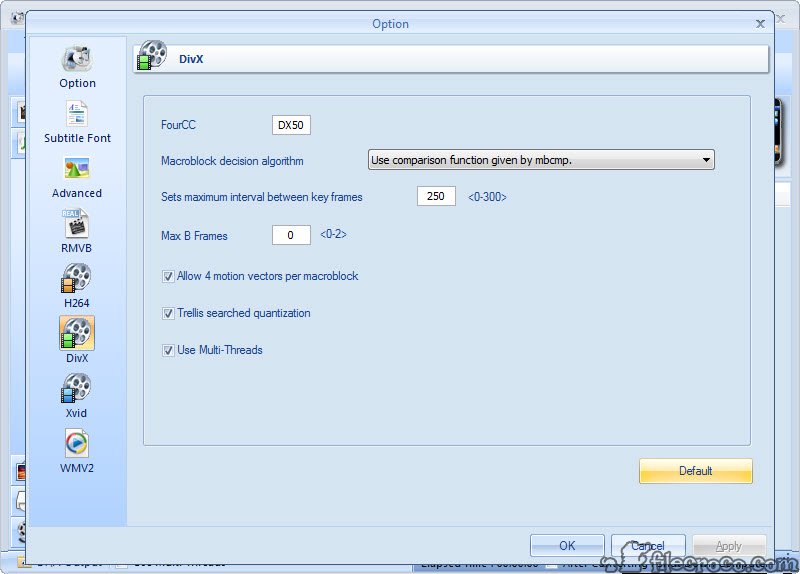
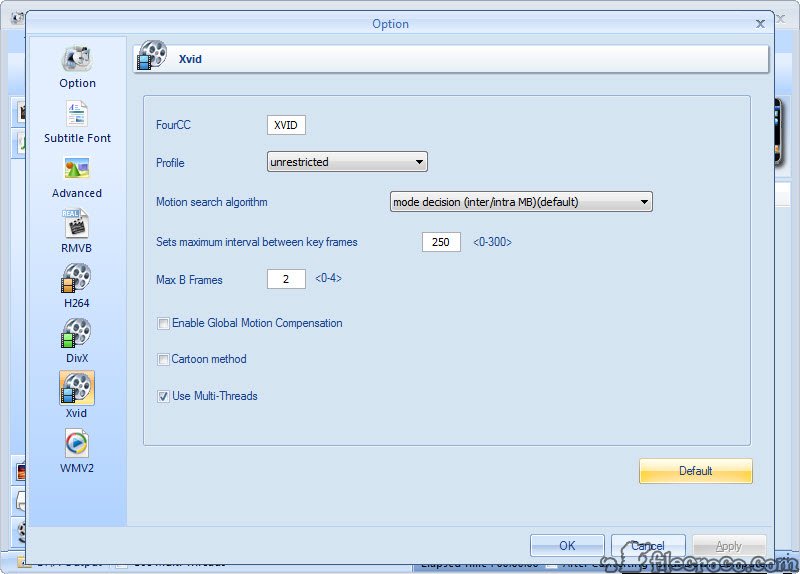
For users who do want control, an advanced settings dialog exposes bitrate, frame rate, resolution, audio sample rate, channel count, and codec selection.
The dual-track approach (simple presets for casual users, advanced settings for everyone else) is one of the design choices that has held up well.
The batch workflow that justifies the install
This is where the application earns its place against more specialized tools. Drag a folder of mixed media files into the main window, pick the output format you want, and the queue handles the rest. Each file converts in sequence with progress shown for both the current file and the overall batch. You can pause, resume, or cancel at any point, and the queue can be saved and reloaded across sessions for very long conversion jobs.
For converting an entire music collection from FLAC to MP3 for a portable device, or for normalizing dozens of video files from various sources into a consistent MP4 format for a video player, this batch workflow is genuinely useful. Setting up the same operation in a more specialized tool like Any Video Converter or HandBrake often takes longer just because of the per-file configuration those tools encourage.
The downside of the batch approach is that everything in a single batch gets the same conversion settings. If you want different files converted with different parameters, that’s a separate batch for each settings group. For most users this isn’t a meaningful limitation since the batch is usually about applying one consistent operation to many files.
CD and DVD ripping plus optical media work
The optical disc tools are something most modern users don’t think they need until they have an old CD or DVD they want to digitize. Format Factory handles audio CD ripping with track detection, DVD ripping with chapter selection, and ISO image creation from physical discs or folders.
The DVD ripping is the most useful piece for users digitizing old movie collections, home videos burned to disc, or commercial DVDs (where the legal situation depends on your local copyright law and the specific disc).
The output goes directly into the conversion pipeline, so you can rip a DVD straight to MP4 in a single workflow rather than ripping to VOB files and then converting those separately.
For users specifically focused on optical media work, CDex handles CD ripping with more audio-specific options, and AVStoDVD goes the other direction by burning media files to DVD with menus. Format Factory sits in between as a generalist that does most of these tasks adequately without specializing in any one.
File trimming and joining
The trim and join features are basic but functional. Open a video file, set in and out points on a timeline scrubber, and save out just the selected portion. The trim is frame-accurate at the timeline level but actually cuts at keyframes during encoding, so the precise start and end may shift slightly. For trimming the dead air off the beginning of a recording or cutting out a specific section of a longer video, the accuracy is good enough.
Joining multiple files of the same format into a single output works similarly. Drag the files in the desired order, set the output format, and the tool concatenates them during the conversion step. Different source formats can be joined too, in which case all of them get re-encoded to match the target format before being stitched together.
This is slower (since it requires full re-encoding) but it handles the common case of having a mix of source files that need to become one continuous output.
For users who want real video editing rather than basic trim and join, AviDemux handles cuts without re-encoding when source and output formats match, and DaVinci Resolve is the free professional editor for serious work. Format Factory isn’t trying to compete with either, but for quick editing during a conversion job it covers what most users need.
The basic repair function
One feature that doesn’t get enough attention is the format repair tool. For video files that won’t play because of damaged headers, incomplete downloads that left a partial file, or files with broken indexes, Format Factory has a Recover Damaged Video function that attempts to rebuild the file structure and produce a playable output.
The success rate depends on what’s actually wrong with the file. Truly corrupted media data can’t be reconstructed because the information just isn’t there. Files with intact data but broken metadata (which is more common than people realize) often come back to life completely.
For users who have a hard drive full of files that “should work but don’t,” running them through the repair function is worth trying before giving up on them.
The Chinese origin question and what it actually means
This needs to be addressed because it comes up in user discussions about the application. Format Factory originated in China and has been distributed primarily by a Chinese developer for its entire history. Earlier versions of the installer had a reputation for bundled adware that aggressively tried to install browser toolbars, change default search engines, and add other unwanted software during the installation process.
The current installers are much cleaner than the historical worst cases, but caution during installation is still advisable. Read each dialog carefully, decline anything that looks like an offer to install additional software, and stick to the custom install path if the option is offered. The application itself, once installed, is what the user expects. The installer experience is where vigilance pays off.
Network activity and telemetry are minimal compared to the early days but exist for update checks and basic usage data. For users who want a fully telemetry-free conversion tool, HandBrake is the open-source option with verified clean behavior.
Interface and design honestly assessed
The interface has been refreshed periodically but it’s still solidly in the late-2000s visual school. Bright color accents, chunky buttons, a left-side category panel that organizes operations by media type, and a central work area for the current job. The look isn’t ugly so much as dated, with that specific aesthetic of Chinese consumer software from the era when Format Factory first became popular.
Functionally the interface is dense but learnable. Most operations live in the right places, the conversion preset dialog is reasonably well-organized, and the queue view shows what you need to see while jobs are running. None of this is going to win design awards, but for the kind of utility you launch when you need to convert a file, the interface stays out of the way once you know where things are.
Dark mode arrived in recent updates and the high-DPI rendering has improved over the years. Multi-monitor support is fine. The application doesn’t try to be more than it is, which is part of why it has retained its audience.
Conclusion
Format Factory is the right install for users who want one application that handles most file conversion needs without learning multiple specialized tools. The breadth of supported formats, the batch workflow, the inclusion of optical disc tools, and the basic editing and repair features cover most of what casual users need from media conversion software. The application has been refined over fifteen-plus years to a state where it does its core job reliably and the rough edges are mostly cosmetic.
For users with specific high-end needs (professional video encoding with fine codec control, audio mastering, frame-accurate editing), more specialized tools like HandBrake or MediaCoder offer the depth this generalist doesn’t. For users who want a clean open-source conversion tool with verified privacy behavior, HandBrake again is the better choice.
For everyone in the middle (which is most people), the convenience of having video, audio, image, and document conversion plus CD and DVD handling in a single application is what makes this one a default install on a lot of Windows machines.
Features & benefits
Pros & Cons
- Handles a huge range of video, audio, image, and document formats in one tool
- Batch processing queue makes large conversion jobs efficient
- Device-specific presets save time for casual users who don't want to learn codec details
- CD, DVD, and ISO functionality covers optical media in the same workflow
- Video trim, join, and damaged file repair add useful adjacent features
- Free with no premium tier or feature gating
- Active development with regular updates and current Windows compatibility
- Performance is good thanks to FFmpeg under the hood
- Historical reputation for adware-bundled installers still warrants caution during install
- Interface design is dated and won't appeal to users expecting modern aesthetics
- Single conversion settings per batch limits flexibility for mixed-purpose jobs
- Trim accuracy is keyframe-bound rather than frame-precise
- Not as configurable as specialized tools for users who want fine-grained encoding control
- Telemetry exists for update checks, which some privacy-focused users will want to know
Frequently asked questions
The application handles video, audio, image, and document conversion across dozens of formats. Video options include MP4, AVI, WMV, MKV, MOV, and many others. Audio covers MP3, FLAC, AAC, OGG, WAV, and similar formats. Image conversion includes JPG, PNG, WebP, HEIC, and others. PDF conversion is also included.
HandBrake is video-specific and open source, with detailed encoding controls and verified clean behavior. The Format Factory application is a generalist that converts video, audio, images, and documents in one package, with simpler presets but less granular control over encoding parameters.
Yes. The application includes DVD ripping with chapter selection and direct conversion to common video formats like MP4. Audio CD ripping is also supported. The legal status of ripping commercial DVDs varies by jurisdiction and the specific disc protection involved.
Basic editing only. Trim (cut sections from the beginning or end), join (combine multiple files), and crop are available. There's no real timeline editor or effects processing. For real video editing, dedicated editors are the appropriate choice.
The Recover Damaged Video tool attempts to rebuild files with broken headers, incomplete data, or corrupted indexes. Success depends on what's actually wrong with the file. Files with intact media data but broken metadata often come back to life, while files with truly corrupted media data can't be reconstructed.
Earlier versions had aggressive adware bundling. Current installers are cleaner but still warrant attention during installation. Read each dialog, decline anything that offers additional software, and use the custom install path when available.
Yes. The image conversion module handles HEIC files both as input (for converting iPhone photos to JPG or other formats) and as output where the destination format supports it.
Each batch uses one set of conversion settings. To apply different settings to different files, run multiple batches sequentially. The queue can be saved and reloaded for very large or complex conversion jobs.


