

FileZilla

 (3 votes, average: 4.67 out of 5)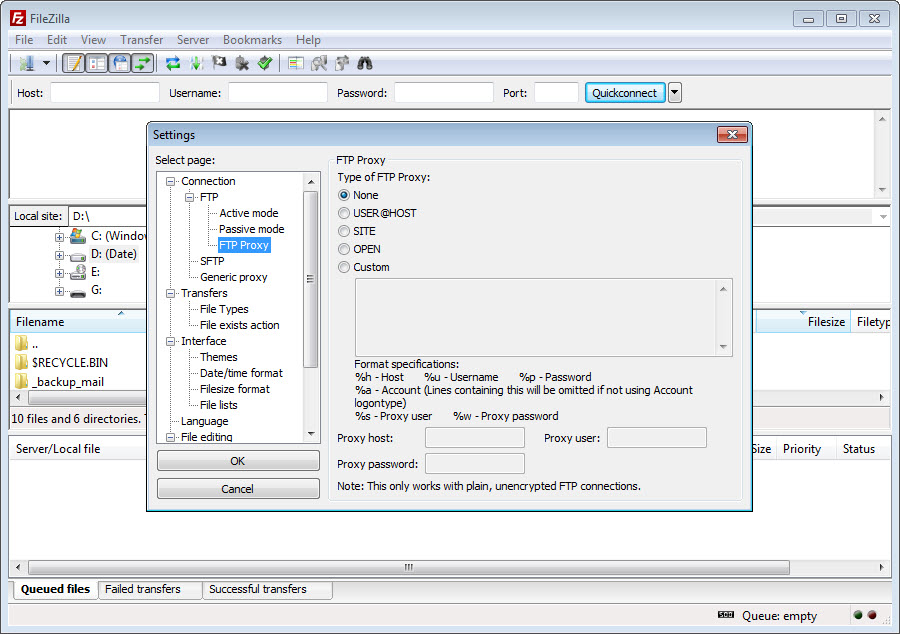
About FileZilla
FileZilla is the file transfer tool that built much of the modern web. For two decades, web developers, server administrators, and anyone moving files between local machines and remote servers have reached for this software as their default FTP client. The application supports FTP, FTPS (FTP over SSL/TLS), and SFTP (SSH File Transfer Protocol) through a dual-pane interface that shows your local files on one side and remote server files on the other, with drag-and-drop transfer between them.
The underlying capability is straightforward enough, but the implementation has accumulated features across the years that handle essentially every practical file transfer scenario you’d encounter in real work.
Beyond the core client, the project also includes FileZilla Server, a separate application that turns your computer into an FTP, FTPS, or SFTP server that other users can connect to. The two products work together for users running both ends of a file transfer relationship, and independently for users who just need one or the other.
The client supports IPv6, proxies including HTTP/1.1, SOCKS5, and FTP proxies, simultaneous transfers, transfer queue management, the Site Manager for storing connection credentials, synchronized directory browsing, and various other capabilities developed across years of maintenance.
The dual-pane interface and drag-and-drop transfer
The main interface is built around two file panels showing your local file system on the left and the remote server’s file system on the right. Both panels support standard file manager operations including navigating directories, creating folders, renaming files, viewing file properties, and selecting multiple items.
The transfer happens through drag-and-drop in either direction, with files moving from local to remote when you drag right and from remote to local when you drag left.
The simplicity of this model is part of what made the application dominant. New users figure out the basic transfer workflow within minutes of opening it because the interface mirrors how they already think about files. Advanced users get the full capability set without the visual approach getting in the way of complex operations. The dual-pane layout has been the standard for FTP clients for decades, with most competitors copying the same fundamental design.
A third panel below the file panels shows the transfer queue, listing every pending and active transfer with progress indicators, transfer speeds, and estimated completion times. For users moving large numbers of files, this transfer queue view tells you at a glance how long the operation will take and which specific files are currently in flight.
Failed transfers stay in the queue for retry, and you can pause or cancel individual transfers without affecting others.
Site Manager and connection profiles
The Site Manager handles the practical reality that most users connect to the same servers repeatedly rather than typing connection details each time. Add a server to the Site Manager once with hostname, port, protocol, username, and password, and that server becomes available through a dropdown menu for one-click reconnection. Folders inside the Site Manager organize servers by client, project, or whatever categorization makes sense for your workflow.
The credential storage handles passwords through several modes, including saving them in plain text (convenient but insecure), prompting for password each time (most secure but inconvenient), or using a master password that encrypts your stored credentials.
The master password mode added in recent versions addresses the long-standing criticism that the application stored FTP passwords in plain text, which exposed credentials to anyone with file system access to your computer.
For SSH keys with SFTP connections, the Site Manager supports key-based authentication alongside passwords. Configure your private key once in the application settings, then SSH-keyed servers connect automatically without password prompts.
For users working across many servers using key-based authentication, this support handles the practical need without requiring external SSH client configuration.
Resume support and large file transfers
Transfer resume handles the common case where a connection drops or a transfer gets interrupted partway through. Rather than restarting the entire transfer from the beginning, the application can resume from where the transfer stopped, picking up at the appropriate byte position in the file. For large files over slow or unreliable connections, this capability is essential rather than convenient.
The implementation works with FTP servers that support the REST command (most modern servers do), with SFTP, and with FTPS connections. Some older or specialty FTP servers don’t support resumption, in which case the application falls back to restarting the transfer if it gets interrupted.
The behavior is configurable, with options for what to do when resumption fails or when the local and remote files have different sizes than expected.
For files larger than 4 GB, the application handles the transfer correctly across all supported protocols. Some older FTP clients had problems with very large files due to 32-bit integer limitations in their internal file handling, but this software handles arbitrary file sizes including the multi-gigabyte transfers common in modern usage.
FTP, FTPS, and SFTP protocol support
The protocol differences matter for security. Plain FTP transmits credentials and data in cleartext, which means anyone monitoring the network connection between you and the server can capture your password and see your file contents. For modern usage, plain FTP is appropriate only on trusted local networks where the lack of encryption isn’t a meaningful risk.
FTPS adds SSL/TLS encryption to the FTP protocol, encrypting both the control channel (commands and authentication) and the data channel (file contents). The protocol supports both implicit FTPS (encrypted from the start of the connection) and explicit FTPS (starts unencrypted and upgrades to encrypted through a STARTTLS-style command).
Most modern FTPS servers use explicit mode, with the application handling both modes through the protocol selection in the Site Manager.
SFTP is fundamentally different despite the similar name. While FTPS is FTP with encryption added, SFTP is the SSH File Transfer Protocol, a completely different protocol that runs over SSH. SFTP uses a single encrypted channel for everything, supports SSH key authentication, and integrates with the broader SSH infrastructure on Unix-style servers.
For users connecting to Linux web servers, SFTP is typically the preferred protocol both for security and for compatibility with how those servers are configured.
Synchronized directory browsing
Synchronized browsing is a workflow feature that helps when you’re working on local and remote copies of the same project. Enable it, and navigating to a folder on one side automatically navigates to the corresponding folder on the other side. Move into the wp-content folder locally, the remote pane jumps to its wp-content folder. Navigate up two levels, both panes go up two levels.
For users maintaining mirror copies of websites or working on projects that exist in both local development and remote production environments, this synchronization eliminates the small but constant friction of manually keeping the two views aligned. The cumulative time savings across hundreds of small navigation operations adds up substantially.
The directory comparison feature complements synchronized browsing by highlighting files that differ between local and remote copies. Files that exist locally but not remotely show up in one color, files that exist remotely but not locally in another, and files with different sizes or modification times in a third. For identifying which files need to be uploaded or downloaded after working offline, this visual difference view answers the question immediately.
Bookmarks and the speed limit configuration
Bookmarks within a server connection let you save specific paths as quick-access destinations. If you frequently work in /var/www/html on a particular server, bookmark that location and you can jump there with a single click from any other location on the same server. The bookmark works alongside the Site Manager rather than replacing it, with site-level connection details and bookmark-level path navigation handled separately.
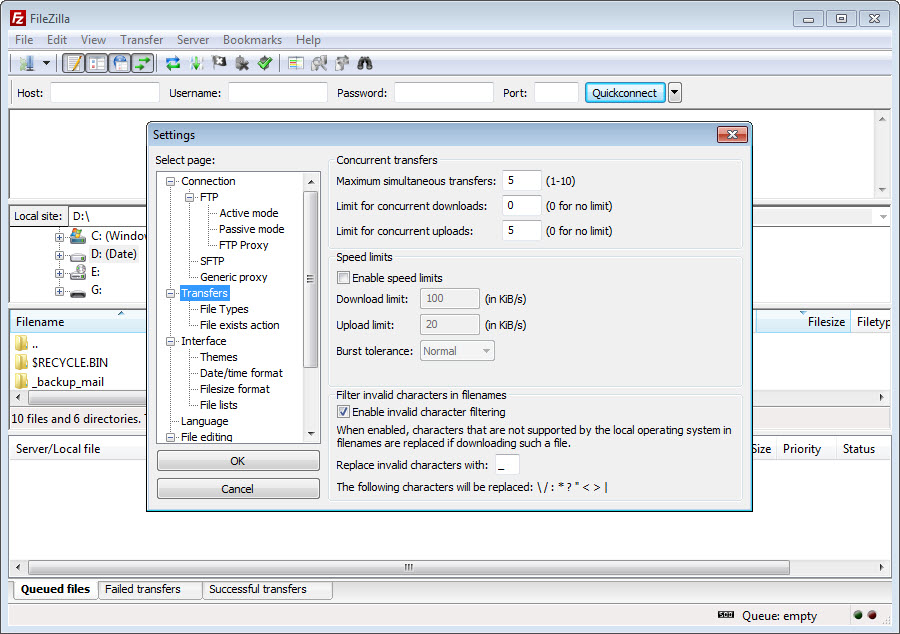
Speed limit configuration matters when transfers would otherwise saturate your connection and disrupt other internet activity. Setting an upload limit of 500 KB/s on a 10 Mbps connection means uploads use less than half your available bandwidth, leaving room for browsing, video calls, and other concurrent activities.
The limits are configurable per-direction (separate upload and download caps) and apply globally across all transfers regardless of which server you’re connected to.
For users on metered or shared connections, these speed limits prevent file transfers from monopolizing bandwidth that other users or applications need.
The configurable limits also help with very large transfers that would otherwise take longer than your computer is awake, letting you cap the transfer at a sustainable rate that runs in the background without disrupting other work.
File filtering and the search function
The filename filter system controls which files appear in the file panels based on patterns you configure. Hide all .DS_Store files (the metadata files macOS scatters everywhere), filter out specific file extensions, show only files matching certain patterns, or apply more complex multi-condition filters. For working with directories that contain hundreds or thousands of files where only certain ones matter, filters cut through the noise.
The search function works on the remote server, listing files matching your search criteria across the directory tree without requiring you to navigate manually through every folder.
Search by filename pattern, by date range, by size, or by combinations of these criteria. For finding specific files when you’re not sure exactly where they live on the server, the search saves substantial time compared to manual navigation.
The combination of filters and search produces practical workflows for typical maintenance tasks. Finding all .log files modified in the last week becomes a single search rather than a manual hunt through dozens of directories.
Identifying which images larger than 1 MB are scattered across a website becomes a search query rather than per-folder inspection.
FileZilla Server for hosting your own FTP
The server product is a separate application that turns your computer into an FTP, FTPS, or SFTP server. Other users (or you, from other computers) can then connect to your machine and exchange files. The server is free under GPL like the client, with similar feature depth covering user accounts, group permissions, IP filtering, transfer logging, and various other administrative capabilities.
For users who want to share files among a team without using cloud services, hosting an internal FTP server fills the use case. Configure user accounts for each team member with appropriate permissions, point the server at the directories you want to share, and team members access the files through any FTP client (this software’s client or otherwise). For environments where cloud services aren’t appropriate due to security or compliance requirements, self-hosted FTP remains a practical alternative.
The server supports both passive and active FTP modes, automatic external IP detection for users behind NAT routers, configurable port ranges for passive mode, and various other networking configurations needed for FTP servers to work reliably across different network environments. For administrators setting up servers for the first time, the configuration is more involved than the client but follows standard FTP server conventions.
FileZilla Pro and cloud storage support
The paid Pro version adds support for cloud storage protocols beyond traditional FTP. Amazon S3, Microsoft Azure Blob Storage, Google Cloud Storage, Backblaze B2, Google Drive, OneDrive, Dropbox, Box, OpenStack Swift, and various WebDAV-based cloud services all work through the same dual-pane interface that handles FTP.
For users whose file transfer needs span both traditional servers and modern cloud storage, the Pro version consolidates these into a single application.
The implementation handles cloud-specific features where appropriate. S3 multipart upload for large files works correctly. Google Drive folder structure and file metadata import properly. The various authentication mechanisms each cloud service uses (OAuth tokens, access keys, service account credentials) integrate through the application’s credential storage.
For users whose workflows are entirely cloud-based without traditional FTP servers, dedicated cloud-specific tools may produce better experiences than this software’s general-purpose approach.
For users working with both FTP and cloud, the unified interface eliminates the friction of switching between specialized applications based on which protocol the destination uses.
Considerations and limitations
The default installer historically bundled additional offers that some users objected to, with download sources distinguishing between the recommended installer (with bundled offers) and stripped-down versions without them. The bundled offers were declinable during installation but caused enough community concern that alternative download paths emerged. Newer versions have moved away from aggressive bundling, but the historical concerns persist in some discussions.
The interface design reflects priorities from years ago, with visual polish that doesn’t match what current commercial software offers. The dual-pane layout still works well, but specific elements like the toolbar icons and menu organization show their age compared to recent competitors.
For users coming from polished modern applications, the interface feels dated. For users focused on capability rather than aesthetics, the dated interface stays out of the way of getting work done.
Plain FTP support is fine for compatibility with legacy servers that don’t support encrypted protocols, but using plain FTP in 2026 creates real security risks. Credentials and file contents traveling over the open internet without encryption can be captured by anyone monitoring the network path. Users connecting over plain FTP should understand that the protocol provides no security and use it only on trusted local networks where eavesdropping isn’t a realistic concern.
The free version’s lack of cloud storage support pushes users with cloud-heavy workflows toward Pro or alternative tools. For users whose file transfer needs are entirely cloud-based, the free version may not be appropriate, with WinSCP, Cyberduck, or dedicated cloud storage clients potentially fitting their needs better.
Some advanced features in dedicated FTP clients aren’t present here. WinSCP offers more sophisticated scripting and automation capabilities.
Specialized SFTP clients sometimes provide better integration with SSH key management. For most general-purpose file transfer work, the absence of these advanced features doesn’t matter, but power users with specific advanced needs sometimes find alternatives that fit their workflows better.
Conclusion
For file transfer over FTP, FTPS, and SFTP, FileZilla has been the default choice for so long that it’s essentially synonymous with the category for many users. The combination of free GPL licensing, active development across two decades, broad cross-platform support, capable feature set, and an interface that hasn’t changed dramatically across that time produces a tool you can rely on without ongoing concern about whether it’ll still be around next year.
The reasons to consider alternatives are mostly about specific advanced needs the application doesn’t try to address. Users wanting cloud storage support without paying for Pro find dedicated cloud tools fitting better.
Users wanting sophisticated scripting and automation often prefer WinSCP. Users with cloud-only workflows benefit from cloud-specific applications optimized for those use cases.
But for the general-purpose FTP file transfer that motivated installing the application originally, this software remains one of the strongest options available, with a track record that few free utilities can match.
Pros & Cons
- Free under GPL license with active development across two decades
- Supports FTP, FTPS, and SFTP through a unified interface
- Dual-pane layout with drag-and-drop transfer is intuitive for new users
- Site Manager organizes connection credentials with optional master password protection
- Resume support handles interrupted transfers without restarting from scratch
- Synchronized directory browsing keeps local and remote views aligned
- Speed limit configuration prevents transfers from saturating your connection
- Filename filters and search function handle directories with many files
- Server product available for users hosting their own FTP servers
- Pro version adds cloud storage support for users needing both FTP and cloud
- Default installer historically bundled additional offers some users objected to
- Interface design feels dated compared to current commercial software
- Plain FTP support creates security risks if used over untrusted networks
- Free version lacks cloud storage protocol support
- Some advanced features available only in specialized alternatives like WinSCP
- Server configuration is more involved than client usage for first-time administrators
Frequently asked questions
This software is a free open-source file transfer client supporting FTP, FTPS, and SFTP protocols through a dual-pane interface that shows local files on one side and remote server files on the other. It includes the Site Manager for storing connection credentials, transfer resume for interrupted transfers, synchronized directory browsing, file filters and search, configurable speed limits, and various other capabilities developed across two decades of active maintenance.
The application handles file transfer between local computers and remote servers over FTP, FTPS, or SFTP protocols. Common use cases include uploading website files to web hosting servers, downloading backups from remote servers, transferring large files between computers without using cloud services, managing files on Linux servers via SFTP, and synchronizing local development environments with remote production servers. Web developers and system administrators are the primary user populations.
Open the application and connect to a server using either the Quickconnect bar at the top (for one-time connections) or the Site Manager (for saved connections). Once connected, the local files appear in the left panel and remote server files in the right panel. Drag files between panels to transfer them. The transfer queue at the bottom shows progress for active and pending transfers. Disconnect when done through the menu or by closing the application.
The client connects to remote servers as a user transferring files to or from them. The server hosts an FTP, FTPS, or SFTP service that other users can connect to. Most users only need the client. Users who want to share files from their own computer to others over FTP need the server, which is a separate application from the same project. Both are free under GPL license with similar feature depth in their respective areas.
Install the server application, run the configuration interface, and create user accounts for each person who should be able to connect. For each user, configure password (or SSH key for SFTP), home directory, and permissions for read/write/list operations. Configure the network settings including external IP detection if you're behind a NAT router, the port range for passive mode FTP, and the protocols you want to support. The server then runs as a service or as a regular application, accepting connections from configured users.
The most common cause is server-side limits. FTP servers often impose maximum file size limits, total bandwidth limits per session, or timeout periods that affect very large transfers. If transfers fail after a specific size or duration, check the server configuration or contact the server administrator about applicable limits. Network instability during transfer can also cause failures, with the resume feature helping recover from connection drops without restarting from scratch.
Both applications handle similar file transfer use cases with overlapping feature sets. WinSCP is more focused on SFTP and SCP with stronger scripting and automation capabilities, including a command-line interface that integrates well with batch processing scenarios. FileZilla has broader cross-platform support and more polished general-purpose FTP capabilities. For users primarily working with SFTP or wanting scripting capabilities, WinSCP often fits better. For users wanting general FTP/FTPS/SFTP support across operating systems, this application covers the use case more uniformly.
The free version supports FTP, FTPS, and SFTP only. The paid Pro version adds support for Amazon S3, Microsoft Azure, Google Cloud Storage, Backblaze B2, Google Drive, OneDrive, Dropbox, Box, OpenStack Swift, and various WebDAV-based cloud services. For users whose file transfer needs span both traditional servers and cloud storage, Pro consolidates these into a single application. For users working only with traditional FTP servers, the free version covers the use case.
Right-click the transfer in the queue panel and select "Process Queue" to toggle the queue between processing and paused states. The active transfer pauses immediately and resumes when you reactivate the queue. Individual transfers can also be stopped through the context menu, with the option to retry them later. For temporary throttling rather than full pause, the speed limit configuration provides ongoing control without stopping transfers entirely.


