

ExtremeCopy
About ExtremeCopy
ExtremeCopy replaces the system’s file copying with an engine tuned for one thing, moving data faster and more resiliently than the built-in routine. Once installed, it can take over ordinary copy and paste entirely, so the familiar drag or shortcut triggers its window instead, with a live speed graph, adaptive buffering behind the scenes, and the two behaviors the standard copy dialog famously lacks, the ability to pause a transfer, and the good sense not to abandon an entire job because one file failed.
The speed claim deserves its calibration up front. The engine adapts its buffer strategy to the source, destination, and file mix, and the gains concentrate where the standard copy is weakest, big batches of small files, older machines, and transfers between different physical disks.
On a modern system shoveling one large file between fast SSDs, the hardware sets the pace and every copier arrives together. The resilience features, not the raw speed, are what keep a tool like this installed.
Copying that survives problems
The failure behavior is the honest headline. The standard copy meets an unreadable file, stops, and asks a question that discards everything after it. ExtremeCopy skips the troubled file, continues with the rest, and presents the list of failures at the end, which is exactly the behavior anyone rescuing files from an aging drive or a scratched disc actually wants.
Combined with pause and resume, long transfers stop being hostage to interruptions, a laptop that needs to leave, a network share that hiccups.
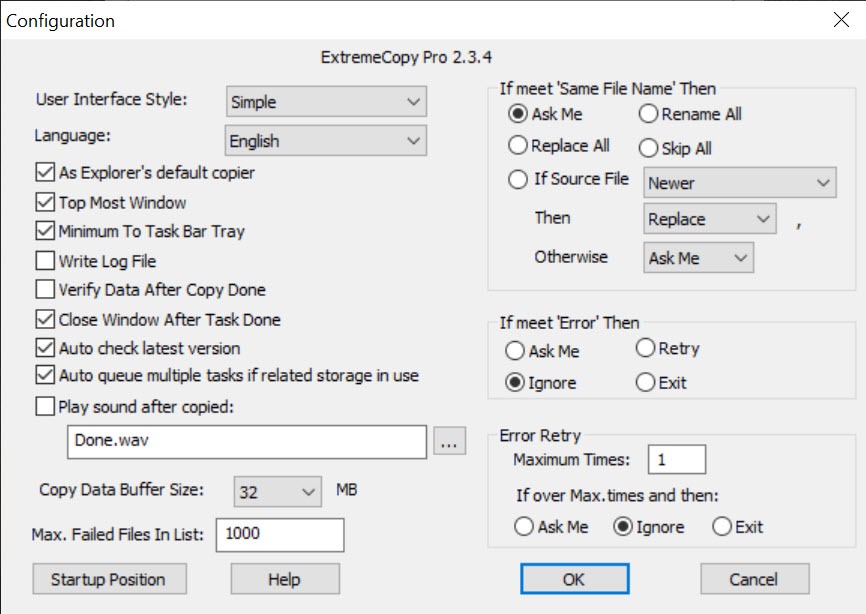
A verify option reads the copied data back against the source, and for backups and archives it converts hope into confirmation. It costs time proportional to the data, which is the fair cost of certainty, and skipping it for casual copies while enabling it for the important ones is the sensible habit.
Living inside the system, or beside it
Integration comes in degrees. The full takeover replaces copy and paste system-wide, and the tool runs every transfer without any change of habit. The lighter arrangement leaves the system copy alone and adds its own copy and paste entries to the right-click menu, used deliberately for the jobs that matter.
The second mode suits people who want the resilience for big transfers without changing the feel of everyday small ones, and switching between modes takes one settings visit.
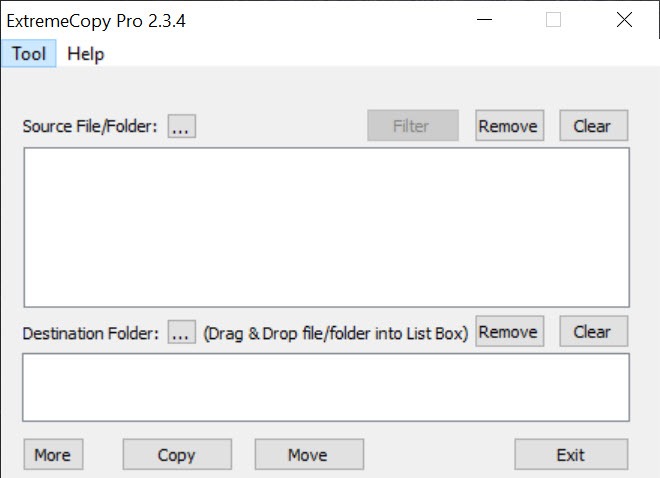
The window itself shows the transfer speed as a live graph, remaining data, and the file currently moving, plain instrumentation that makes a stalled transfer visible in seconds instead of leaving a progress bar to lie.
Where it stands among the copy specialists
The category has well-known residents. TeraCopy is the polished mainstream pick with its own verification and shell integration. FastCopy, meanwhile, is the raw-throughput specialist beloved by people who tolerate its austere interface for its numbers.
ExtremeCopy sits between them, friendlier than the second, simpler than the first, with the caveat that its development has been quiet for a long while, so what exists is what will exist.
Two neighboring jobs deserve their own tools. Keeping folders synchronized over time, rather than copying once, is the territory of FreeFileSync, which compares and reconciles instead of blindly moving.
And scripted, scheduled copying on servers belongs to the command-line veteran Robocopy, the administrator’s standby that trades all interface for automation.
The honest fit for this tool is the desktop middle, interactive transfers big enough to hurt when they fail, on machines and disks where the standard copy shows its age.
Conclusion
ExtremeCopy fits people who move large amounts of data interactively and have been burned by the standard copy’s fragility, archivists feeding backup drives, technicians migrating user folders, and anyone pulling files off hardware that has started to misbehave. The skip-and-report behavior alone repays the install the first time a transfer survives a bad file.
Users on fast modern machines with modest copying needs can stay with the system’s own routine, and synchronizers and script users have better-shaped tools. In its aging but functional middle ground, this copier still does resilient transfers well.
Pros & Cons
- Skips failed files and finishes the job, reporting failures at the end
- Pause and resume free long transfers from interruptions
- Optional verification confirms copies match their sources
- Adaptive buffering speeds up small-file batches and cross-disk moves
- Integrates as a full replacement or as on-demand right-click entries
- Development has been quiet, so the tool no longer evolves
- Speed gains shrink to nothing on fast modern hardware
- Pause, resume, and verification sit in the paid edition
- Interface looks its age throughout
Frequently asked questions
On small-file batches, older systems, and cross-disk transfers, measurably. On modern SSDs moving large files, the hardware is the limit and the gains fade, which is true of every copy tool.
The tool skips it, continues copying everything else, and lists the failures at the end, instead of halting the whole job the way the standard copy does.
Yes, disable the system integration in the settings and use the right-click entries instead, which run the tool only when you choose it for a specific transfer.
For backups, archives, and anything irreplaceable, yes, since it reads the copy back against the source. For casual transfers the extra time usually isn't worth it.


