

EOS Utility
About EOS Utility
EOS Utility is the companion program for Canon EOS cameras. It moves photos and movies from the camera to the computer and changes the camera’s settings from a larger screen. It also turns the camera into a tethered studio body that you fire from the desktop while watching a live view the size of your monitor. It is three tools behind three buttons on one small main window, and most owners know only the first.
Nothing else does quite this for these cameras. General tethering programs such as digiCamControl can trigger a Canon body and pull files, but they cannot register a Picture Style, load lens correction data into the camera or update its firmware.
EOS Utility can, because it speaks the camera’s own protocol. The trade is that it works only with Canon EOS models, and only with the ones it has been taught about.
The three buttons
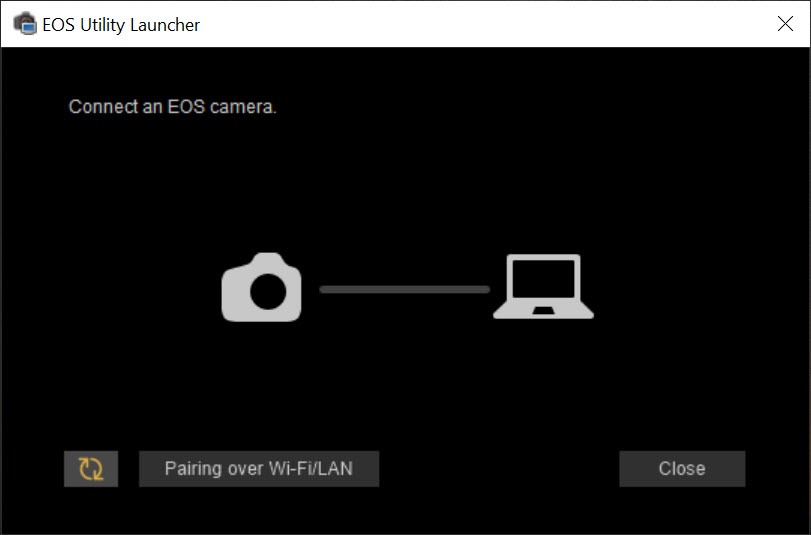
Connect a camera and switch it on, and the program opens on its own, or can be set to, with a window offering Download Images to Computer, Remote Shooting and Camera Settings. Each opens a different workspace, and each is available whether the link is a USB cable or a wireless pairing.
That auto-start is a convenience for a photographer at a desk and a nuisance for anyone who plugs the camera in to charge. It is a preference, and the first thing many people change. The main window also shows battery level and the connected model, and a Preferences dialog controls where files go and which program opens them afterwards.
Downloading with names and folders that make sense
The EOS Utility download workspace lists everything on the card, or offers to pull only the images not yet transferred, and writes them to a destination folder with a structure you define. Subfolders by shooting date are the common choice.
Files can be renamed on the way using the date, time, a sequence number and a prefix, so a card full of IMG_4471 becomes a folder of files that sort by session. Copyright and author metadata typed once in the preferences is stamped into every arriving file.
When the transfer finishes, the linked software opens on the new folder. By default that is Digital Photo Professional, the RAW converter that installs alongside, and it can be changed to anything else in the Linked Software tab.
Movie files download the same way, though over wireless a few minutes of 4K takes long enough that the cable comes back out.
Remote Live View shooting
The capture window shows the camera’s current exposure settings as clickable values. Change the aperture, shutter, ISO, white balance, drive mode, metering, Picture Style and image quality from the computer, then press the shutter button on screen or tap the space bar. Files land on the computer, on the card, or both, and a Quick Preview window shows each frame as it arrives.
Open the Remote Live View window and the sensor feed appears large. Click to place the focus point, zoom the view to 5x or 10x to check focus, and drive the lens in coarse and fine steps from on-screen arrows or hand it to autofocus. A depth of field preview button stops the lens down, and exposure simulation with a live histogram shows what the file will look like. A white balance eyedropper samples a grey card in the feed and sets the camera to match.
Lock-up of the reflex assembly works on the DSLR bodies that have one. On a wireless link the feed is slower and choppier than over a cable, which matters for moving subjects and not at all for a product on a table.
Timers, bulb exposures, bracketing
Timer shooting takes a picture after a delay. Interval timer shooting takes a set number of frames at a set interval, which is how a time-lapse of a sunset or a construction site gets shot without touching the camera. Bulb exposures are timed from the computer, so a three-minute star trail frame is a number typed into a box rather than a stopwatch and a thumb.
On bodies that support it, HDR shooting fires a bracket and focus bracketing steps the focus across a stack of frames for macro work, with the merge done afterwards in other software.
None of these are elaborate. There are no ramping curves for the interval timer and no randomisation. They cover the everyday version of each job and leave the exotic versions to dedicated controllers.
Camera settings from the big screen
The settings workspace is where EOS Utility earns its keep for people who never shoot tethered. Owner name, author and copyright text are typed here and written into the camera. The clock, including the time zone, synchronises with the computer in one click, which fixes the drift that puts a holiday two days out of order.
Picture Style files, downloaded or made in the separate Picture Style Editor, are registered into the camera’s user slots. Lens aberration correction data for lenses the camera does not know is loaded into the body so in-camera corrections work with older glass.
Firmware updates for the body and, on recent models, for the lens run from here as well. Network settings and FTP destinations on the cameras that have them can be edited on a keyboard rather than a dial. And custom white balance readings saved from the computer can be pushed back to the camera.
Each of these is possible from the camera menus. Each is quicker here.
Cable or wireless, and the trade between them
Over USB everything is fast and the setup is a cable. Over Wi-Fi the camera either creates its own network, which the computer joins and loses the internet while it does, or joins the household network, which is slower still but leaves everything else connected.
Pairing is done once from the main window and remembered. The camera has to be put into its EOS Utility connection mode from its own menu before the computer can see it, which is the step everyone forgets.
The firewall asks for permission the first time a wireless pairing is attempted. Allow it, or the camera never appears. After that the wireless link is convenient for settings and slow for pictures, and the cable is the reverse, so most people keep both.
Which cameras, which version, and the webcam question
The program comes in two generations. The current one handles bodies from the last decade or so, and an older one is kept for earlier cameras that the current version no longer lists. Both can live on one machine. A camera that is not detected is nearly always one of four things. It is not in the connection mode, or the cable is a charging lead with no data lines. It is in a scene mode that blocks remote control, or it is a model this version does not know.
One job EOS Utility does not do is act as a webcam. Live View here is for you to look at, not for other programs to use. A separate utility from the same maker turns the camera into a video source for conferencing software, and many people install this one expecting that and are disappointed.
Conclusion
EOS Utility is for every owner of a Canon EOS camera, whether they know it or not. The settings workspace alone fixes clocks, registers Picture Styles and updates firmware faster than the camera’s own menus. Studio and product photographers get a capable tethering tool on top, and time-lapse and macro shooters get timers and bracketing without extra hardware.
It will not become a webcam, it will not control anything but Canon bodies, and its wireless mode is patient work. Plug in the cable, turn off the auto-start, and it is the most useful thing that came in the camera box.
Pros & Cons
- Download with automatic renaming, dated folders and copyright metadata
- Remote Live View with focus zoom, click white balance and on-screen exposure control
- Interval timer, bulb timing and bracketing sequences from the desktop
- Registers Picture Styles and lens correction data into the camera
- Camera and lens firmware updates plus date sync
- Works over USB or Wi-Fi with one-time pairing
- Canon EOS bodies only, and older ones need the older version
- Wireless Live View is slow and choppy
- Auto-start on connection annoys anyone charging by cable
- Interval timer and bracketing are basic
- Does not function as a webcam
Frequently asked questions
Check that the camera is switched to its EOS Utility connection mode, that the cable carries data and not just power, and that the mode dial is not on a scene mode. If those are right, the body may need the older version of the program.
No. The live view is for framing and focus inside the program. A separate webcam utility from the same maker provides a video source for other applications.
Open Preferences and turn off the option to start automatically when a camera is connected. The program can then be launched by hand when needed.
Yes, on cameras with wireless. Pair once from the main window after putting the camera in its connection mode. Transfers and Live View are slower than over a cable, and the computer may lose internet access while connected to the camera's own network.
Yes. The Camera Settings workspace installs firmware for the body and, on supported models, for attached lenses, and synchronises the camera clock with the computer.


