

DVD Flick
About DVD Flick
DVD Flick turns a folder of video files into a DVD that plays in a living room player. Add the files as titles, give each its chapters and subtitles and audio tracks, pick a menu template, choose the disc size and press Create DVD.
The program encodes everything to the MPEG-2 the format requires, builds the VIDEO_TS folder structure, writes an ISO image if you want one and hands the result to a burner. It reads almost any video file you can throw at it and asks almost nothing in return.
That makes it the plain option in a small field. DVDStyler builds elaborate menus with backgrounds and buttons you place yourself, and AVStoDVD offers finer control over the encode. DVD Flick offers a template, a target size and a button, and it has not changed in a very long time.
Whether that is a limitation or a relief depends on how many discs you make and how much you care about the menu.
Titles with chapters, audio tracks, subtitles
A DVD Flick title is a video on the disc, and a disc holds several. Each title takes one or more source files joined in order, so a series of clips becomes one film. Chapters can be placed at intervals you set, every ten minutes say, or by hand at a time, or one per source file, so the skip button on the remote lands where you meant. Each title carries its own audio tracks, and a second language or a commentary added as a separate audio file plays from the player’s audio button.
Subtitles come from SRT, SSA, ASS and MicroDVD files, one or more per title, with the font and size and colour set in the program. They go onto the disc as selectable tracks rather than pressed into the picture.
A thumbnail is chosen for the menu. That is the entire authoring model, and for a family film or a set of lectures it is enough.
Menus from a template
The DVD Flick Menu settings button offers a handful of templates, each a background with title buttons and, where a title has several audio tracks or subtitles, pages to pick them. Preview shows the menu working with your titles in it, and a checkbox turns the menu on for the disc.
Templates can be edited by hand if you open their files, but there is no menu editor in the program, and the templates themselves are plain to the point of dated. A disc that looks like it came from a shop is not what this program produces.
A disc that plays and lets you pick a title is.
Encoding, target size and the profiles
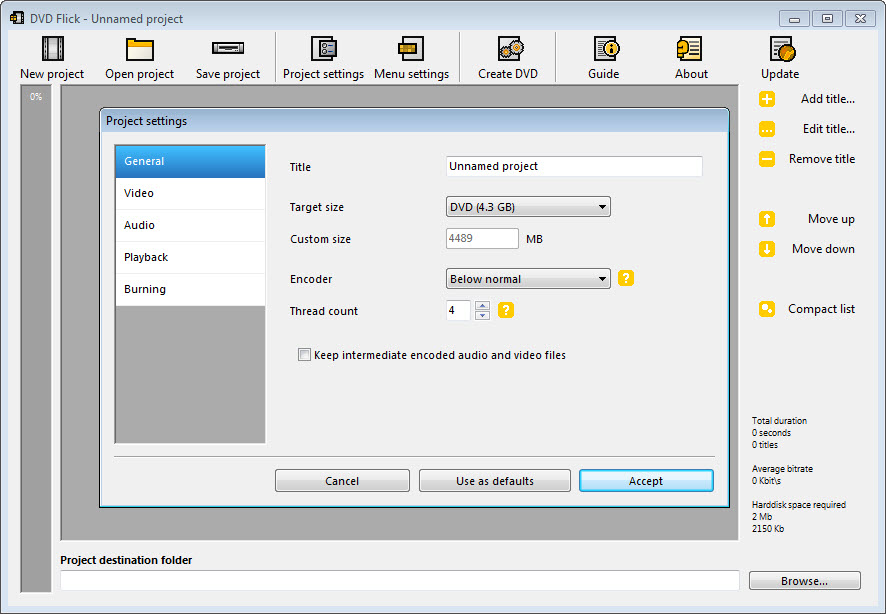
DVD Flick project settings hold the choices that decide the result. The disc size sets the target, a single-layer DVD by default, and the encoder fits the total running time into it by lowering the bitrate as needed. Long content on one disc means a soft picture, and the program says nothing about this beyond the numbers. A two-hour film is fine and six hours is a compromise.
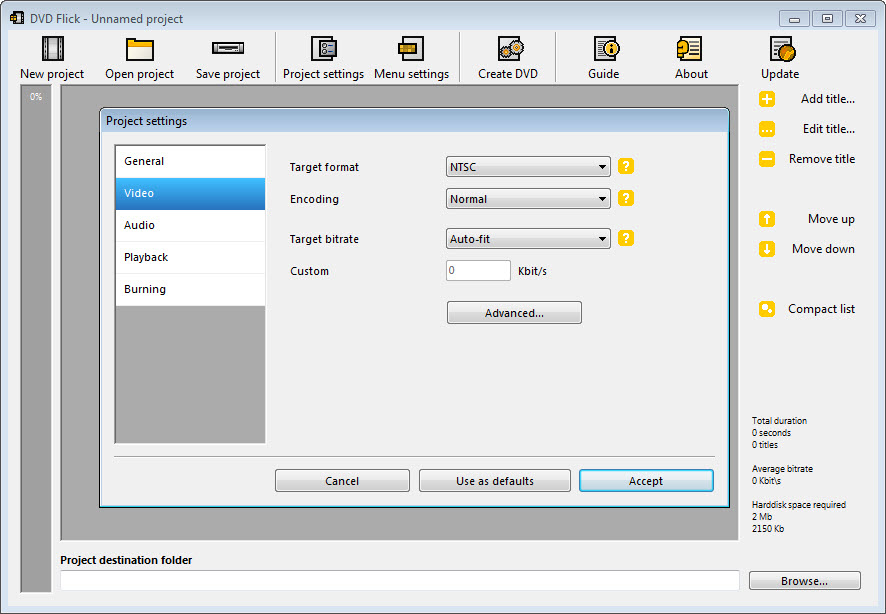
Encoding profiles trade time against quality in three steps, and the guide’s own view is that the middle setting is barely distinguishable from the best and considerably quicker.
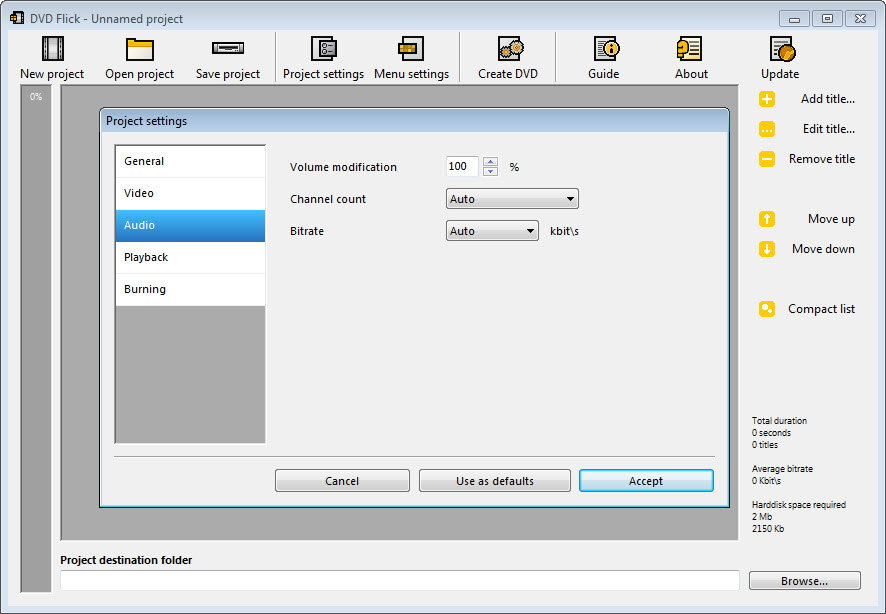
Video can be set to the two television standards and to widescreen or standard aspect, with letterbox or stretch for sources that do not match. Audio is always re-encoded, to AC3 or MPEG audio at a bitrate you choose, even when the source already carries a compatible track.
It is a small quality loss the program never bothered to avoid. Encoding is slow by modern standards, and a long project is an overnight job on an ordinary machine.
Output and burning
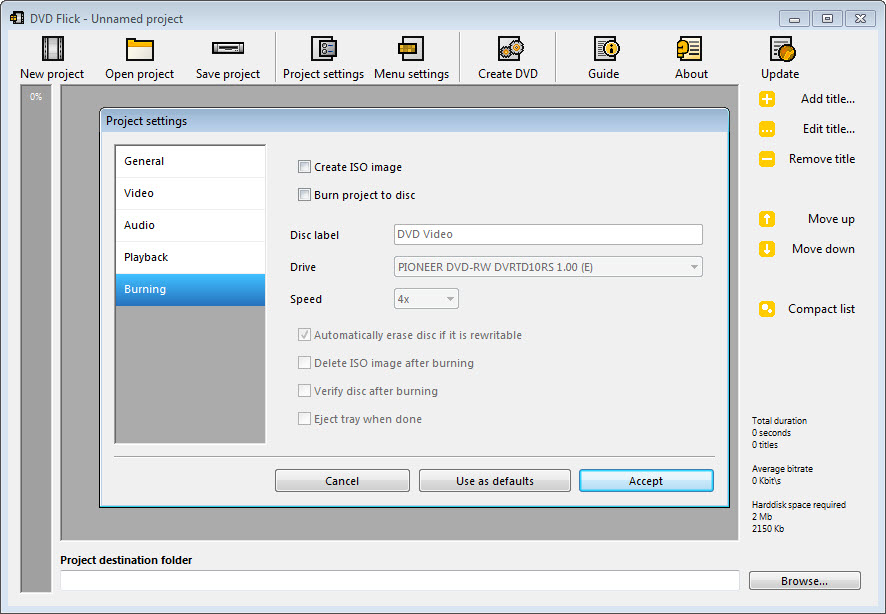
The result is a VIDEO_TS folder in the destination you chose, an ISO image if the option is ticked, or both. Burning is handed to ImgBurn, which the installer includes. The final step of the project can pass the finished structure straight to it and write the disc with a verify pass.
Anyone who already has a burner can leave that option off and burn the folder or the image with whatever they prefer. A log records the encode and the burn, which is the first place to look when a disc plays wrongly.
What age has done to it
DVD Flick has not been updated in many years and the encoder inside it is from that era. Modern files in newer containers or codecs sometimes fail to load or produce an error about a missing video track.
The workaround is to remux or convert the source with a current tool first. Long encodes occasionally drift the audio out of step with the picture, which a fresh conversion of the source also tends to fix. It runs on current systems, but it runs as it did, and none of this will be repaired.
For anyone who wants finer control over the encode and a maintained program, an authoring tool with adjustable encoder settings is the next step. For anyone who wants a disc that plays from a folder of files with the least possible thought, this remains the shortest path, provided the files are ones it understands.
Conclusion
DVD Flick is for the person with a folder of home video, a set of recorded lectures or a downloaded series who wants them on a disc a relative’s player will accept. They do not care what the menu looks like. Add the files, set the size, press the button, and a disc comes out.
Anyone who wants a designed menu, a modern encoder or a program that will still be fixed next year should use one of the maintained authoring tools. This one has stopped moving, and for the plain job it still arrives.
Pros & Cons
- Reads almost any video file and produces a standard DVD-Video structure
- Titles with chapters, multiple audio tracks and selectable subtitles
- Target disc size sets the bitrate automatically
- Writes VIDEO_TS, ISO or both, and burns through the included ImgBurn
- Preview of the menu with your titles in place
- No longer maintained, with an encoder that predates current codecs
- Menus are fixed templates with no editor
- Audio is always re-encoded, even from compatible sources
- Slow encoding and occasional audio drift on long projects
Frequently asked questions
The file uses a codec or container newer than the program's encoder understands. Convert or remux it to an older MP4 or AVI with a current converter, then add it again.
Not from the interface. Menus are chosen from templates. Editing the template files by hand is possible but fiddly, and a dedicated authoring tool is the better route for a custom menu.
As much as you like, at falling quality. The encoder lowers the bitrate to fit the target size, so two hours on a single-layer disc looks good and six hours looks soft. Use a dual-layer target for long content.
No. ImgBurn is included and the project can be passed to it at the end. If you prefer another burner, write the VIDEO_TS folder or the ISO image with that instead.


