

dupeGuru
About dupeGuru
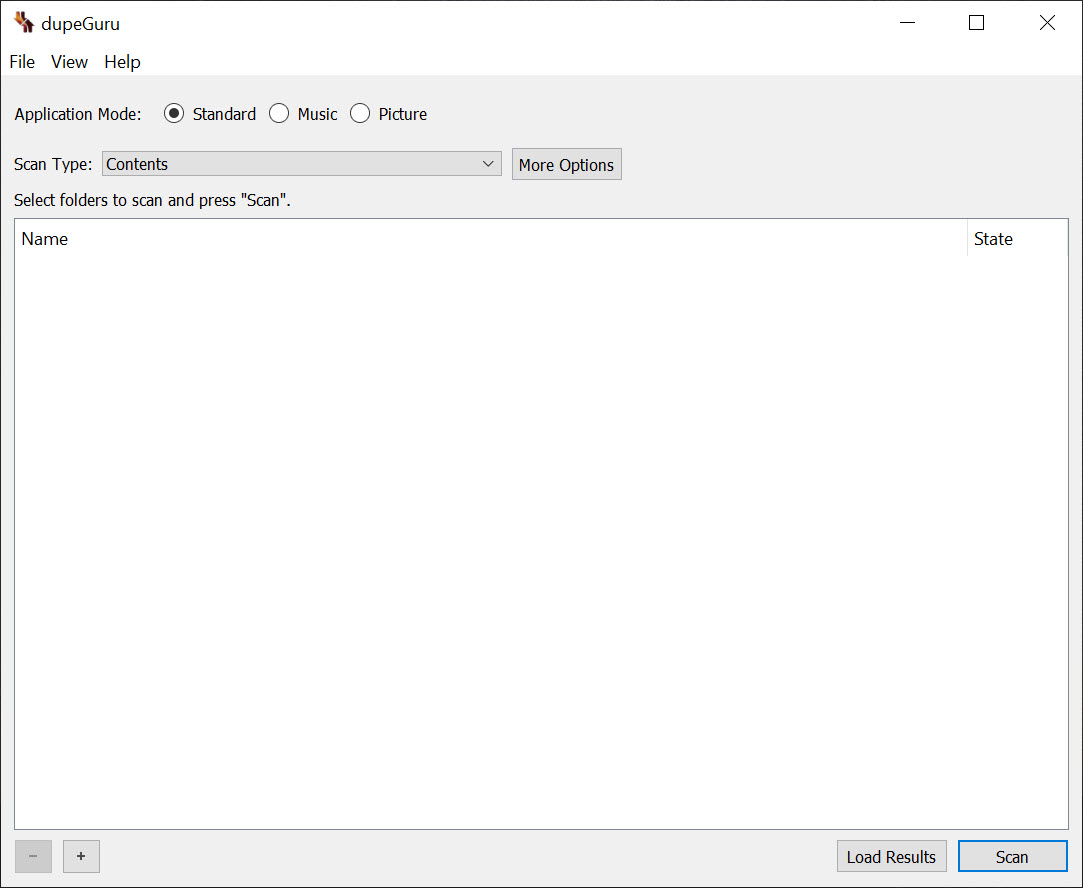
dupeGuru finds duplicate files, and it finds the ones that are not exactly identical as well as the ones that are. Point it at a folder or a drive and it groups the matches it finds, a file in one group showing as the reference copy and the others as its duplicates, each with a match percentage. From there you mark the extras and delete them, move them elsewhere or copy them, while the reference file stays put. It is open source and runs in a single window built around that grouped results list.
What separates it from simpler duplicate finders is that it works in three modes, each tuned for a different kind of file. Standard mode compares ordinary files by name or content. Music mode reads audio tags, so the same song saved under two file names is still recognised.
Picture mode looks at what an image shows, so a resized or slightly edited copy of a photo turns up alongside the original. dupeGuru also matches names fuzzily, catching duplicates whose names are similar rather than identical, which is how it finds the copies that rigid tools miss.
Standard mode and the scan types
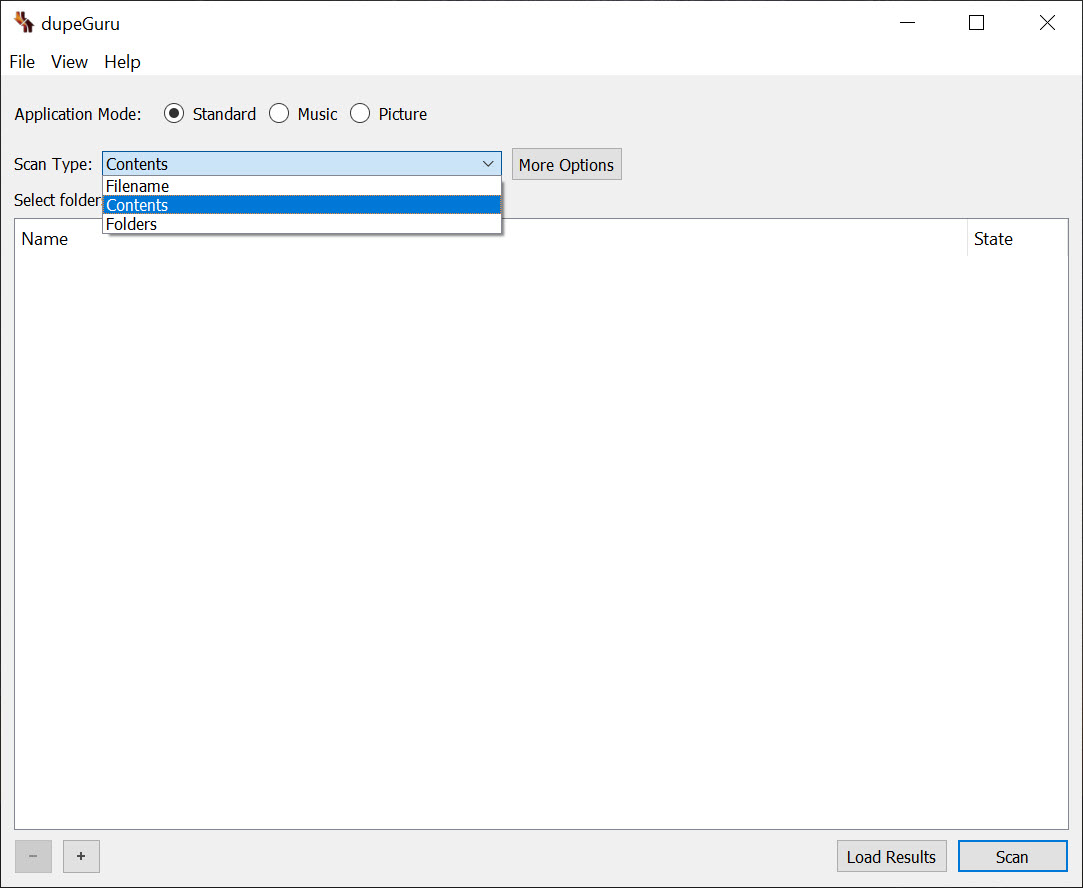
Standard mode in dupeGuru offers several scan types. A filename scan compares names with a fuzzy matching algorithm, so Holiday Photo and Holiday-Photo-copy are linked even though the names differ. A contents scan compares the actual data of each file and finds only exact duplicates, regardless of name. A folder scan looks for whole folders that duplicate each other, useful after copying a directory tree twice by accident.
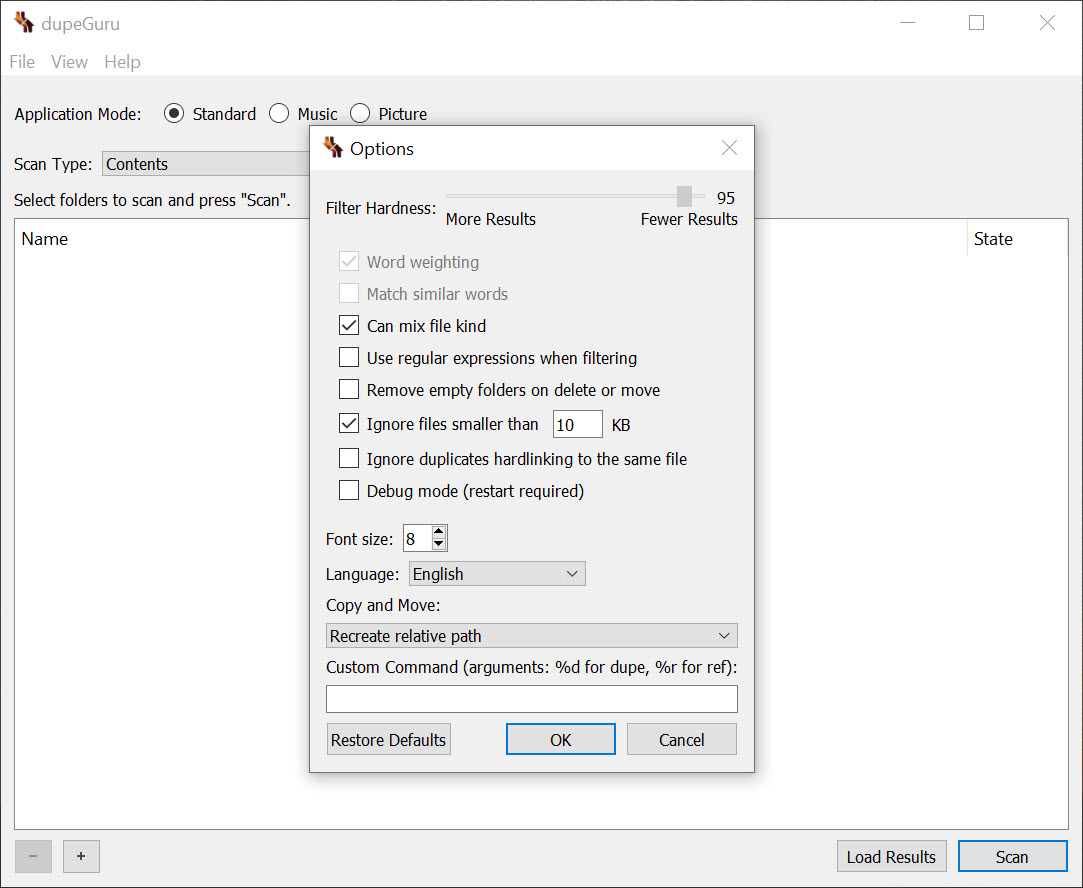
The filter hardness slider decides how strict a fuzzy scan is. A higher value demands closer matches and returns fewer results, a lower value casts a wider net and returns more, including some that are not really duplicates. The slider is disabled for exact scan types such as contents, since there is nothing fuzzy to tune.
For finding exact copies quickly and safely, the contents scan is the dependable choice.
Music mode for audio libraries
Music mode reads the tags in audio files and compares tracks on the fields you choose, such as artist and title, album and year. Two copies of a song, one ripped from a CD and one downloaded with a different file name, are matched by their tags rather than their names. The results show music-specific columns, bitrate among them, so you can keep the higher-quality copy and remove the lower one.
How well it works depends on the tags. A library with consistent, accurate tags dedupes cleanly. A library with missing or inconsistent tags produces either missed duplicates or false matches, so tidying the tags first in a tag editor improves the results considerably.
Picture mode for similar images
dupeGuru Picture mode compares what images look like, so it finds a photo saved at two sizes, a copy with a light edit, or a lower-resolution export. The Details button opens the matched images side by side, which is the essential step before deleting, since a burst of near-identical shots or a cropped version may be one you want to keep. An EXIF timestamp scan offers a faster alternative for photos straight from a camera. Videos are not compared by content, so a tool for finding duplicate video files covers that gap.
Picture mode is the slow one. Every image has to be compared fuzzily against all the others, which takes a lot of processing power, and a large photo collection can take a long time. If you only need exact duplicates, the standard contents scan is much faster.
Running picture scans on one folder or album at a time keeps them manageable.
Reference folders and the safety net
The reference folder system is the main protection against deleting the wrong file. Mark a folder as a reference and dupeGuru will never delete or move anything from it, treating its files as the copies to keep while it hunts for duplicates elsewhere. Pointing it at a backup or a master library as a reference makes cleanup much safer.
Nothing is deleted automatically. Every action waits for you to mark files and confirm. Files can be sent to the recycle bin rather than erased, moved to another folder for review, or copied, and an option removes empty folders left behind after a move or delete.
Results can be sorted and filtered, then exported, which helps weed out false matches on a loose fuzzy scan.
Working through large scans
Whole-drive scans in dupeGuru can return enormous result lists that are slow to review, so scanning one folder or library at a time is the practical approach. Network drives work but scan more slowly than local ones. The interface is plain, with the results grid as the centrepiece, and some settings take a moment to find. For understanding where disk space has gone before hunting duplicates, a disk space treemap shows which folders to scan first.
Against duplicate finders aimed purely at media, a tool built just for video handles content that this one does not compare visually. For most mixed collections of documents and music, plus photos, the three modes here cover the ground.
Conclusion
dupeGuru suits anyone with a cluttered drive, a music library full of repeated tracks or a photo collection with copies at several sizes, and who wants control over what goes. The fuzzy matching, the three specialised modes and the reference folder safety net let it find duplicates that simpler tools miss while keeping the files you care about safe.
It rewards a careful hand rather than a hasty one. Scan a folder at a time, mark your master copies as references, check picture matches side by side, and send removals to the recycle bin first, and it will reclaim space without taking anything you wanted to keep.
Pros & Cons
- Three modes for ordinary files, music by tags and pictures by appearance
- Fuzzy filename matching catches near-identical names
- Contents scan finds exact duplicates regardless of name
- Reference folders guarantee chosen files are never removed
- Side-by-side view to compare matched pictures before deleting
- Delete to recycle bin, move or copy, with exportable results
- Picture mode is slow on large photo collections
- Music mode depends on accurate, consistent tags
- Whole-drive scans produce long results that are slow to review
- Plain interface with some settings hard to find
Frequently asked questions
Mark that folder as a reference. Files in reference folders are never deleted or moved, and are treated as the copies to keep.
Each image is compared fuzzily against all others, which takes heavy processing. For exact duplicates only, use the standard contents scan instead.
Yes. Music mode compares tags such as artist and title, so differently named copies are matched by their metadata.
No. You review the grouped results, mark the files to remove, and confirm. Files can go to the recycle bin instead of being erased.


