

Dual Monitor Tools
About Dual Monitor Tools
Working with two or more monitors has become standard practice for anyone serious about productivity, whether you’re a developer juggling code and documentation, a designer eyeing reference material while working in Photoshop, or just someone who likes having a video playing on the side while answering emails. The thing is, Windows itself does the bare minimum when it comes to managing multi-monitor setups, and that’s exactly the gap that Dual Monitor Tools tries to fill.
Hosted on SourceForge and developed as an open-source project, Dual Monitor Tools is not a single application but rather a small suite of utilities, each addressing a specific quirk of working with more than one screen. It’s the kind of thing you don’t realize you need until you actually try it.
A small toolbox built around real multi-monitor pain points
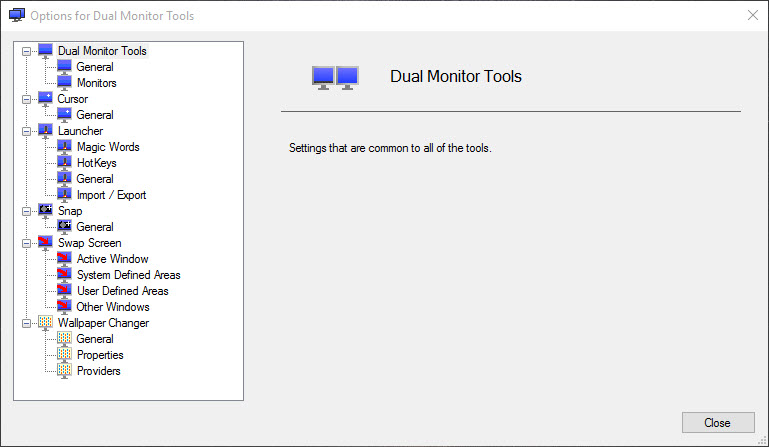
What makes Dual Monitor Tools different from other display-management apps is the modular approach. Instead of one big monolithic program with a thousand options buried in tabs, you get a collection of focused tools, each tackling a specific problem. Want to keep your cursor from accidentally drifting onto the second monitor while gaming? There’s a tool for that. Need to swap windows between displays with a hotkey? There’s a tool for that too.
In practice, this approach means you only enable what you actually need, which keeps the whole thing lightweight and out of the way.
Cursor management for gamers and focused work
One of the most appreciated features in this suite is the cursor lock, also known as Cursor. It keeps your mouse pointer from sliding onto the secondary monitor when you don’t want it to, which sounds trivial until you’ve lost a fight in a fullscreen game because your cursor accidentally clicked on the wrong screen.
You can set custom hotkeys to enable or disable the lock, define which edges of the screen the cursor can cross, and configure exceptions for specific applications. Granted, modern games handle this better than they used to, but for older titles or windowed setups, it remains genuinely useful.
Window swapping and snapping with Swap Screen
The Swap Screen utility is probably the tool most people end up using daily. With a few configurable hotkeys, you can move the active window from one monitor to another, maximize it on a specific screen, or send it to a particular position without ever touching the mouse.
It also handles minimize-to-tray behavior on a per-monitor basis, which is one of those tiny conveniences that adds up over hundreds of small interactions throughout the day. If you’ve ever fought with Windows’ default Win+Shift+Arrow shortcut and wished it had more options, this is what you’ve been waiting for.
Wallpaper across multiple displays with DMT Wallpaper Changer
Setting different wallpapers on each monitor used to be a pain in older Windows versions, and even on Windows 11 the built-in options leave plenty to be desired. The DMT Wallpaper Changer lets you assign individual images per monitor, rotate through folders of wallpapers automatically, and even apply different timing rules to each screen.
It’s nothing groundbreaking, but the level of control on offer beats anything Windows ships with out of the box.
Screen capture, magnifier, and gridded snapping tools
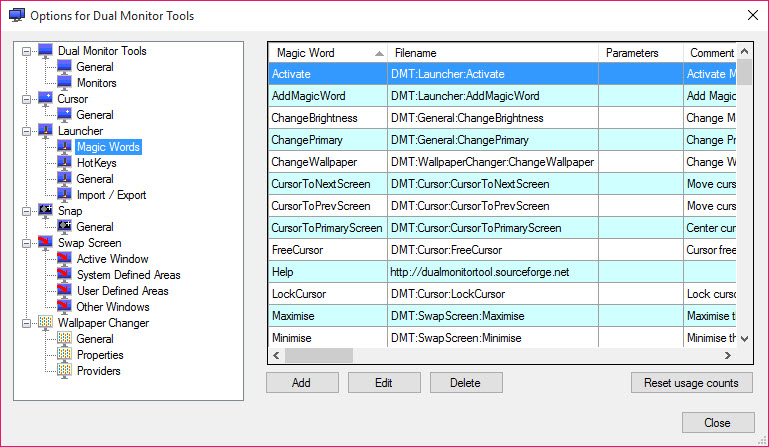
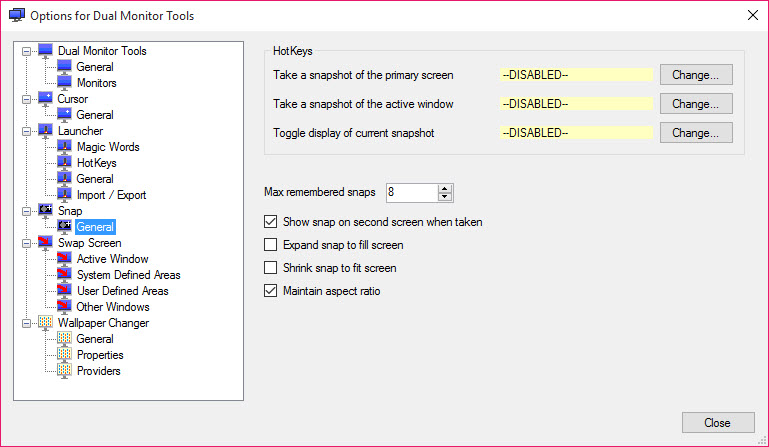
Beyond the headline features, Dual Monitor Tools bundles several smaller utilities that fill specific gaps. The Snap utility allows window snapping to user-defined grids, similar to PowerToys FancyZones but with a different approach. The Launcher tool lets you assign hotkeys to start applications on specific monitors, which is handy if you always want, say, your browser on screen 1 and your code editor on screen 2.
There’s also a screen capture tool and a magnifier, both of which feel a bit basic compared to dedicated alternatives, but having them integrated means one less thing to install separately.
Open-source, ad-free, and refreshingly straightforward
In a software category dominated by commercial products like DisplayFusion or Actual Multiple Monitors that often cost real money for the full feature set, Dual Monitor Tools stands out for being completely free, open-source, and free of any nagware or upgrade prompts. The project has been around for years on SourceForge, and while development isn’t as rapid as it once was, the existing feature set still does what most users need it to do.
The interface is, to put it kindly, utilitarian. There’s no slick onboarding, no tutorial, no modern UI polish. It looks like a Windows app from a decade ago, because that’s essentially what it is. But for users who care more about function than form, this trade-off is more than fair.
Conclusion
Dual Monitor Tools is one of those quietly useful pieces of software that solves problems you didn’t even realize Windows had. It’s not flashy, the interface won’t win any design awards, and the project doesn’t get the marketing push of its commercial competitors, but for users running multi-monitor setups who don’t want to pay for a heavyweight suite, it’s an easy recommendation.
If your needs lean toward simple cursor control, fast window swapping, and per-monitor wallpaper management, Dual Monitor Tools delivers all of that without spending a cent or putting up with ads. And in a software category where free options are rare, that alone makes it worth a look.
Pros & Cons
- Modular suite lets you enable only the tools you actually need
- Cursor lock prevents accidental mouse movement onto secondary screens
- Swap Screen offers fast keyboard-driven window management between monitors
- Per-monitor wallpaper management with rotation and folder support
- Window snapping with custom user-defined grids
- Application launcher targets specific monitors automatically
- Completely free, open-source, and ad-free
- Lightweight footprint with minimal system impact
- Interface feels dated compared to modern multi-monitor utilities
- Development pace has slowed in recent years
- Documentation is sparse and assumes some technical familiarity
- Some bundled tools (capture, magnifier) feel basic versus dedicated alternatives
- Initial configuration takes time to get every tool set up the way you want
Frequently asked questions
Yes, this software is open-source and hosted on SourceForge, where the source code is publicly available for inspection. It contains no adware, bundled software, or hidden installers, although as with any download, sticking to the official SourceForge page rather than third-party mirrors is the safer approach.
This software is completely free under an open-source license, with no premium tier, subscription, or upgrade prompts. The entire feature set is available without paying anything, which is rare in a category where commercial alternatives can cost $25 to $50.
Yes, this software runs on modern Windows versions including Windows 11, although the interface still has the visual style of older Windows applications. Functionally, the tools work as expected even on the latest builds.
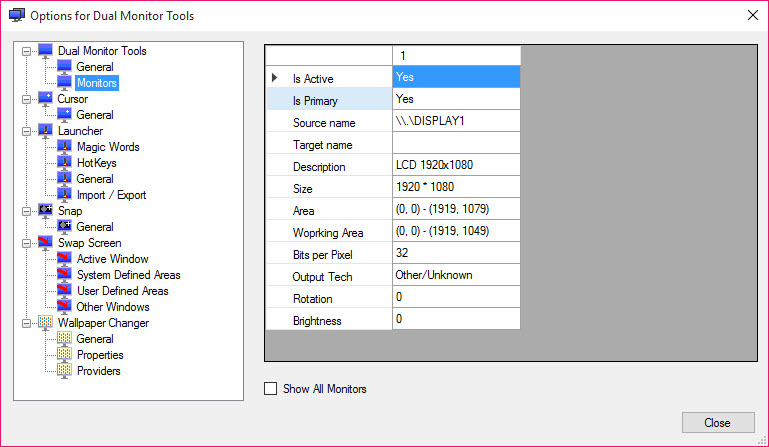
Despite the name, this tool is not limited to dual-monitor setups. It works with three, four, or even more displays, with most utilities allowing you to configure behavior on a per-monitor basis regardless of how many screens you have connected.
DisplayFusion is more polished and offers more advanced features but costs money for the Pro version. PowerToys FancyZones focuses primarily on window snapping. This software sits somewhere in between, offering a broader range of utilities than FancyZones while remaining completely free, although less feature-rich than DisplayFusion Pro.
The cursor lock feature actually helps with fullscreen games by preventing the mouse from drifting onto a secondary monitor. Most other tools in the suite stay out of the way during gaming and only activate when you press configured hotkeys.
Yes, every utility in this software supports user-defined hotkeys, which can be configured through the individual tool settings. This makes it easy to avoid conflicts with other applications and assign shortcuts that match your workflow.


