

Download Accelerator Plus
About Download Accelerator Plus
Download Accelerator Plus splits every file you grab into multiple channels and pulls them down at once, which is the whole reason the tool exists. Instead of one connection crawling through a large file, the application opens several simultaneous streams to the same source and reassembles the pieces when they finish. On a flaky connection or a slow server that throttles single threads, that difference is the gap between a download you babysit for twenty minutes and one that wraps in five.
The other half of the pitch is recovery. Point the program at a 4GB ISO, lose your connection halfway through, and it picks up exactly where it stopped rather than starting from zero. That alone makes Download Accelerator Plus worth keeping around if you regularly move big files over connections that drop.
How the multi-channel acceleration actually works
The core trick is segmentation. When you start a transfer, the tool checks whether the server supports byte-range requests, and if it does, it carves the file into chunks and grabs them in parallel. You can watch this happen in the main window, where each segment shows its own progress bar filling at its own pace. It’s the same multi-server idea that FlashGet built its name on, applied here through a cleaner front end.
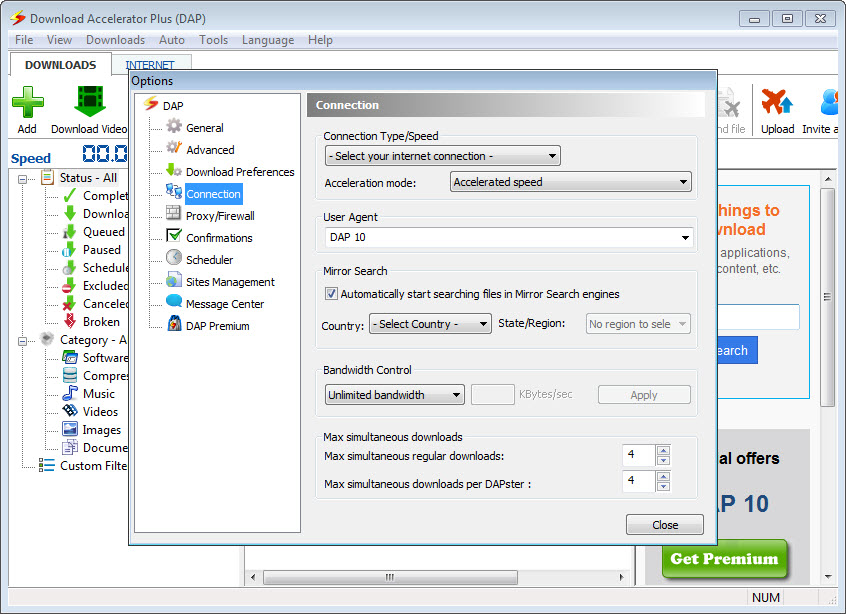
Servers that cap per-connection speed are where this pays off most. A lot of file hosts limit a single thread to, say, 500 KB/s but never police how many threads you open. Download Accelerator Plus quietly takes advantage of that. You can set how many connections it uses per file, and on a healthy link more channels usually means a faster finish, up to the point where the server starts refusing them.
It is not magic, though. If a host serves files single-threaded only, or your bandwidth is already saturated, the acceleration does nothing. The application can’t conjure speed that the pipe or the server won’t allow, and anyone expecting a guaranteed multiplier on every file will be disappointed sometimes.
Browser integration and link catching
Once installed, the downloader hooks into your browser and offers to take over when you click a download link. This is the part most people interact with daily. Click a file, a small dialog appears, and the transfer moves into the manager instead of the browser’s own basic handler. This is also the area where Internet Download Manager tends to pull ahead, with slicker integration and better grabbing from streaming pages, so if browser capture is your whole reason for installing a manager, keep that in mind.
There’s also clipboard monitoring. Copy a URL that points to a downloadable file and the tool notices, popping up to ask whether you want to grab it. Handy when you’re working through a page full of links. A little intrusive if you copy URLs all day for other reasons, but you can switch it off.
Managing a queue without babysitting it
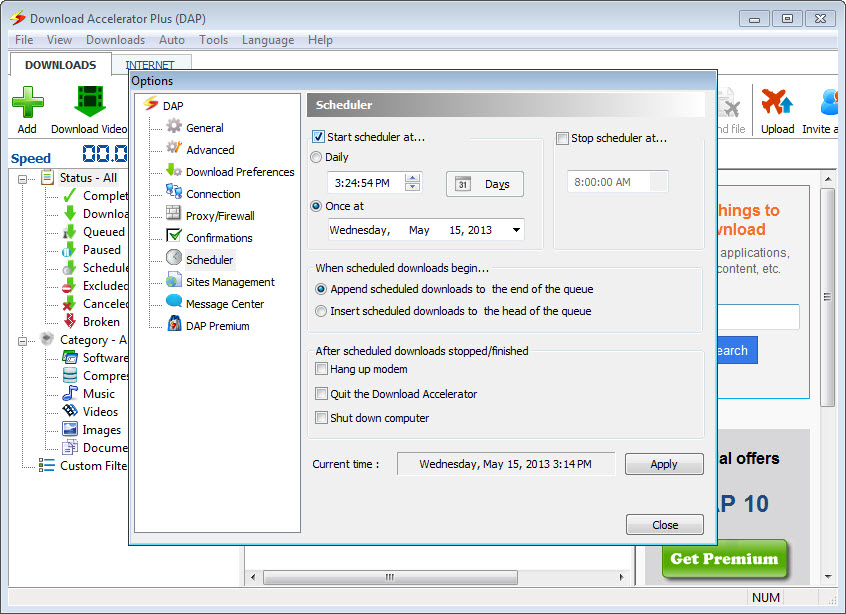
For anyone pulling down more than a file or two, the queue is the feature that earns its place. You can line up dozens of transfers, set how many run at once, and assign priorities so the file you actually need finishes first. Scheduling lets you push heavy downloads to off-peak hours, which matters if you’re on a metered plan or share bandwidth with a household.
The program also handles the after-action stuff: it can shut down the PC when the queue empties, or just hang up the connection. Set a batch running before bed, tell it to power down when done, and you wake up to finished files and a cold machine.
If you manage transfers across protocols beyond plain HTTP, it covers FTP as well, which overlaps with what a dedicated client like FileZilla does, though without that tool’s full server-management depth.
Where it sits against the competition
Honesty time. Download Accelerator Plus is not the only download manager in this category, and it’s not always the strongest. Rivals beat it on specific fronts, whether that’s browser handling, video capture, or torrent support, which the application here doesn’t offer at all. If integrated torrents matter to you, something like Free Download Manager covers that ground in a way this tool simply doesn’t.
What keeps Download Accelerator Plus relevant is the balance. It’s lighter to learn than some rivals, the segmented-download engine is solid, and the free version does the core job without nagging you into a corner. The premium tier unlocks extras like more aggressive acceleration settings and ad removal, but the base product is genuinely usable on its own.
The interface, for better and worse
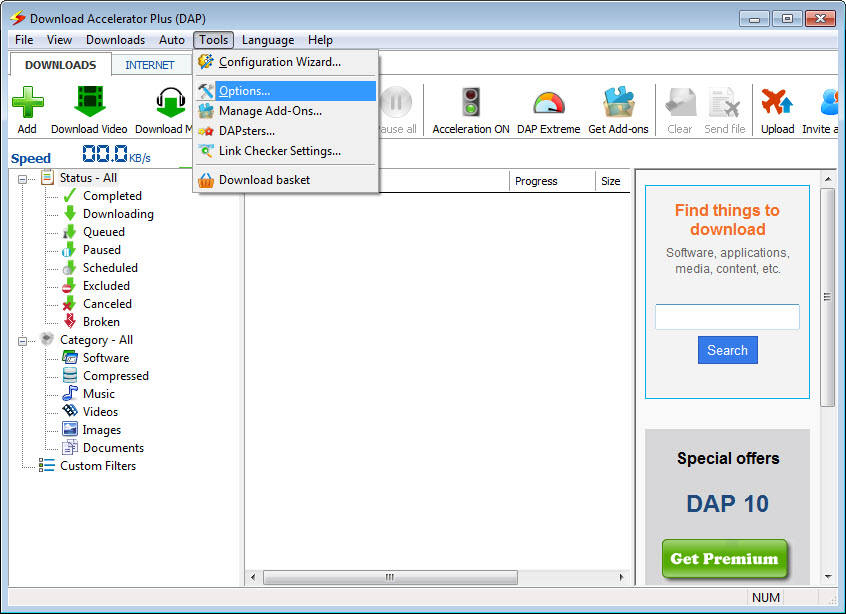
The layout is functional rather than pretty. A list view up top, status and speed columns, a details pane below. You’ll know where everything is within a minute, which is the upside. The downside is that it looks like a utility from an earlier era, and people coming from cleaner, modern managers will notice the dated styling right away.
It’s responsive, at least. The window doesn’t choke when you’ve got a long queue running, and the per-segment view updates smoothly even on big multi-channel transfers.
Conclusion
Download Accelerator Plus is a dependable pick for anyone who regularly downloads large files over connections that either drop or get throttled. The segmented engine does real work, the resume feature saves you from restarts, and the queue tools let you set a batch running and walk away. None of that is flashy, but it’s the stuff that matters when you’re moving gigabytes.
It won’t be the right call for everyone. If you want a modern interface, native torrent handling, or best-in-class video grabbing, other managers do those things better. But for straightforward acceleration and solid download management without a learning curve, the tool holds its ground, and the free version is capable enough that you can decide whether the premium extras are worth it on your own terms.
Features & benefits
Pros & Cons
- Multi-channel segmentation can sharply cut download times on servers that throttle single connections
- Resume support recovers interrupted transfers instead of restarting them from scratch
- Queue management with priorities, scheduling, and auto-shutdown handles large batches unattended
- Browser integration and clipboard monitoring catch links with one click
- The free version covers the essential acceleration and management features without crippling them
- The interface looks dated next to more modern download managers
- Acceleration does nothing on single-threaded hosts or already-saturated connections
- No built-in torrent support, unlike some competitors
- The most aggressive speed settings and ad-free use are locked behind the premium tier
- Clipboard monitoring can feel intrusive until you tune or disable it
Frequently asked questions
On servers that support multiple connections and throttle single threads, yes, often noticeably. The tool opens several parallel channels to the same file and combines them. On single-threaded hosts or when your bandwidth is already maxed out, you won't see a difference.
Yes. As long as the server supports it, the program saves your progress and continues from the interrupted point rather than starting over, which is the main reason people use it for large files.
You control the connection count per file in the settings. More channels usually help up to a point, but pushing the number too high can make a server reject the extra connections, so there's a practical ceiling that varies by host.
Yes, it handles FTP transfers alongside standard HTTP and HTTPS, so you can manage both kinds of downloads in the same queue.
You can. The scheduler lets you queue files and start them at off-peak hours, and you can tell the application to shut down the PC or drop the connection once everything finishes.
Its link-catching works on direct media files, but it's weaker at pulling video from streaming pages than some rivals built specifically for that. If video capture is your main goal, the results can be hit or miss.


