

Ditto
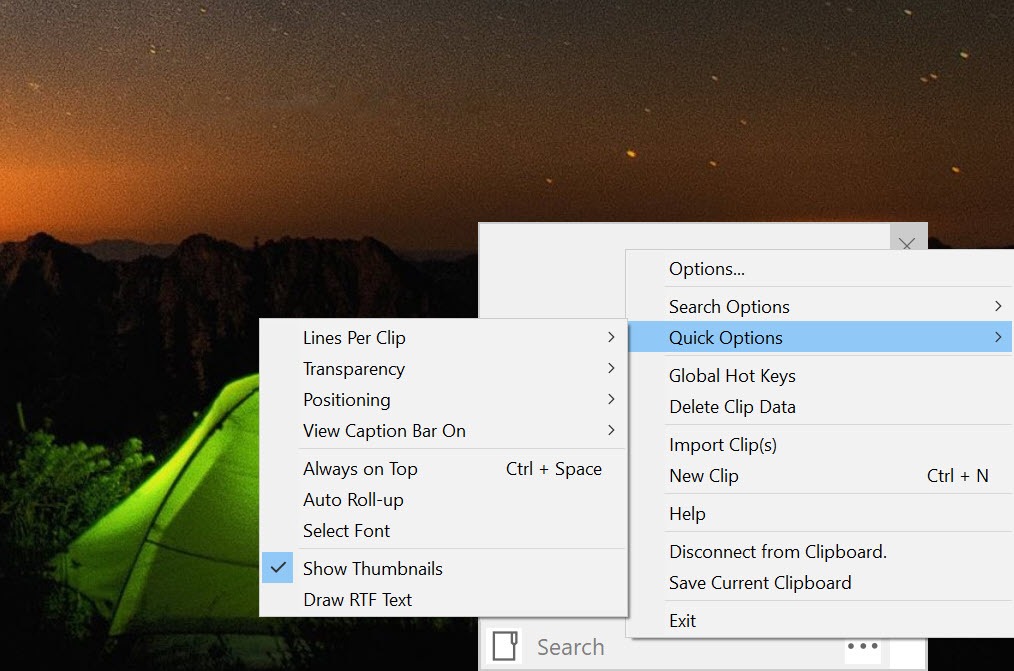
About Ditto
Ditto is a clipboard manager. Every time you copy something, it saves a copy, so the address you copied ten minutes ago is still there after the twenty things you copied since. Press Ctrl and the backtick key and a small list pops up beside the cursor with the most recent clips at the top.
Type a few letters to search, press Enter, and the clip is pasted into whatever window you came from. That loop, copy without thinking and paste from history, is what the program is for, and it has been the standard answer to it for a very long time.
It stores text, formatted text, HTML, images and file lists in a local database. It groups clips into folders, pins the ones you use daily and, if you want, syncs the whole history between your machines over an encrypted link. The nearest rival is CopyQ, which does much the same with tabs and a scripting engine.
Ditto is the plainer of the two and the quicker to learn, and most people never touch the deeper half of it.
The pop-up list and the quick paste keys
The Ditto hotkey opens a compact window at the mouse pointer, or at the text caret if you prefer, listing clips with a thumbnail for images and the first line for text. Arrow keys move, Enter pastes, Escape closes.
Start typing and the list filters to clips containing that text, across the whole history, which is how a phone number from last month comes back in three keystrokes. Hold Ctrl and click several clips and they paste together, in the order you clicked, separated by a line break or a delimiter you set.
Quick paste keys skip the window entirely. Assign Ctrl plus a number and each digit pastes the clip in that position of the history, so the last three things you copied are always a keystroke away. Shift and Enter pastes any clip as plain text, stripping fonts and colours on the way, and a separate hotkey does the same as a global shortcut for the current clipboard.
That one alone replaces a small utility many people keep around for the purpose.
Groups, sticky clips and editing
In Ditto, clips can be moved into groups, which are folders inside the history, so a set of email signatures, a set of code snippets and a set of addresses each live in their own list. F7 makes a group from the selected clips, Ctrl and G shows the tree, and a group can have its own hotkey. Sticky clips stay at the top of the list regardless of what you copy afterwards, which is where a licence key or a standard reply goes.
Every clip can be opened and edited. Text clips get a small editor with fonts, sizes and alignment, so a clip can be tidied before it is pasted a hundred times. Clips can be given a name, a description and a hotkey of their own, and a clip with a hotkey is a snippet you paste with one chord from anywhere.
It is a modest text expander hiding inside a clipboard history, and for a dozen fixed phrases it does the job. For hundreds of them with triggers typed inline, a dedicated snippet expander is built for that and this is not.
Sync between machines, with a firewall prompt
Options has a Friends tab. Add the address of another computer running Ditto, set the same password on both, and anything copied on one appears in the history of the other within seconds, encrypted in transit. It is peer to peer on your own network, with nothing passing through a server, and it can be bound to one network adapter or switched off entirely.
The first time it runs, the program asks the firewall to let it listen, and that request alarms people who did not know a clipboard tool had a network side. The listener exists for sync and for nothing else, and declining the prompt or turning off the Friends feature removes it.
Better to know before the dialog appears, since more than one review has been written by someone who saw the prompt and uninstalled on the spot.
What gets saved, and for how long
By default the program captures plain and Unicode text, images, file lists, rich text and HTML, and each format can be switched off. Images are stored as bitmaps, so a heavy screenshot habit makes the database grow faster than text ever will.
Options set how many clips to keep, how many days to keep them, and whether to save duplicates or fold them into one entry. A list of ignored applications means a password manager’s copies never land in the history at all. Clips matching a regular expression can be excluded too.
The database is a single SQLite file, and a Compact Database button shrinks it when months of use have slowed the search. Moving the file to another machine moves the whole history, and the portable build keeps it beside the executable.
Nothing leaves the computer unless sync is configured, and no account exists anywhere.
The one thing that trips people up
Paste sometimes does nothing in a particular window while working everywhere else. The window is usually running with elevated rights, an administrator command prompt or a setup dialog, and a program running as a normal user is not allowed to send keystrokes into it.
Run Ditto elevated too, or set it to start that way, and the paste goes through. The same barrier stops the hotkey opening the window while an elevated application has focus, which looks like the program has died and has not.
A smaller nuisance is the default hotkey. Ctrl and backtick collides with a few editors and terminals, and changing it in Options to Ctrl, Shift and V or anything else takes ten seconds.
Conclusion
Ditto is for anyone who copies and pastes for a living, which is most office workers, most programmers and every support technician, and who has lost something to the clipboard’s one-slot memory once too often. The search, the quick paste keys and the plain text paste pay for the two minutes of setup by the end of the first afternoon.
People who want a scripting language around their clipboard, or cloud sync to a phone, should look at the alternatives. Everyone else can set the hotkey, run it elevated if their work needs it, and forget it is there.
Pros & Cons
- Searchable history of text, images, HTML and file lists in a pop-up at the cursor
- Quick paste keys and multi-select paste for the most recent clips
- Paste as plain text with one chord
- Groups, sticky clips, per-clip hotkeys and an editor
- Encrypted peer-to-peer sync between your own machines
- Firewall prompt on first run surprises people who did not expect networking
- Cannot paste into elevated windows unless run elevated itself
- Image-heavy histories bloat the database
- Default hotkey clashes with some editors
Frequently asked questions
The target window is running with administrator rights and refuses input from a normal-user program. Run Ditto as administrator, or set it to launch that way at startup, and pasting into those windows works.
Select the clip and press Shift and Enter instead of Enter. A global Text Only Paste hotkey can also be set in Options to paste the current clipboard as plain text from anywhere.
For the optional sync between machines on your network. If you do not use it, decline the prompt or disable the Friends feature in Options. Nothing else in the program uses the network.
Add the password manager to the excluded applications list in Options, or turn off saving for the format it uses. Clips from that program are then never recorded.


