

Distant Desktop
About Distant Desktop
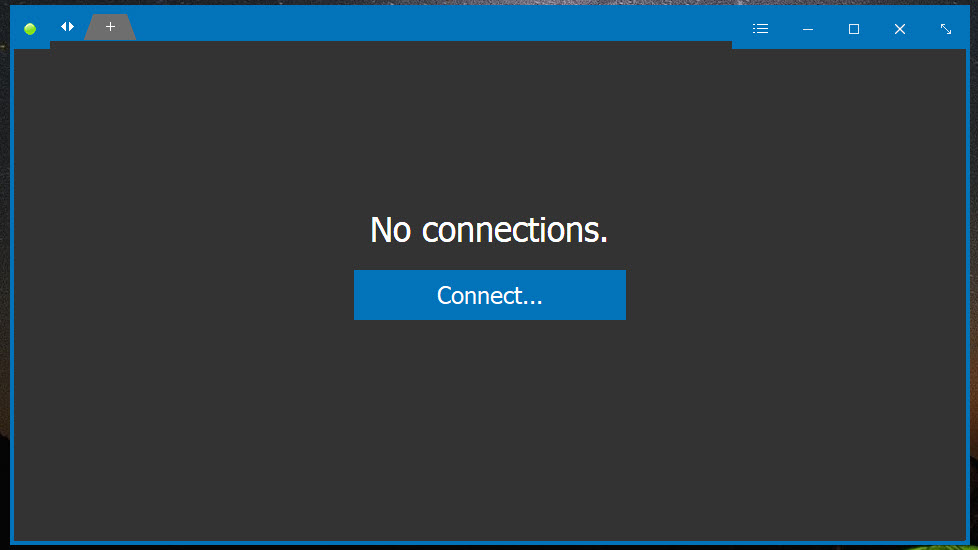
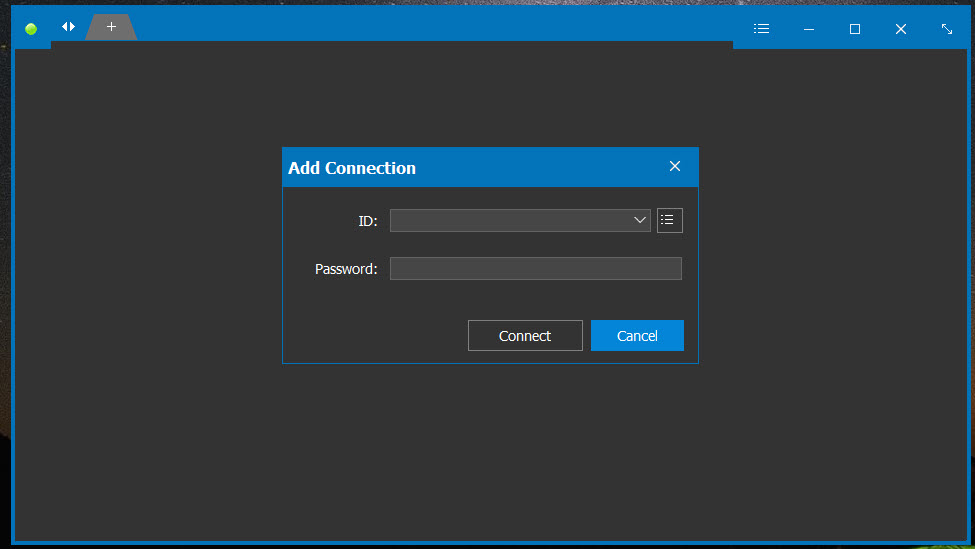
Distant Desktop connects two computers with an ID and a password and nothing else. Run the executable on both machines, read the nine-digit ID and the generated password off the first window of the remote one, type them into “Connect…” on yours, and the other desktop appears in a window with your mouse and keyboard driving it. No account, no installer, no router configuration, and the whole thing lives in a single file you can run from a USB stick.
That places it in the same corner as AnyDesk and TeamViewer for quick remote support, with a smaller feature list and fewer rules about who may use it. Where Distant Desktop differs from the big two is temperament.
It does not nag, it does not detect commercial use and cut a session short, and its interface is one small window with a menu.
The trade is that the unregistered build meters your outgoing connection time, and several conveniences the rivals include as standard are either missing or held back for the paid tier.
Connecting, and what the meter counts
The controlling side is the only side that ever needs a licence, and it is the only side that is metered. Without one you get 17 hours of outgoing connection time a month and one outgoing session at a time.
The controlled side has no limit, so a machine you are looking after can be reached whenever you like, and a family member you are helping never needs a licence. For occasional support that allowance is plenty. For a technician bouncing between client machines all day it runs out in the first week, which is the point.
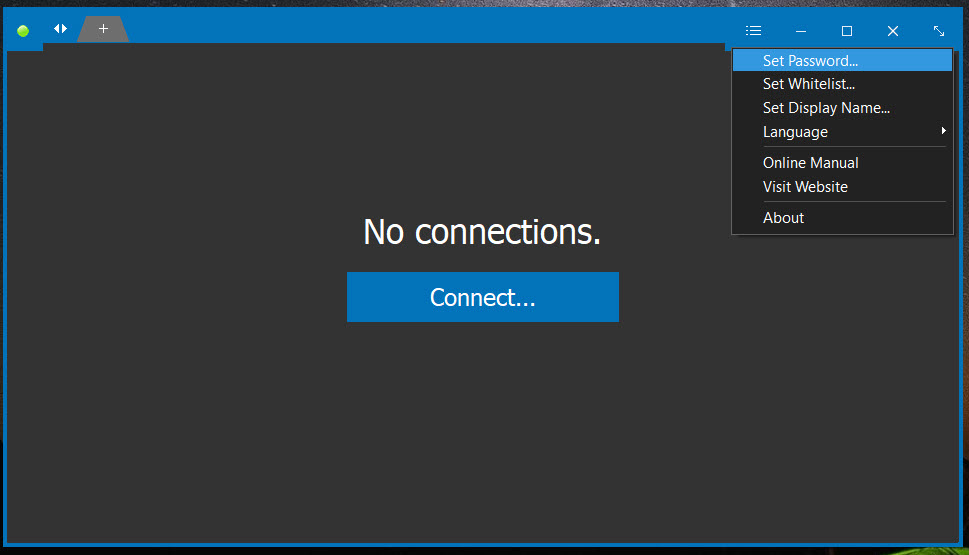
The password regenerates every time the application starts, so a connection that worked yesterday fails with “Invalid password” today unless you set a static one from the main menu. The ID is derived from the hardware and cannot be changed to something memorable, which is the single most requested feature the program does not offer.
Unattended access and locking the door
Install Distant Desktop as a service, set a permanent password, and the remote machine answers connections after a reboot with nobody sitting at it. That covers the home server, the parent’s laptop and the shop PC in one setting.
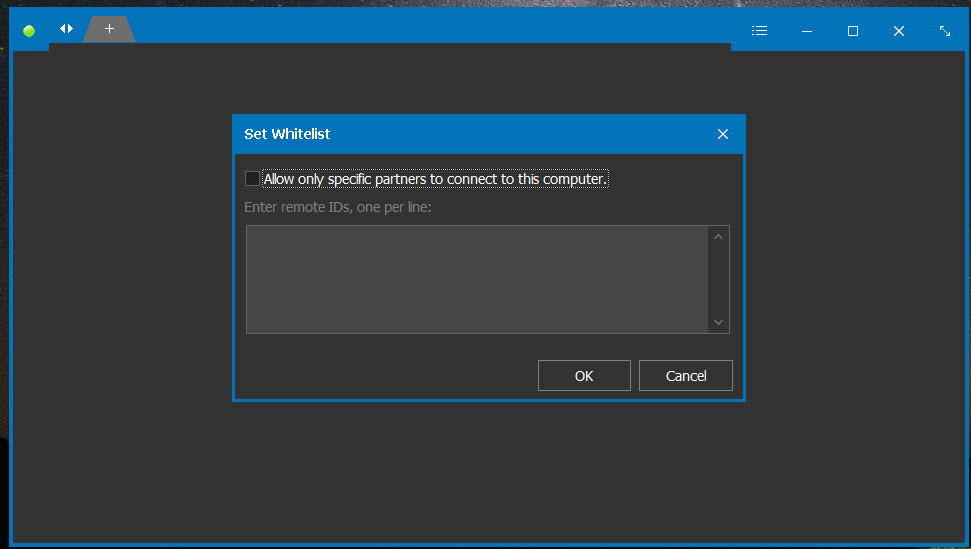
Alongside it, “Set Whitelist…” restricts incoming connections to a list of trusted IDs, so even someone who has the password cannot connect from an unknown machine. The caption bar shows a live count of who is connected and an information button lists them, which matters because the controlled side can accept several partners at once.
Direct commands cover the things that need a keyboard combination the remote desktop would otherwise swallow. Send system keys, lock, reboot or shut down from a menu, and wake a sleeping or powered-off machine across the local network or over the internet with Wake-on-LAN, which TeamViewer also does but only after you have configured it in an account.
File transfer, clipboard and printing
Files and folders move in either direction through a transfer window rather than by dragging onto the remote desktop, and the clipboard is shared, so copying text out of a remote document and pasting it locally works as expected. Remote printing runs both ways.
A document open on the far machine can print on the printer beside you, and a local file can print on the remote one, which is the feature small offices tend to discover by accident and then rely on.
View-only mode for training
“Allow only viewing” turns Distant Desktop into a presentation tool. Anyone who connects can watch your screen and talk to you through the text chat but cannot move anything, which suits a training session or a walkthrough of a piece of software. Voice chat is held back for the paid tier, so the unregistered build is a silent screen share with typing.
Multiple monitors on the remote side are supported and can be switched between, and the viewer can save a screenshot of the remote screen.
Where it falls short
There is no session recording, no phone client for connecting from a handset, and the contacts book that stores IDs and notes about your regular machines is paid only, so the unregistered build makes you keep your own list. A connection log exists but is plain.
The transfer window is functional and slow to browse deep folder trees, and connections route through relay servers when a direct path fails, which adds visible lag on poor links compared with a tool such as a direct-IP remote desktop that skips relays entirely.
Encryption is AES for the control channel with SRTP for screen, audio and files, which is fine, but there is no two-factor prompt on the operator side.
Conclusion
Distant Desktop is for people who help a handful of machines rather than a fleet. A family’s informal IT department, a small office with one server and a few laptops, and anyone who wants to reach their own desktop from a hotel room will find the 17-hour allowance generous and the setup faster than anything with an account.
Technicians will hit the meter and the single-session limit inside a week, and they should read the paid tier as the real product for them. Either way it is a leaner and less demanding tool than the names it competes with, and for that specific audience leaner is exactly right.
Pros & Cons
- ID and password connection with nothing to install or register on either side
- Controlled side is never metered and can accept several connections at once
- Unattended service mode with static password and ID whitelist
- Wake-on-LAN, remote printing and shared clipboard included at no tier
- View-only mode for training and presentations
- Outgoing connections capped at 17 hours a month and one at a time without a licence
- Voice chat and the contacts book are paid only
- ID cannot be changed to something memorable
- Relay routing adds lag when a direct connection fails
- No session recording and no phone client
Frequently asked questions
The password changes every time the program starts. Set a permanent one from the main menu with "Set password..." and it stops happening.
No. The ID is generated from the machine's hardware and stays fixed. The contacts book on the paid tier is the workaround for remembering IDs.
No. Only the operator's side is metered. The controlled side runs the same program with no limit on incoming time or connections.
Set a whitelist from the main menu and add only the IDs you trust. Connections from any other ID are refused even with the correct password.


