

Designers Tools
About Designers Tools
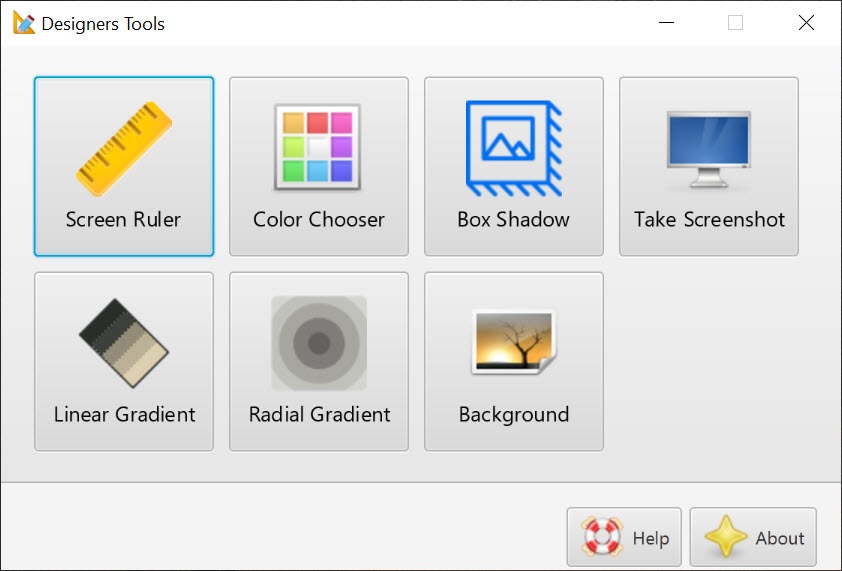
Designers Tools gathers a handful of small utilities a web designer reaches for all day into one window. A ruler to measure something on the screen. A colour tool that picks a shade from any pixel and gives its hex code, with a scheme builder beside it. A gradient editor. A box shadow editor with a live preview that exports what you build as CSS or as a PNG.
A screenshot tool, and a background maker whose output can be made transparent and rotated. None of them is large on its own. Together they replace the tabs of generator websites that usually sit open beside an editor.
The idea is convenience, not depth. Designers Tools does not draw, edit images or write code beyond the snippets its editors produce. It is a desktop replacement for the small browser-based helpers, which means it works offline and keeps its tools a hotkey away rather than a bookmark away. It is also a young and small project with a single release behind it and little written about it. The sections below stick to what the tools do and say where a longer-lived utility is the sounder choice.
The ruler and the colour tools
The Designers Tools screen ruler lays a measuring bar over anything on the display, so a margin, a button or a gap between two elements is measured in pixels without opening an image editor. It is the tool for checking a built page against a mockup, where the question is always whether a spacing is twelve pixels or sixteen.
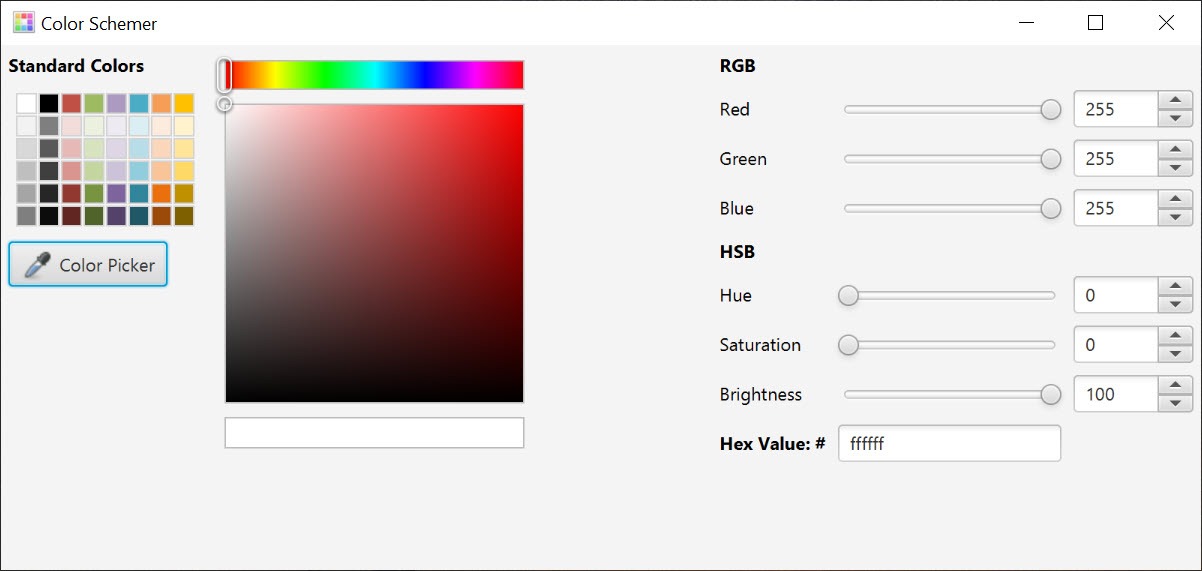
The colour side has two parts. A picker reads the colour under the cursor anywhere on the screen and reports its hex code, which is the quickest way to match a colour from a logo or a photo. A scheme builder takes a colour and suggests others that go with it, which is how a palette starts from a single brand shade.
For a standalone picker with a magnifier and more output formats, PicPick bundles one with a ruler and a whiteboard in a longer-standing package.
The shadow and gradient editors
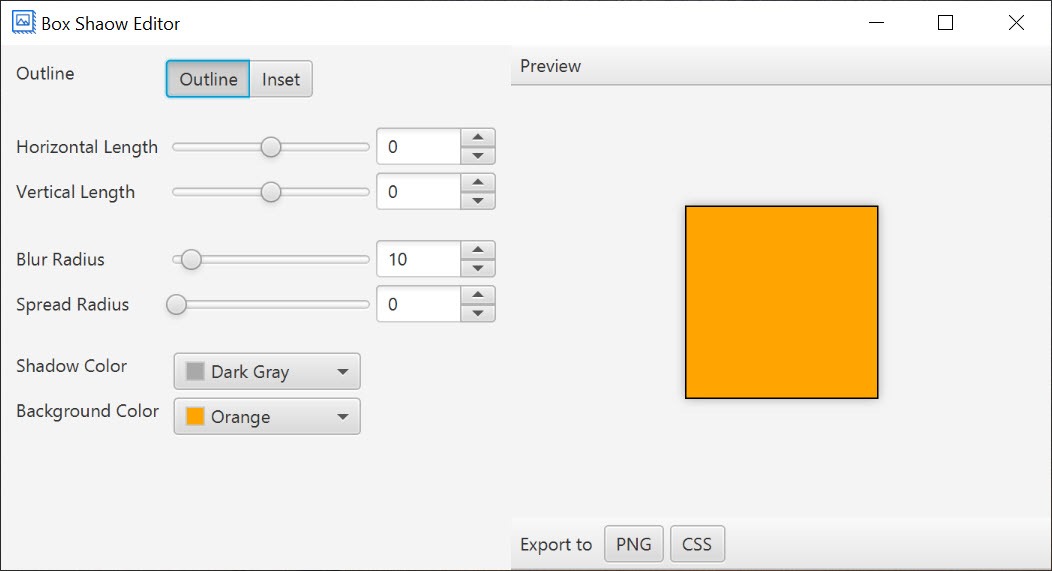
The box shadow editor is the piece of Designers Tools that justifies the install for a front-end designer. Drag the sliders for offset, blur, spread and colour, watch the preview change live, and copy the result as a CSS rule or save it as a PNG for a mockup. That is exactly what the generator websites do, without the website.
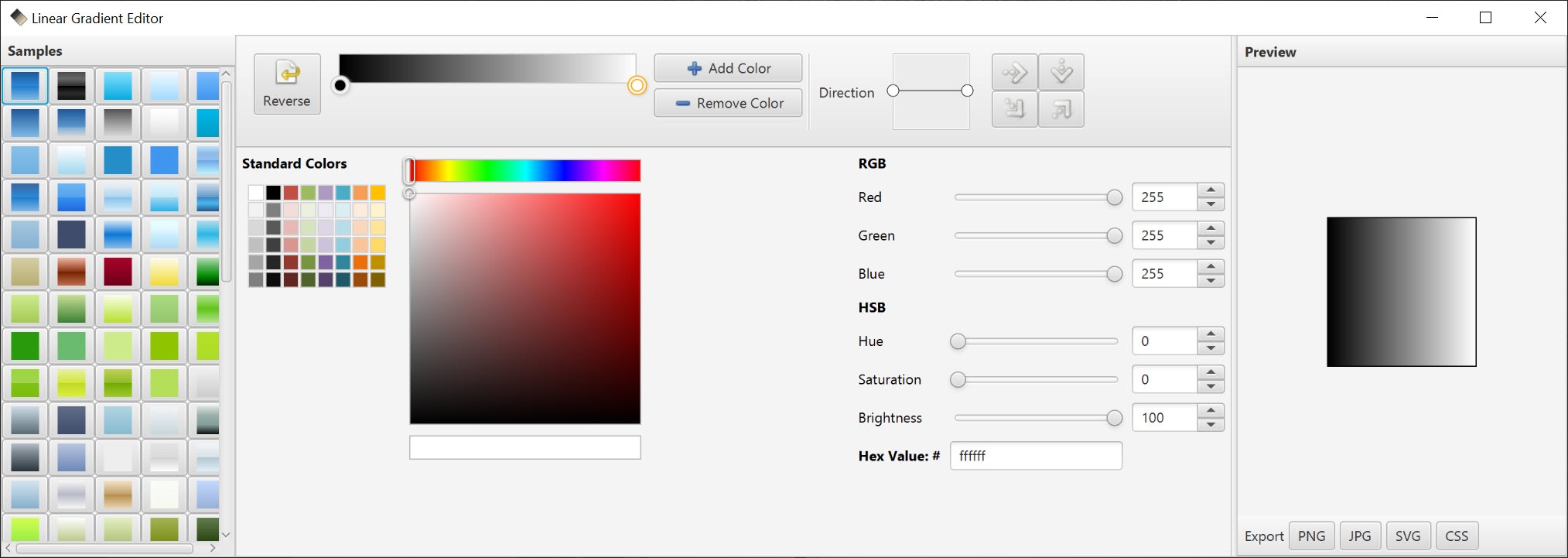
The gradient editor works the same way, building a colour transition with stops and an angle and handing back the code. Both editors produce standard CSS that pastes into a stylesheet, and both save the round trip to a browser tab.
Screenshots and backgrounds
A screenshot tool captures the screen for a quick reference or a note to a colleague. It is basic, with capture and save and little else. For annotated screenshots with arrows and blur, a dedicated capture tool is the better fit, and the two do not overlap much.
The background maker generates a backdrop for a mockup or a presentation, with the transparency adjustable and the pattern rotatable, so a design can be shown on something other than white. It is a convenience for presenting work rather than a design tool in itself.
Where a longer-lived utility is the sounder choice
Designers Tools is small and new, with one release and almost no documentation, and the installer is large for what it does because of the framework the program is built on. Each tool is a simple version of its kind.
The ruler has no units beyond pixels, the colour picker lacks the magnifier and format list of the specialists, and the screenshot tool is bare. Whether it will see a second release is an open question.
For anyone whose daily tabs are a shadow generator, a gradient generator and a colour picker, that is a fair trade for having them in one offline window. For vector drawing and proper design work, Gravit Designer is a different class of tool, and this one is the pocket beside it.
Conclusion
Designers Tools suits front-end and web designers who keep a shadow generator, a gradient generator and a colour picker open in browser tabs and would rather have them in one offline window. The box shadow editor with CSS export is the strongest piece.
It is a small, young project with simple versions of each tool and no track record yet. Use it for the quick generators, keep a specialist picker and a proper capture tool beside it, and watch whether it grows.
Pros & Cons
- Screen ruler, colour picker and scheme builder in one window
- Box shadow editor with live preview and export to CSS or PNG
- Gradient editor that produces standard CSS
- Works offline, replacing browser-based generator sites
- Screenshot tool and background maker for quick mockups
- Single release and very little documentation
- Each tool is a simple version of its kind
- Large installer for a set of small utilities
- Colour picker lacks a magnifier and extra formats
Frequently asked questions
Yes. The box shadow editor shows a live preview and exports the result as a CSS rule or as a PNG image.
No. The tools run offline on the desktop, which is the point of having them instead of browser-based generators.
No. It measures, picks colours, builds shadows and gradients, takes basic screenshots and makes backgrounds. Image editing needs a separate program.


