

Cyberduck
About Cyberduck
Transfer clients used to be simple because there was one thing to transfer to. Now a working week involves a web host over SFTP, a bucket in object storage, a shared drive somewhere, and files sitting in a consumer cloud account, and most tools handle one of those well and the rest badly. Cyberduck handles all of them through the same window, which is the whole argument for it.
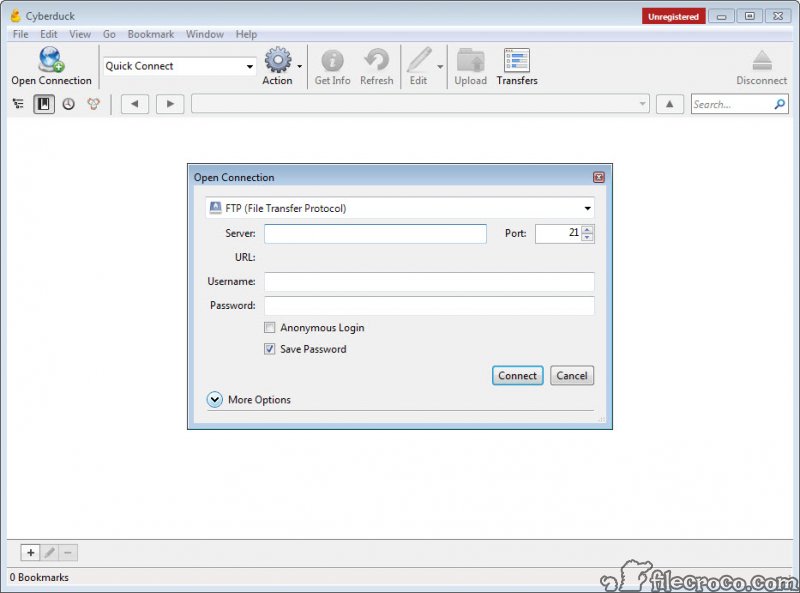
The protocol list runs through the traditional transfer protocols and their secured variants, network file shares, object storage from the major providers and the third parties implementing the same interface, and the consumer services people actually use. Connection profiles for common hosting providers mean setting one up is often choosing a name rather than filling in fields.
One design decision divides opinion sharply, and it appears next because it determines whether you will get on with this at all.
The single-pane decision
Almost every transfer client puts local files on one side and remote files on the other. Cyberduck does not. It shows the remote location, and browsing your own machine happens in a separate window rather than beside it.
For people who work by dragging between two panes, this is disorienting, and it is the most common reason somebody tries the application once and returns to what they know. The counter-argument is that it treats a remote location as a place you work in rather than a destination you copy towards, which suits browsing a bucket or editing files on a server more than it suits bulk copying.
If the two-pane arrangement is non-negotiable, WinSCP provides it along with a scripting interface, and there is no sense fighting a habit that works.
Client-side encryption that reads the vault in place
This is the feature that makes it more than a competent browser. It implements the same encrypted vault format as the well-known desktop encryption tool, so vaults created in either open in the other, with file contents and filenames both encrypted and the passphrase protected by a memory-hard derivation against brute forcing.
The distinctive part is where the vault lives. The usual arrangement expects a local synchronised copy of the cloud folder, which the encryption tool then operates on. Cyberduck opens the vault directly on the server, so encrypted files can be browsed and retrieved individually without dragging the whole thing down first.
For a machine that holds the local copy anyway, Cryptomator remains the tool for creating and managing those vaults, and the two working on the same format is a useful cooperation rather than a coincidence.
Editing a remote file as though it were local
Select a file on the server, and it opens in whichever editor you have configured. Save it, and the change uploads automatically without any download, edit, re-upload sequence.
That single behaviour is what turns a transfer client into a working environment. Correcting a configuration file, adjusting a stylesheet or fixing a typo in a template stops being a three-step ritual and becomes editing a file.
It also removes the commonest cause of confusion in remote work, which is editing a stale local copy and uploading it over somebody else’s change. The file you have open is the file on the server.
Bookmarks, history and sharing
Cyberduck stores each bookmarked connection with its credentials in the system credential store, and a history records every server visited with the time of the last access, which answers the question of what that address was three weeks later.
Sharing works through URLs rather than through a separate step. A selected file yields its web address, and for object storage that includes signed links with an expiry, so a colleague gets a working download without an account and without the link surviving indefinitely.
Two smaller things belong here. Custom commands can be sent to a server for operations the interface does not expose, which stops the application being a ceiling on what you can do. And an activity window lists every pending background task, so a stalled transfer is visible rather than mysterious.
The object storage side
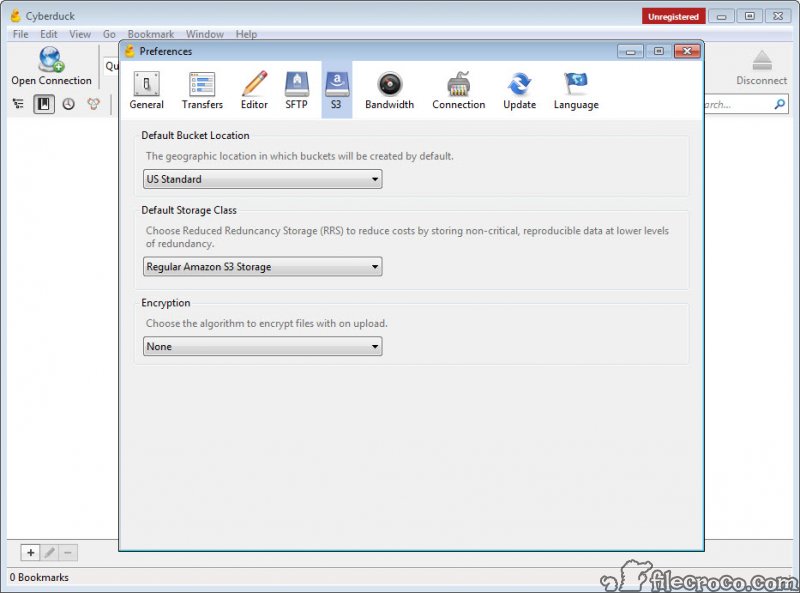
Anyone using Cyberduck with buckets gets rather more than file transfer. Access control lists are editable, bucket configuration is exposed, and content delivery distributions can be managed from the same window, including custom origins, alternate domain names, access logging and which file is the default index.
That is administration rather than transfer, and it is why the application appears on machines belonging to people who never touch a web host. Configuring a distribution without opening a provider console is a real saving when it is a small change.
For the same services from a script rather than a window, a command-line tool covering the same storage providers is the counterpart, and the two coexist happily since neither owns any state the other needs.
Transfers, synchronisation and the queue
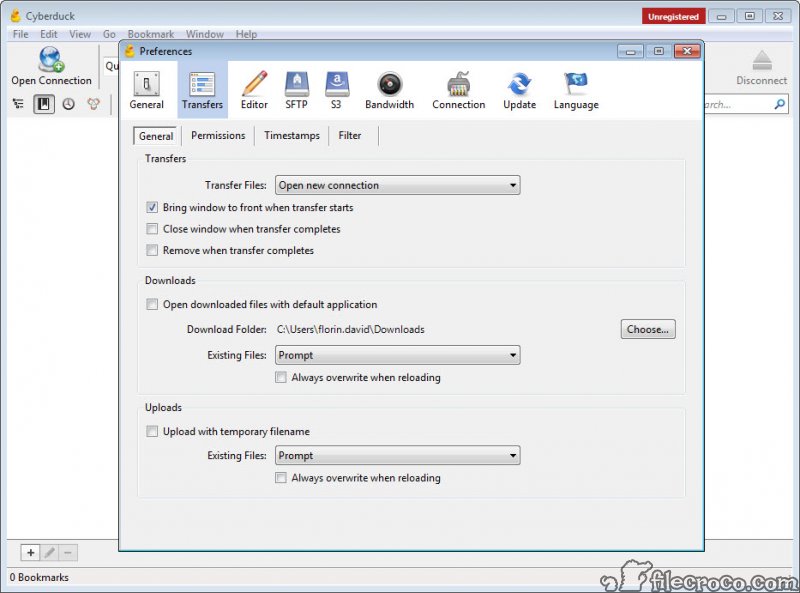
Transfers run concurrently with a configurable number in flight, and interrupted transfers resume rather than restarting, which on a large upload over an unreliable connection is the difference between an inconvenience and an evening.
Directory synchronisation compares a local folder against a remote one and moves what differs, in either direction. It is adequate for deploying a site or refreshing a working copy and it is not a synchronisation product. There is no scheduling, no conflict resolution to speak of, and no history of what changed.
For anything resembling a recurring synchronisation job, a tool built specifically for keeping folders matched does the comparison properly with rules and a preview of what it intends to do.
What it asks of the machine
The honest reservation is resource use. This is a heavier application than a transfer client needs to be, noticeably so next to the lean alternatives, and on an older machine that shows in how long the window takes to become responsive.
Queue management is the other gap. Dedicated clients let you reorder a queue, set priorities and schedule transfers for later. Here you get concurrency and resume, which covers most needs and not all of them.
If the requirement is simply moving files to a web host quickly and often, FileZilla is lighter, faster on many small files, and has the two-pane layout most people expect. The reason to choose this instead is everything in the sections above, which that tool does not attempt.
Conclusion
Cyberduck suits the person whose remote storage is not one thing. Managing a web host, a bucket, a shared drive and a cloud account from one window, editing files in place, and opening encrypted vaults without synchronising them locally are jobs no lighter client covers, and the object storage administration is a genuine bonus for anyone who would otherwise be opening a provider console.
Two things will decide it for you. The absence of side-by-side panes is a real adjustment and some people never make it, and the application is heavier than the alternatives in a way you notice on modest hardware. If you move a lot of small files to one web host, something leaner will serve you better. If your storage is scattered across four different kinds of service, this is the tool that stops treating that as four different problems.
Features & benefits
Pros & Cons
- One interface for transfer protocols, network shares, object storage and consumer cloud accounts
- Connection profiles for common hosting providers remove most of the setup
- Encrypted vaults are opened directly on the server with no local copy required
- Remote files open in your own editor and upload automatically on save
- Signed links with an expiry share a file without giving anybody an account
- Bucket permissions and content delivery distributions are configurable from the same window
- Interrupted transfers resume instead of starting again
- Custom commands cover operations the interface does not expose
- No side-by-side local and remote panes, which many people find disorienting
- Heavier on resources than a transfer client needs to be
- No queue reordering, prioritisation or scheduling
- Directory synchronisation is basic, with no rules, preview or change history
- The command-line companion is a separate installation
- Slower than the lean alternatives when moving very many small files
Frequently asked questions
No. It browses the remote location, with local browsing in a separate window. That is the design rather than an omission, and it is the single biggest adjustment for anyone arriving from a conventional two-pane client.
The traditional transfer protocols and their secured variants, network file shares, object storage from the major providers and third parties using the same interface, and the mainstream consumer cloud accounts, all through one interface.
Yes, and this is one of its better arguments. It reads the vault format directly on the server, so individual encrypted files can be browsed and retrieved without synchronising the whole vault locally.
Effectively yes. A remote file opens in your configured editor and the change uploads when you save, which removes the download and re-upload cycle and the risk of overwriting somebody else's edit with a stale copy.
On the protocols that support it, yes, automatically rather than restarting from the beginning. On a large upload over an unreliable connection that behaviour is the main reason to prefer it over a browser upload.
Not the application itself, but a command-line companion exists for scripted transfers and installs separately. Anyone automating regular jobs should expect to use that rather than driving the window.


