

CrystalDiskInfo
About CrystalDiskInfo
Every drive in your machine keeps a running log of its own problems, counting reallocated sectors, logging temperature peaks and tracking how many hours it has been spinning. Almost nobody reads it. CrystalDiskInfo exists to put that log on screen in a form you can act on, with a colour-coded verdict at the top and the full attribute table underneath.
The verdict is the part everyone remembers. A blue Good, a yellow Caution, a red Bad, or a grey Unknown when the drive will not talk. For most people that badge is the entire interaction, which is fine right up until it turns yellow and you need to know what the program actually measured.
What actually turns the badge yellow
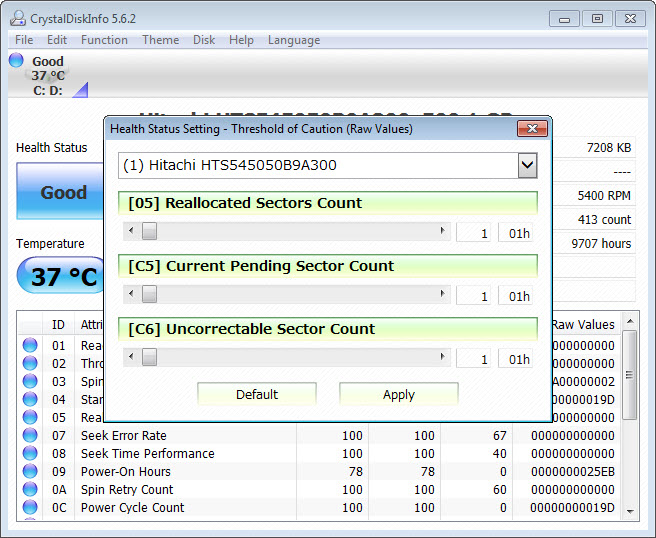
Caution is a rule, not a prophecy. CrystalDiskInfo raises it when the raw value of certain attributes climbs past a threshold, and the attributes involved are the ones that describe surface damage. Reallocated sector count, current pending sector count and uncorrectable sector count are the main three.
The thresholds are yours to change. A health status setting panel lets you decide how many reallocated sectors constitute a problem, which matters because the default is low enough that a single retired sector flips a drive to yellow. That is arguably correct behaviour on a mechanical disk and needlessly dramatic on a large SSD.
Bad is a different animal. That appears when a normalised attribute value has fallen to or below the threshold the drive itself declares, which is the manufacturer saying the component is out of specification.
Treat yellow as a reason to pay attention and red as a reason to stop using the drive for anything you care about.
Reading the attribute table without guessing
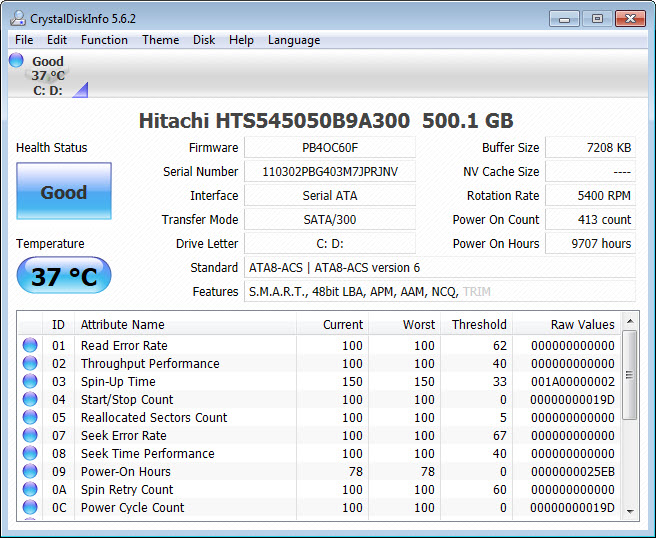
Four columns carry the information. Current is a normalised score, Worst is the lowest that score has ever been, Threshold is the failure point the drive declares, and Raw Values holds the actual counter the controller keeps.
Here is the trap. Those normalised scores use scales each brand defines for itself, so a Current of 200 on one drive is not healthier than 100 on another brand. The only meaningful comparisons are the gap between Current and Threshold on the same drive, and how the raw values move over time. A count that has sat at 8 for months is a different situation from one that reached 8 last week, and the number alone cannot tell you which you have.
Attribute names vary too. Brands reuse IDs for their own purposes, so an unfamiliar attribute sitting at a large value is often just a counter that brand happens to increment differently.
Change the raw values to decimal before anything else
Raw values display in hexadecimal by default. A pending sector count of 0A means ten, which is easy to misread as either a code or a much larger figure.
One setting switches the whole column to decimal, and it is the first thing to change after installing. Ten reallocated sectors reading as 10 rather than 0A removes the single largest source of confusion people have with this program.
The drive panel, and what it is good for
Above the attributes sits everything else the drive reports. Model, firmware revision, serial number, interface, current transfer mode, rotation rate, buffer size, power-on hours, power-on count and temperature, plus a row of supported features covering NCQ, TRIM, APM, AAM and device sleep.
That block earns its place in two ways. It is an inventory record you can read off a machine in seconds, and the transfer mode line quietly answers a question people waste hours on. A drive negotiating a slower link than expected shows up right here.
What it will not tell you is how fast the drive actually is, since a negotiated link speed and real throughput are different things, and ATTO Disk Benchmark answers that question instead.
The firmware field is similarly informative and inert. CrystalDiskInfo shows you which revision is running and offers no way to change it, so updating means the utility that matches the drive brand, something like Samsung Magician for one family of drives.
Graphs, alerts and running it in the tray
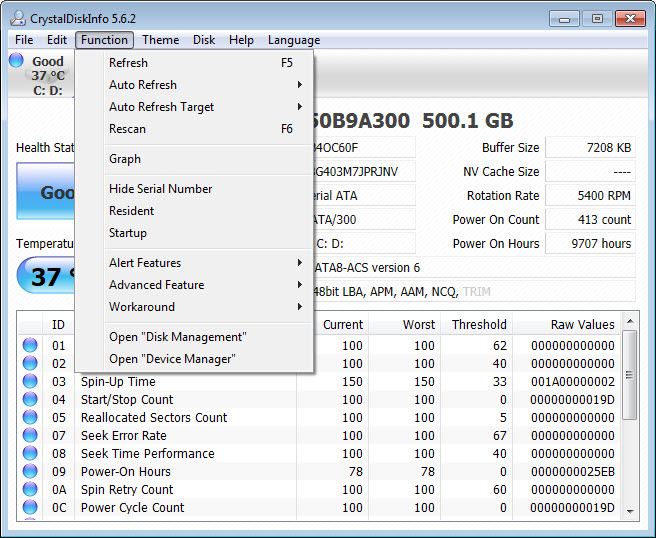
A graph view plots temperature and selected attributes over time, with a configurable number of plot points and even weekend shading on the date axis. It is more useful than it sounds, because a temperature spike that only happens during a nightly backup is invisible in a snapshot and obvious in a chart.
Alerting covers sound and email. You set your own thresholds for temperature and health, and CrystalDiskInfo can sit resident in the tray, rechecking on an interval you choose, hidden or minimised at startup.
The mail side expects you to type server details in by hand, which is where most people give up and settle for the sound alert.
AAM and APM, the two knobs it can turn
Beyond reporting, there are two settings CrystalDiskInfo can write to a drive. Automatic acoustic management trades seek performance for quieter operation, and advanced power management controls how eagerly the drive spins down when idle. An auto-adaption option reapplies your choices at boot or whenever a new disk appears.
Both are legacy controls. Plenty of drives accept the command and ignore it, SSDs have no acoustics to manage, and the audience is someone with a mechanical disk loud enough to irritate in a quiet room. Nice that it is there, no reason to go looking for it.
Where it goes blind
Support is broad but not universal, and the gaps are worth understanding before you conclude a drive is fine. Many USB enclosures use bridge chips that do not pass attribute data through, so an external drive can appear as Unknown or show a stripped-down set of values while being perfectly healthy. Hardware RAID controllers hide their member drives behind the array, so you see the volume and nothing about the disks inside it.
There is a compatibility option that attempts to read attributes from drives reporting no support at all, which occasionally works on older chipsets. When the controller itself is the obstacle, Hard Disk Sentinel reaches some configurations this one cannot, and comparing the two on an awkward machine is a reasonable use of an afternoon.
The limits of a reporting tool
This program reads. It does not test, repair, or measure performance. There is no surface scan, so a sector that has never been read since it went bad will not appear in any counter until something tries to read it. Filling a drive and reading it back is how you find those, and a scanner that reads every sector in sequence does that job properly.
The deeper limit is the data itself. Attribute monitoring catches gradual mechanical decline reasonably well and misses sudden electronic failure completely, and a substantial share of drives die while still reporting Good. The published research on large drive populations says exactly that, and the program’s own documentation links to it, which is a level of honesty most utilities in this space do not manage.
So treat a Good badge as the absence of bad news rather than a guarantee, and keep a backup you can schedule running regardless.
Conclusion
CrystalDiskInfo is the tool to reach for when the question is what condition a drive is in, and it answers that faster and more clearly than anything else in the category. Technicians triaging machines, anyone running drives past the point where they stop feeling new, and people who would rather replace a disk on their own schedule than on the disk’s will all get value from a monthly glance at that badge.
What it cannot do is turn a warning into a plan. It will not test the surface, it will not fix anything, and it will not catch the failures that arrive without warning, which is a meaningful share of them. Read the badge, switch the raw values to decimal, watch the sector counts over time, and keep the backups running.
Used that way CrystalDiskInfo is close to essential, and used as a substitute for backups it is worse than nothing.
Pros & Cons
- The Good, Caution and Bad badge gives a usable answer in one glance without reading any attributes
- Caution thresholds are editable, so a single reallocated sector need not flag a large drive
- Raw values switch to decimal, which makes the whole attribute table readable
- Graph view over time exposes temperature patterns that a snapshot reading hides
- Drive panel doubles as an inventory record covering firmware, serial, interface and negotiated transfer mode
- Resident tray operation with configurable recheck intervals and threshold alerts
- Covers NVMe alongside SATA drives, and reads through some RAID configurations
- Normalised attribute scores use per-brand scales that invite meaningless comparisons
- Default Caution threshold is aggressive enough to alarm people over one retired sector
- Email alerting needs server details entered manually and offers no guided setup
- AAM and APM controls are legacy features that many drives silently ignore
- Many USB bridges block attribute data entirely, leaving external drives unreadable
- Reports only, so there is no surface scan, no repair path and no throughput measurement
Frequently asked questions
It means a raw counter for reallocated, pending or uncorrectable sectors has passed the threshold currently configured. The drive is not necessarily about to fail, but something has physically gone wrong on the surface, so back up and start watching whether the count keeps climbing.
No. It reads what the drive reports and writes nothing except the acoustic and power management settings. Repair tools and surface scanners are separate categories, and no software fixes physical damage.
The USB bridge chip in the enclosure is probably not passing attribute data through, which is common. Connecting the same drive directly to a SATA port usually produces a full reading, and the drive itself is likely fine.
Usually not. Several brands use that attribute as an internal counter that increments during normal operation, and large numbers there are meaningless without knowing the brand's convention. The sector-related attributes are the ones that translate directly into trouble.
Monthly is enough for a healthy machine. A drive already showing Caution deserves the resident mode and an alert threshold instead, so the program tells you when something changes rather than waiting for you to look.
Only visually. They are skins with illustrated backgrounds and identical functionality, so the choice is entirely about whether you want anime artwork behind your attribute table.


