

CloneApp
About CloneApp
CloneApp saves the settings of your programs so a fresh system does not mean starting from scratch. Reinstall the operating system, put the programs back, and the browser forgets your bookmarks and the editor forgets your shortcuts, while the archiver forgets the folder it always opened in. This tool prevents that. Before the reinstall, tick the programs you use, press Backup, and it copies the configuration files and profile folders, and the registry keys, where each program keeps its preferences. Afterwards, with the programs reinstalled, press Restore and the preferences come back as they were.
It is deliberately not a full backup. CloneApp copies the settings and nothing else, so the result is tiny and the whole job takes a few minutes, which suits the time just before a reinstall and the time just after. It knows the hiding places of a couple of hundred common programs through plain-text plugins that anyone can read or write.
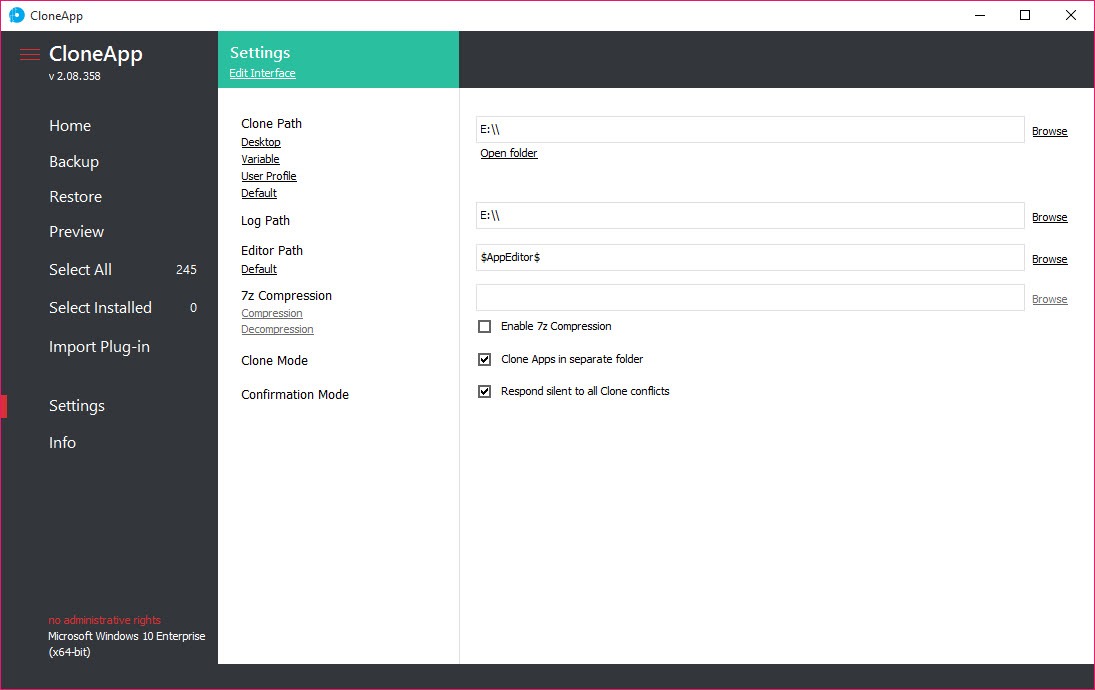
It runs from its own folder without installing, and it needs administrator rights to reach the registry. The sections below cover what it saves, how the plugins work, how a restore goes, and where its approach reaches its limits.
What it saves, and for which programs
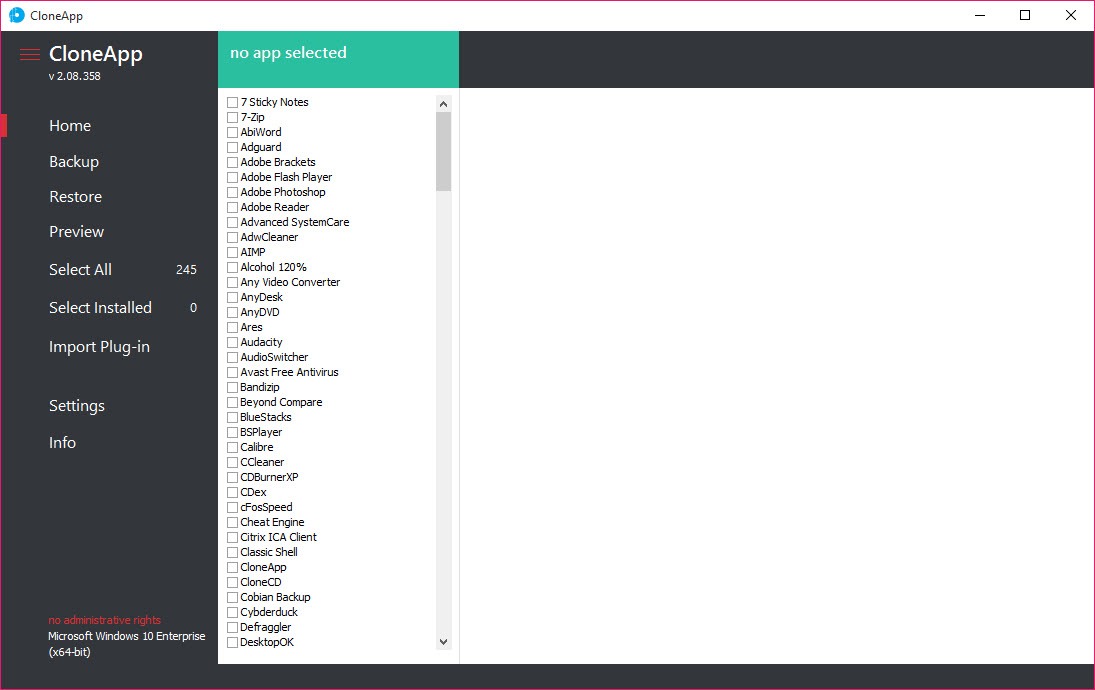
The left CloneApp panel lists the programs it knows, each with a checkbox. The list covers browsers and media players, office suites and editors, plus archivers and image tools. The earlier counts put it at several dozen programs and the later ones at a couple of hundred, alongside system settings such as favourites and contacts, saved games, account pictures and the network folder settings. A Select Installed button ticks every program actually present on the machine, which is the one-click route to a full settings backup.
For each ticked program the backup gathers whatever the plugin describes. A browser profile is a folder in the application data area. An editor’s shortcuts are a registry key. A player’s library is a file. The tool copies each to the backup folder, keeping the structure, and the result is a compact set of folders you can carry on a stick. For the full picture of what is on the machine before you wipe it, Belarc Advisor writes the inventory to a page you can keep.
Plugins, and writing your own
Every program CloneApp knows is a plugin, a short plain-text file. It names the program, says whether to back up a file, a folder, a registry key or the output of a command, and gives the paths. Open one in a text editor and the whole mechanism is visible. The program’s own folder holds the set that ships with it, and more can be imported.
That openness is the tool’s quiet strength. A program the list does not know can be added in a few lines, by finding where it stores its settings and writing a plugin that points there. Custom entries can also be made from inside the window, by picking files and folders by hand, or a registry key. A niche tool or a game’s configuration becomes something the tool can save once you tell it where it lives.
Restoring on the fresh system
The CloneApp restore side mirrors the backup. Reinstall the programs first, since the tool restores settings, not the programs themselves. Then run it from the same folder, tick the programs, and press Restore. Files and folders are copied back and registry keys are imported, and the program opens with its old preferences the next time it starts.
Order matters here. Restoring settings before the program is installed leaves files in folders the installer may then overwrite. Restoring into a different version of the program can also go wrong, since settings formats change, so the closer the reinstalled version is to the original, the cleaner the result.
For a batch reinstall of the common programs on a fresh machine, an updater that installs common applications handles the step this tool does not.
Where the approach reaches its limits
CloneApp saves settings, not data, and not programs. Documents and photos need their own backup, and the programs themselves their own reinstall. Plugins can fall out of date when a program moves its settings to a new place, which browsers in particular do, so a plugin written for an older layout may copy the wrong folder.
The tool has not seen a release in some time, and the plugin set reflects the programs of its active period. Settings stored in the cloud by a program’s own account are outside its reach, and so are the newer packaged applications, which a companion tool from the same source handles separately.
Settings backup or full image
For a machine you want to bring back exactly as it was, a full disk image from EaseUS Todo Backup is the heavier and complete alternative. This tool is for the opposite case, a clean system with your old habits restored on top of it.
Conclusion
CloneApp suits anyone who reinstalls their system and dreads the week of setting every program up again, and technicians who move a user’s preferences to a new machine. The checkbox list, the one-click selection of installed programs and the readable plugins make the backup fast and the restore predictable.
It will not save your files or your programs, and its plugin set shows its age on programs that have moved house. Back up before the wipe, reinstall the programs, restore the settings, and keep the folder for the next time.
Pros & Cons
- Backs up the configuration files and registry keys of a couple of hundred programs
- Select Installed ticks everything present for a one-click settings backup
- Plain-text plugins that anyone can read, edit or write for an unknown program
- Tiny backups that fit on a stick and take minutes
- Portable, writing nothing outside its own folder
- Saves settings only, not data or the programs themselves
- Plugins can lag when a program moves its settings
- Restoring into a different program version can misfire
- Development has been quiet for some time
Frequently asked questions
No. It saves program settings and the folders and registry keys that hold them. Documents and photos need a separate backup.
Yes. Write a short plain-text plugin naming the files and folders to save, or the registry keys, or build a custom entry from inside the window.
After. Reinstall the programs first, then restore the settings, so the installer does not overwrite what the tool restored.
Usually the reinstalled program is a different version that stores its settings elsewhere, or the plugin points at an older location. Check the plugin's paths against where the current version keeps its files.


