

Classic Shell
About Classic Shell
Classic Shell replaces the system’s Start menu with the layouts people spent decades learning, then hands over more customization switches than any menu has offered before or since. Three styles form the core, the original single-column classic, a two-column variant, and the two-pane arrangement from the era most office muscle memory was trained on. Around them sit skins, size controls, search behavior options, and a settings dialog that treats every click, hover, and keystroke as negotiable.
The suite goes beyond the menu itself. A file manager toolbar restores the up button and one-click cut, copy, and paste icons, and puts file sizes and free disk space back in the status bar where they used to live. Small things, all of them, and together they remove a dozen daily paper cuts.
The honest status report belongs up front. Development of Classic Shell has ended, and the code was released for the community, where the fork Open-Shell carries the same menu forward with compatibility for current systems. The original remains the right choice on the older machines it was built for, and the fork inherits everything else.
Three styles, then a thousand switches
Picking a style takes one screen, and for most people that plus a skin is the whole setup, five minutes from installer to familiar menu. The two-pane style earns particular loyalty, programs on the left, places and recent documents on the right, everything reachable without typing.
Type anyway and the search box responds instantly, finding programs, settings, and files with the incremental filtering that made the old search beloved, and returning results faster than the system’s own menu manages on the same hardware. Skins range from faithful recreations of the older look, textures and all, to flat modern themes, and the Start button itself can be swapped for custom images, which half the audience uses for the classic orb and the other half for something ridiculous, both correctly.
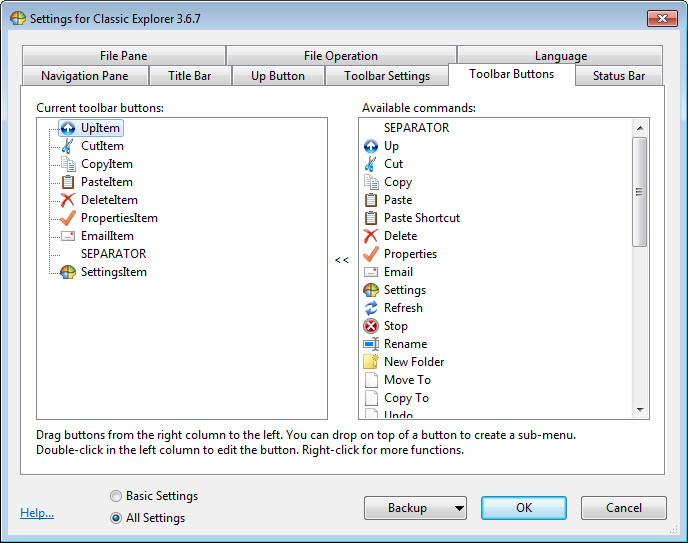
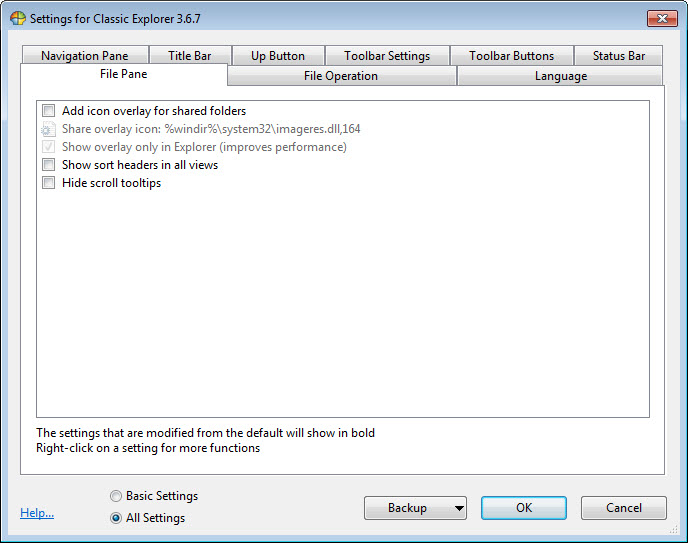
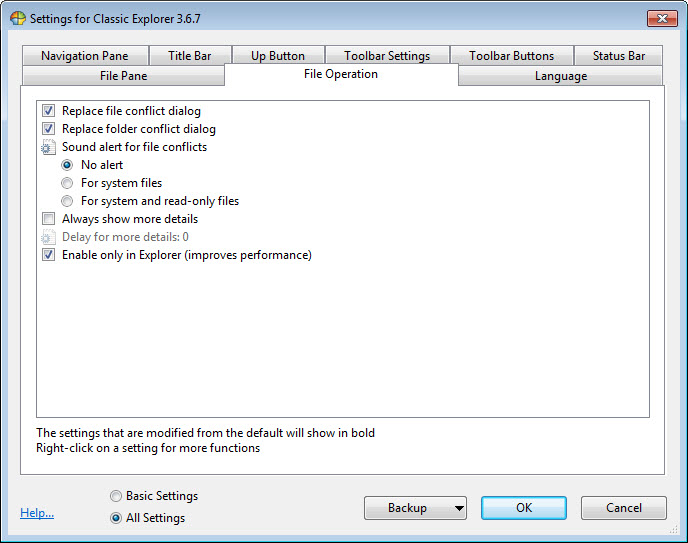
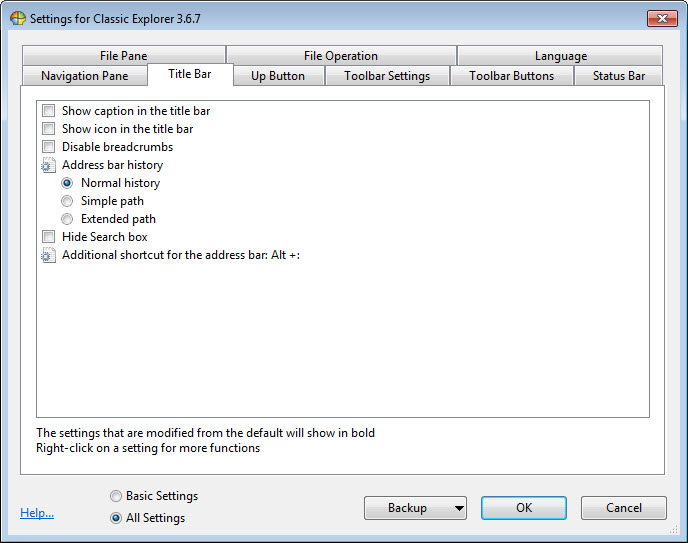
Underneath waits the deep end. The settings dialog, with its all-settings checkbox ticked, exposes hundreds of options, what a middle-click does, how many recent documents to track, whether hovering opens submenus and after how many milliseconds, which items appear and in what order.
It is gloriously excessive, and the entire configuration exports to an XML file, so a perfected setup replays on every machine you touch in seconds.
The file manager toolbar, the quiet half of the suite
The second component bolts a toolbar onto the file manager with the buttons the modern design retired. Up one level sits where it belongs, cut, copy, paste, and delete become single clicks, and a settings button opens the same style of exhaustive configuration as the menu.
The status bar restoration matters just as much for people who live in folders. Selected file sizes, total counts, and free disk space return to the bottom edge, information the redesigns hid behind extra clicks. There’s even a navigation pane fix that stops the folder tree from jumping around on its own, one of those corrections that sounds trivial until the first time it saves your place in a deep hierarchy.
None of this changes how the system works underneath. The suite decorates and restores, it never patches system files, which is why it earned a reputation for being safe to deploy across offices and family machines alike.
The fork, the rivals, and who should run what
The practical guidance splits by system age. On older machines, the original runs exactly as always, and there is no reason to change anything. On current systems, the fork is the same menu under active care, and it should be the default pick, since shell integration is exactly what needs maintenance as the system evolves underneath it.
The commercial neighbor StartIsBack++ takes a different approach, styling the system’s own menu machinery rather than replacing it, which some prefer for feeling more native.
A minimalist like Spencer does nothing but pop up the old cascading programs list, the whole idea in fifty kilobytes.
And people who enjoy this category usually enjoy broader system adjustment too, where Winaero Tweaker continues the same spirit across the rest of the interface.
Conclusion
Classic Shell suits people on older machines who want the menu their hands remember, offices standardizing an interface across mixed hardware, and tinkerers who consider a Start menu with hundreds of settings a gift rather than a burden. The file manager restorations alone justify the install for folder-heavy workers.
Anyone on a current system should reach for the Open-Shell fork and get the same experience with a future. Between the two, the classic menu never really went away, it just changed maintainers.
Pros & Cons
- Three classic menu styles with instant, accurate search
- Hundreds of settings covering every click, hover, and delay
- File manager toolbar and status bar restore the retired conveniences
- Configuration exports to XML for instant replication on other machines
- Decorates the shell without patching system files
- Development has ended, with new-system compatibility left to the fork
- The settings depth overwhelms anyone who opens the full dialog unprepared
- Skins and styles look dated by design, which is the point but not for everyone
- On current systems the fork makes the original redundant
Frequently asked questions
On the older systems it targeted, yes, it runs as well as ever. On current systems, use the Open-Shell fork, which continues the same menu with active compatibility work.
Open-Shell is the community continuation built from the released code. The menu, styles, and settings are essentially the same, with the fork adding fixes for newer systems.
Yes, the settings dialog exports the entire configuration to an XML file, and importing it on another machine reproduces the menu, skin, and behaviors exactly.
No, it runs as a normal program that draws its own menu and toolbar. Nothing is patched, and uninstalling returns the standard menu immediately.
Open the settings and tick the show all settings box. The dialog expands from a handful of tabs to the full catalog of hundreds of options.


