

Chasys Photo
About Chasys Photo
Chasys Photo is three programs in one download. An image editor with layers and adjustment layers, plus a timeline for animation. A fast viewer that opens the common formats and the raw files from cameras. A batch converter that resizes and converts a folder of a thousand photos while you sleep.
The editor is the centre of it, and it does things the general-purpose editors in its class usually leave out. It stacks a series of photos to reduce noise or sharpen detail beyond what any single frame holds. It edits icons at every size at once. It animates objects across a timeline and exports the result as a GIF or a video.
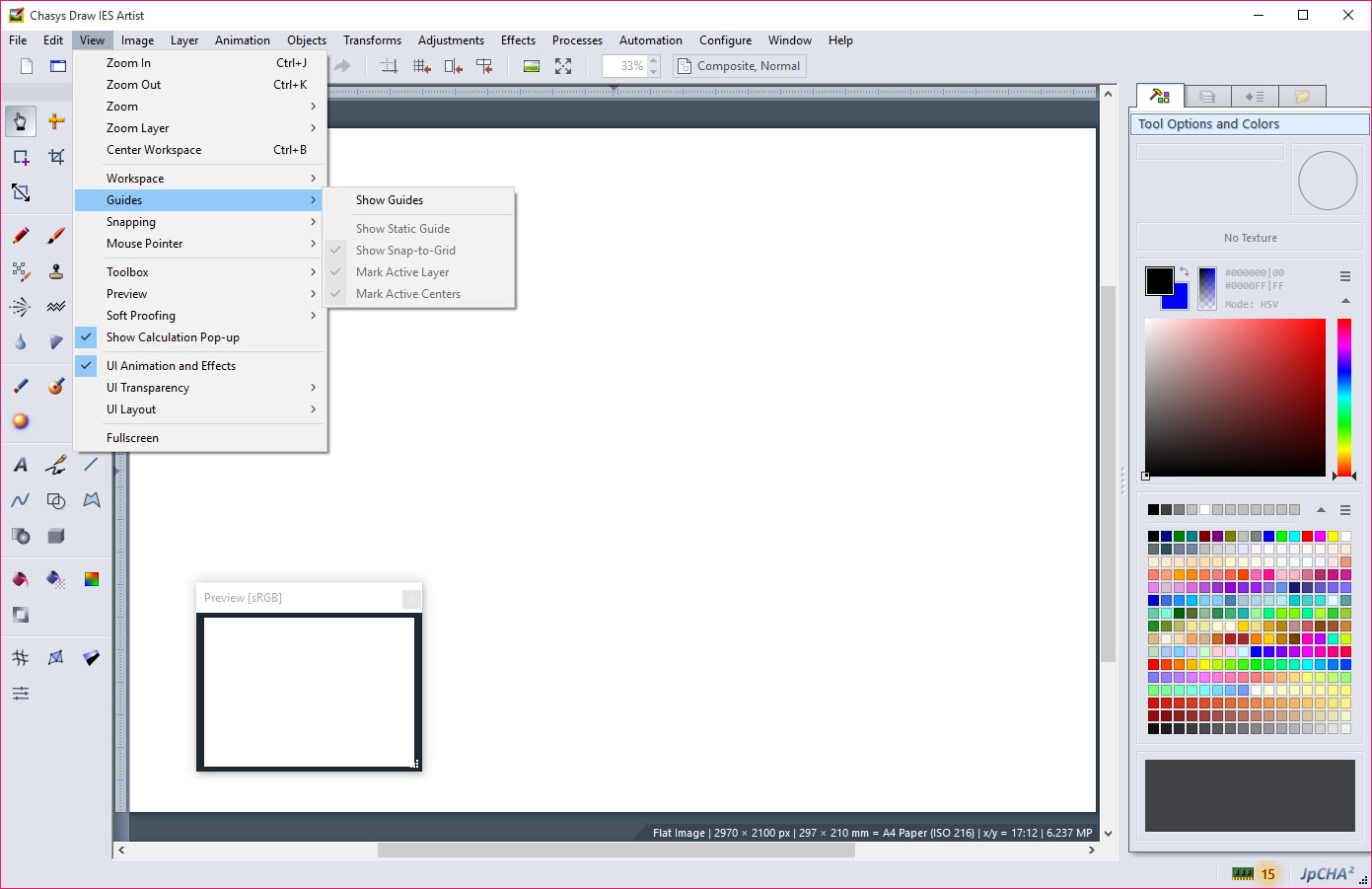
The suite carried a different name for most of its life, and the older name still appears on its files and in its documentation. Chasys Photo is the same program, actively developed, with a drawing-first tradition that shows in its brush engine and its pen support. It also has habits of its own that take a little getting used to, which reviewers have noted for as long as it has existed.
The sections below cover the editor’s layers and tools, the animation and icon work, the stacking, the viewer and converter, and the places where the suite’s own way of doing things gets in the way.
Layers and the tools
The Chasys Photo editor works in what it calls free-style layers. Each layer carries its own position and size, and its own blending mode, with a full transparency channel throughout, and layers can be linked so that moving one moves the others. Adjustment layers apply colour and tone changes without touching the pixels underneath, several adjustments per layer, and they can be imported from the common professional format. Masks and clips, with a tracing paper mode, round out the compositing side.
Tools stay editable after use, which is the suite’s quiet distinction. Text remains text until you flatten it, and a shape or a stroke drawn with a tool can be reopened and changed. The brush engine runs thousands of brushes with modifiers and jitter, and a clone tool, and pen tablets drive pressure and rotation. Retouching covers red eye and dust, with scratch removal and sharpening.
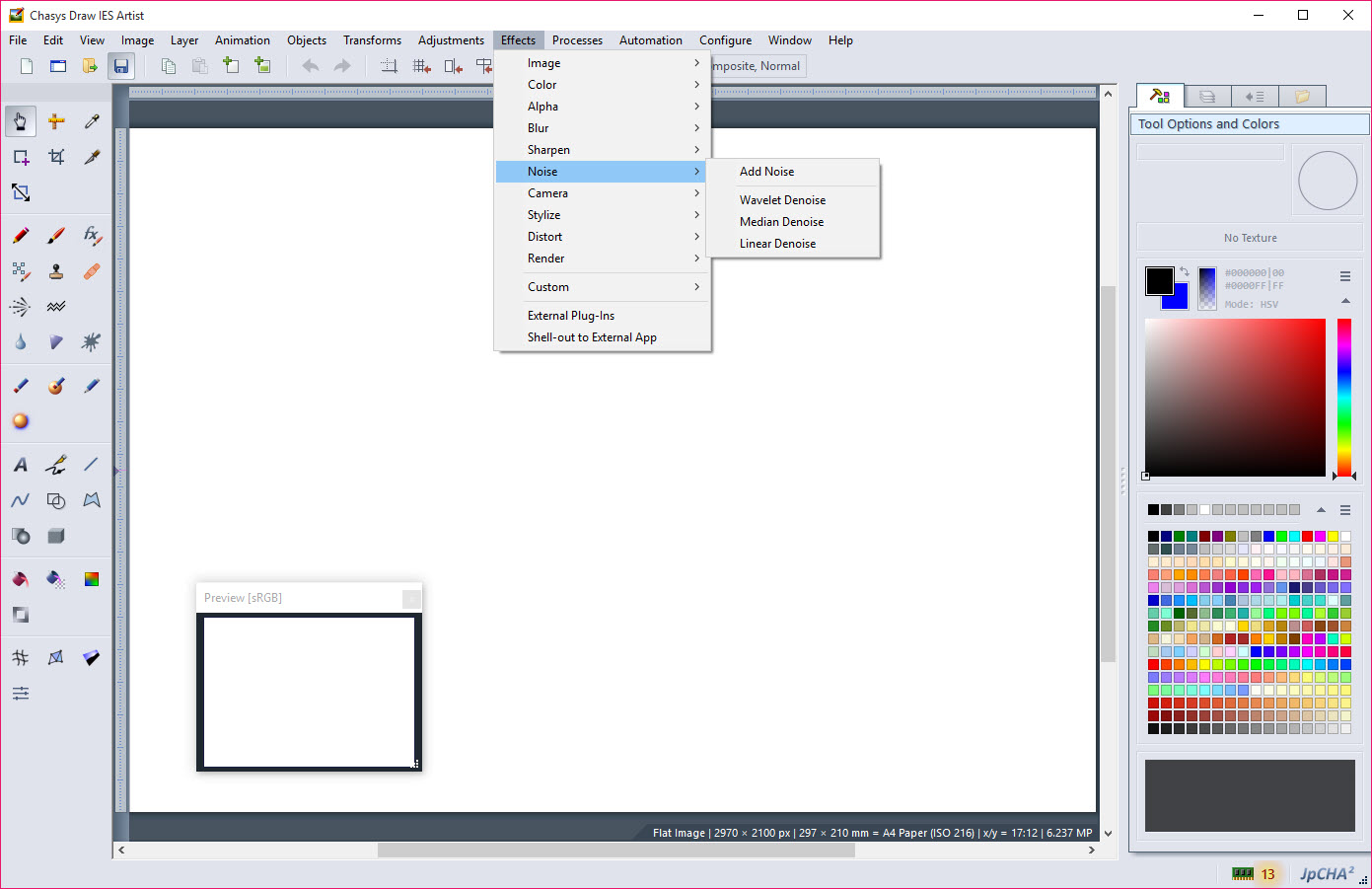
Filters come from a long built-in list, from Lua scripts, and from plugins written for the common professional editor, which opens a vast library. For a general editor with a larger community and more tutorials, GIMP is the usual comparison, and the two can share plugins.
Animation and the timeline
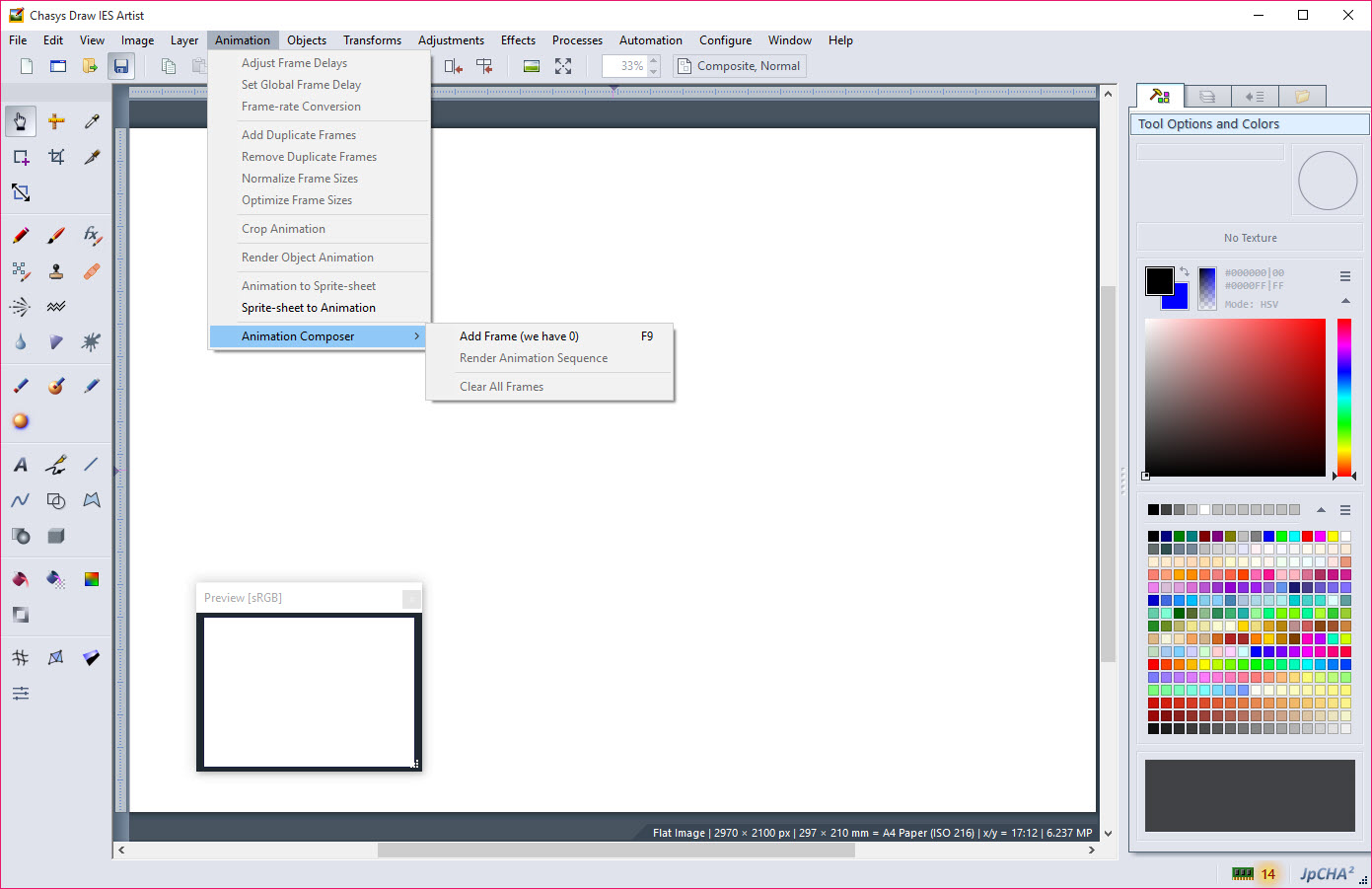
A Chasys Photo timeline turns the layer stack into frames. Frame-based animation works the classic way, each frame a picture, with a composer that assembles them. Object animation goes further. An object on a layer can be moved and rotated, scaled or flipped across the timeline, and the program fills in the frames between, which is the tweening that most image editors never attempt. The result exports as an animated GIF or as a video file in AVI or MOV.
A screen capture mode records video of the screen with jitter correction, and video can be cropped inside the editor. None of this makes it a video editor, but for an animated banner, a short demonstration or a looping graphic, the pieces are all in one place. For a dedicated GIF recorder that captures the screen and nothing else, a small GIF recorder is quicker to the point.
Icons and image stacking
Icon editing is built into Chasys Photo rather than bolted on. An icon file holds several sizes, and the editor shows them as a multi-resolution image, so a change is made once and checked at every size, then saved in the standard icon format with full transparency. A generator turns any picture into an icon set. For anyone who builds software or customises a desktop, that saves a separate program.
Image stacking is the feature photographers come for. Load a series of frames of the same scene and the editor aligns them and combines them. It averages out noise for a cleaner result, or extracts detail from the small shifts between frames for a sharper one than any single shot.
Astrophotographers and anyone shooting in low light know the technique, and having it inside an editor rather than in a specialist tool is unusual.
The viewer and the converter
The Chasys Photo viewer opens images fast, in a window or full screen, with raw files from cameras handled directly and metadata including location data shown. It is the program to associate with image files for browsing a folder, and it hands a picture to the editor in one step.
The converter runs batches across every processor core, reading more than a hundred formats and writing the common ones, with resizing and other operations applied to the whole set. It throttles itself when memory runs short, so a huge batch does not take the machine down.
For a viewer with a larger library of formats and a longer history, IrfanView remains the classic, and the two sit side by side on many machines.
Where its own way gets in the way
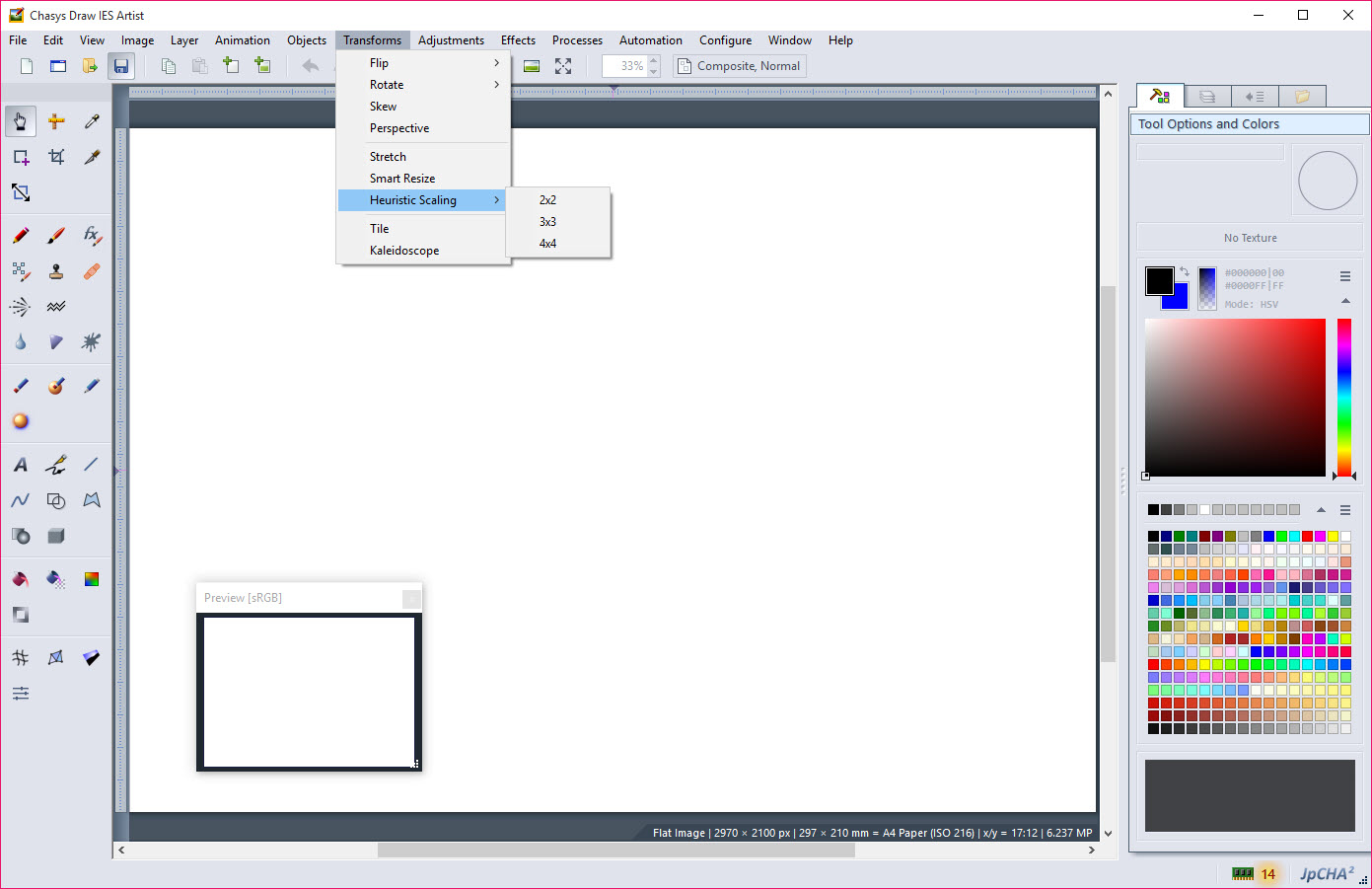
Reviewers have said the same thing about Chasys Photo for a long time, in different words. The controls are not quite standard. Menus and shortcuts follow the program’s own logic rather than the conventions the big editors established, so a user arriving from one of those spends the first hour hunting. The interface is dense, and the number of panels and modes can overwhelm someone who wanted a simple crop. The project is largely the work of one small lab, which keeps it coherent and also means its pace is its own.
None of that is a reason to pass on the stacking, the icon tools or the editable text. It is a reason to give it an afternoon before judging. For a lighter editor with conventional controls and a gentler start, Paint.NET is where many people begin, and this suite is the one they graduate to when they want more.
Conclusion
Chasys Photo suits people who want one suite for editing and viewing, with conversion built in, with the unusual extras of image stacking, multi-size icon editing and object animation thrown in. The editable tools and the adjustment layers make it a serious editor, and the converter earns its place on any machine with a camera.
Its controls follow their own logic and its interface is dense, so it rewards patience rather than a quick first impression. Give it an afternoon, start with the viewer and the converter, and the editor’s odd corners become the features you came for.
Pros & Cons
- Free-style layers with adjustment layers and masks, plus editable text and tools
- Timeline with frame animation and object animation that fills in the frames between
- Icon editing at every size at once, with a generator from any picture
- Image stacking for noise reduction and super-resolution
- Viewer and multi-core batch converter with raw support across the suite
- Plugins from the common professional editor, plus Lua script filters
- Controls and shortcuts that do not follow the usual conventions
- Dense interface that takes an afternoon to learn
- Video features are conveniences rather than an editor
- Pace set by a small team
Frequently asked questions
Yes. The viewer and the editor handle raw files from cameras directly, and so does the converter.
Yes. Object animation moves and rotates an object across the timeline, scales or flips it, and fills in the frames between, exporting to GIF, AVI or MOV.
Loading several frames of the same scene and combining them, either to average out noise or to extract extra detail from the shifts between frames.
Yes. It loads plugins written for the common professional editor and runs filters written as Lua scripts.


This software demands an email address in order to use it. Even though it is ‘free’ it wants your information. This is very unprofessional.