

CD to MP3 Converter
About CD to MP3 Converter
Ripping a CD is one of those jobs where the software matters less than the decisions you make before starting. CD to MP3 Converter handles the mechanical part competently, and the choices it asks you to make at the outset are the ones that determine whether you do this once or twice.
The database lookup does most of the work
CD to MP3 Converter separates a pleasant session from a tedious one through its online lookup. A disc carries no text about itself, only track lengths, so the program calculates a signature from those lengths and asks a database what album it belongs to.
When it works, tracks arrive with artist, album, title and track number already filled in, and the files are named accordingly. When it does not, you get a folder of numbered tracks with no information at all, and typing that in by hand for a fifteen-track album is exactly as tedious as it sounds.
Failures cluster predictably. Compilations match the wrong entry, classical recordings are catalogued inconsistently, and anything obscure may not be there at all. Worse than nothing is a confident wrong match, which names everything incorrectly and looks fine until you play it.
For ripping straight into a managed collection rather than into a folder, a library manager that rips discs into its own catalogue removes the step where you organise the files afterwards.
The decision you only want to make once
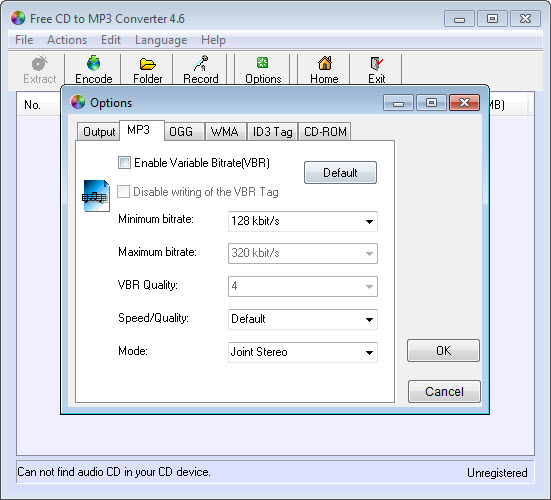
CD to MP3 Converter asks for format and quality before ripping, and this is where people create work for themselves later.
Ripping is the slow part. Reading a disc takes minutes and a collection takes days. Converting an existing file to a smaller one takes seconds. Converting a small file up to a larger one recovers nothing, because the discarded detail is gone.
The conclusion follows. If you are archiving a collection you care about, rip to a lossless format once and generate compressed copies from that whenever you need them. If you are ripping three discs for the car, compressed is fine and the archive question does not arise.
For converting between formats afterwards, and for ripping when you want more control over the encoder, fre:ac covers both jobs with a broader set of encoders.
Scratched discs, and what you will not notice
Here is the CD to MP3 Converter question nobody considers until it is too late. A disc reads cleanly or it does not, and a program can either accept whatever the drive returns or re-read uncertain sections until it gets consistent results.
Fast ripping accepts what arrives. On a pristine disc that is correct and quick. On a scratched one it produces brief clicks or dropouts, and nothing reports a problem, so you find them months later with the disc back in its cupboard.
Anybody working through a collection with discs in variable condition should use a ripper with proper error correction and accept that it takes longer. Audiograbber has handled that job for years and includes normalisation for collections where the levels vary wildly between albums.
Cleaning up afterwards
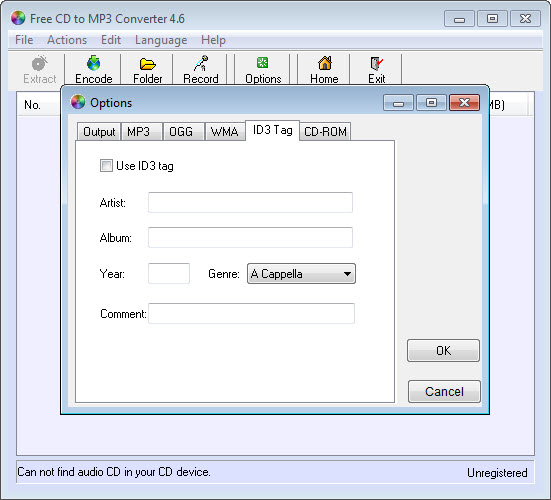
Even a successful CD to MP3 Converter rip needs tidying. The database returns whatever somebody submitted, so capitalisation is inconsistent and artists are listed differently between albums.
That inconsistency makes a library hard to browse later, and fixing a whole folder at once beats correcting albums individually. MP3TAG handles a whole collection at once and understands considerably more fields than any ripper writes.
Conclusion
CD to MP3 Converter does the straightforward job straightforwardly, which is what most people need. A recognised disc goes in, named and tagged files come out, and nothing about the process requires thought.
Spend that thought on the two decisions instead. Choose lossless if the collection matters, because you will not want to rip it twice, and use something with proper error correction for any disc that has lived outside its case. Get those right and the tool you use for the mechanical part barely matters, which is the honest position on every program in this category.
Pros & Cons
- Database lookup names and tags tracks automatically when the disc is recognised
- Format and quality chosen before ripping rather than converted afterwards
- Straightforward operation with no configuration needed for an ordinary disc
- Individual tracks can be selected rather than ripping a whole album
- Files are named from the metadata rather than numbered
- Database matches fail or come back wrong on compilations and classical
- A wrong match names everything incorrectly and looks entirely normal
- Fast reading of a scratched disc produces defects you will not notice until later
- Tags usually need tidying afterwards in something built for that
- Nothing here helps organise the files once they exist
Frequently asked questions
Because the disc is identified by matching track lengths against a database, and compilations, classical recordings and obscure releases either match incorrectly or are absent. A wrong match is worse than none, since everything is named confidently and incorrectly.
Lossless if you are archiving a collection, because ripping is the slow part and converting down later takes seconds while converting up recovers nothing. Compressed is fine for a handful of discs you are copying for convenience.
Fast ripping accepts whatever the drive returns, which produces brief clicks or dropouts that nothing reports at the time. A ripper with proper error correction re-reads uncertain sections and takes longer, which is the right trade on damaged discs.
Usually yes. Database entries were submitted by other people, so capitalisation, artist naming and genres are inconsistent, and correcting that across a whole folder in a dedicated tagger is far quicker than doing it album by album.


