

Card Recovery
About Card Recovery
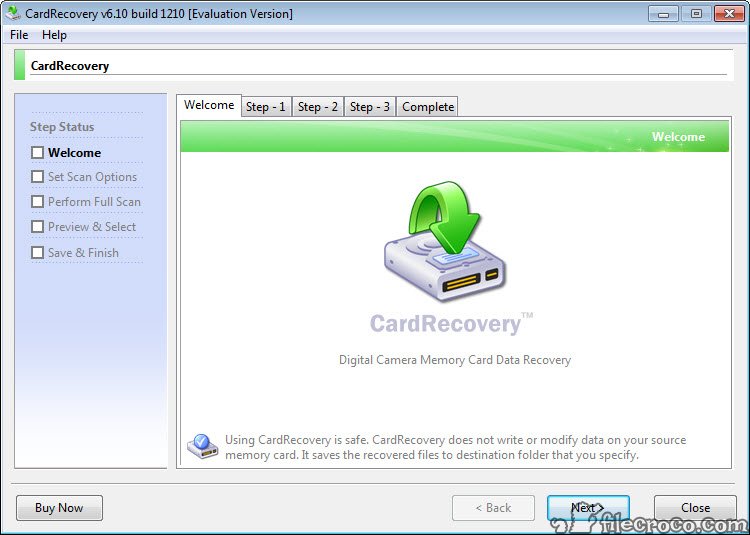
Card Recovery does one thing, and it does it through a three-step wizard. Put a memory card in a reader, start the program, choose the drive letter the card appears under, tick whether you want photos, videos or audio back, and press Next. The program reads the card sector by sector, ignoring whatever the camera’s file system now claims, and lists every picture and clip it can still find. Thumbnails appear as it runs. Pick the ones you want, choose a folder on the computer, and they are saved there. The card is never written to.
It exists for one familiar disaster. A camera’s Delete All pressed by mistake, a card formatted in a hurry, or a card the computer suddenly wants to format before it will open. The photos are usually still on the card, and Card Recovery is built to find them. It is narrow by design, which is why it is simple and not a tool for a hard drive. The sections below cover the scan, the preview, the formats it understands and the point at which a broader tool takes over.
The three-step wizard
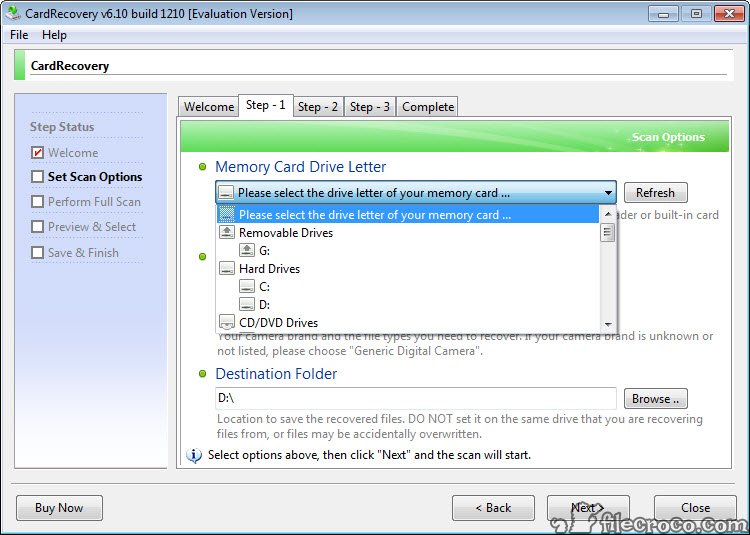
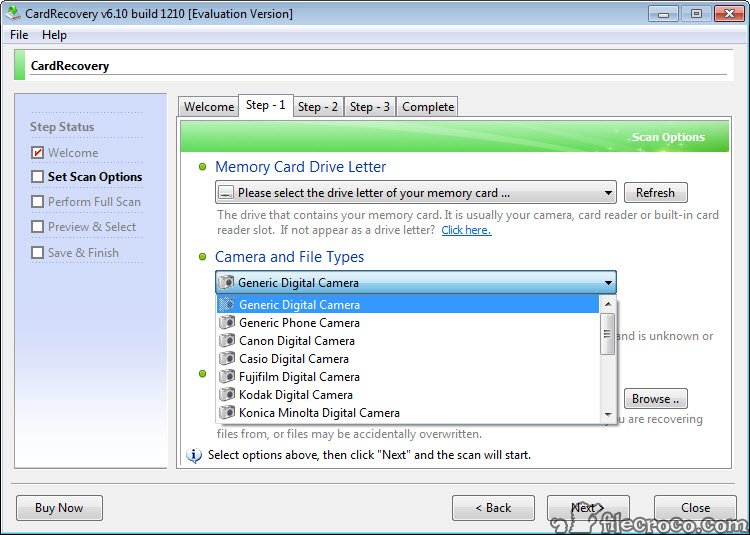
Step one of Card Recovery asks three things. Which drive letter holds the card, which camera brand took the pictures, and which kinds of files to look for. The brand helps it recognise the camera’s RAW format alongside the JPEGs. Photos and videos can be ticked together or alone, audio too, so a scan for a lost wedding video does not fill the list with every snapshot on the card. For deleted files on an ordinary drive rather than a card, Recuva is the general tool.
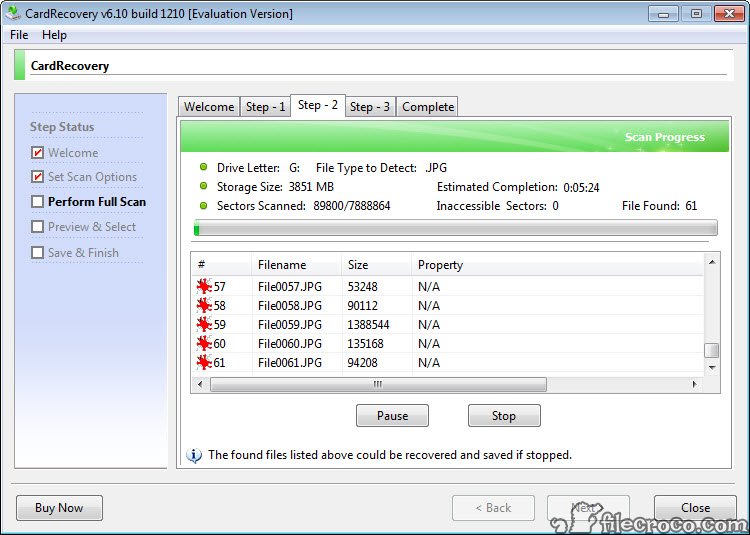
Step two is the scan, with a progress bar and the running count of files found. It can be stopped the moment the file you were after appears. Step three shows the results as thumbnails. Tick the ones to keep, choose a destination, and the program writes them there with their camera metadata intact.
How the scan finds what the camera lost
Deleting a photo on a camera does not erase it, which is what Card Recovery relies on. The camera marks the space as available and leaves the picture where it was until something new is written over it. Formatting usually does the same. The program’s scan, which its maker calls SmartScan, reads the whole card at a low level and looks for the signatures that mark the start of a known image or video file, then reads what follows.
That is why it works on a formatted card and on one the computer calls unreadable, as long as the card still answers. It is also why the one rule of recovering a card matters so much. Do not take more pictures on that card until the recovery is done. Every new shot can overwrite an old one for good.
Formats and the preview
Card Recovery reads JPEG and TIFF photos and the RAW formats of the major camera brands. It reads the common video containers from AVI and MOV to MP4 and AVCHD, plus the usual audio files. It handles the full family of memory cards, plus USB sticks and the cards from phones, as long as they appear as a drive letter.
The preview is the feature that separates it from a blind recovery. Thumbnails show which photos are intact and which came back as grey blocks or half an image, so you choose before you save. For reading the recovered metadata in detail afterwards, a photo browser that reads EXIF data shows the camera settings each file carried.
Where a broader tool takes over
Memory cards are the whole Card Recovery scope, and hard drives are outside it. A reviewer who tested it recently found it capable on standard photo formats and weaker on fragmented video, where a long clip was written in pieces across the card. The interface has not changed in a very long time, which shows in the window’s look. The evaluation build scans and previews but does not save, so you see what is recoverable before deciding.
For a card that this tool cannot read at all, TestDisk and its PhotoRec companion carve files by type from any medium, with more formats and a text interface. This one is for the camera card, where its wizard is the quickest route from panic to photos.
Conclusion
Card Recovery suits anyone who has just deleted or formatted the photos on a camera or phone card and wants them back without learning a recovery tool. The wizard asks three questions, the scan reads below the file system, and the preview shows what survived.
It stops at memory cards, and the evaluation build only shows you what it would save. Stop shooting on the card the moment you notice the loss, run the scan from a card reader, and save the results to the computer, never back to the card.
Pros & Cons
- Three-step wizard from drive letter to saved photos
- Sector-level scan that works on deleted and formatted cards, and unreadable ones
- Thumbnail preview before saving, so broken files are left behind
- Reads JPEG, TIFF, major RAW formats and the common video containers
- Never writes to the card during recovery
- Memory cards only, not hard drives or documents
- Weaker on fragmented video files
- Interface unchanged for a very long time
- Evaluation build previews but does not save
Frequently asked questions
Usually. Formatting marks the space as free without erasing the pictures, and the sector-level scan finds them as long as nothing has been written over them.
No. It performs read-only operations on the card and saves recovered files to a folder on the computer.
Those files were partly overwritten after deletion or recorded in fragments. The preview lets you skip them rather than save them.


