

Canon MF ToolBox
About Canon MF ToolBox
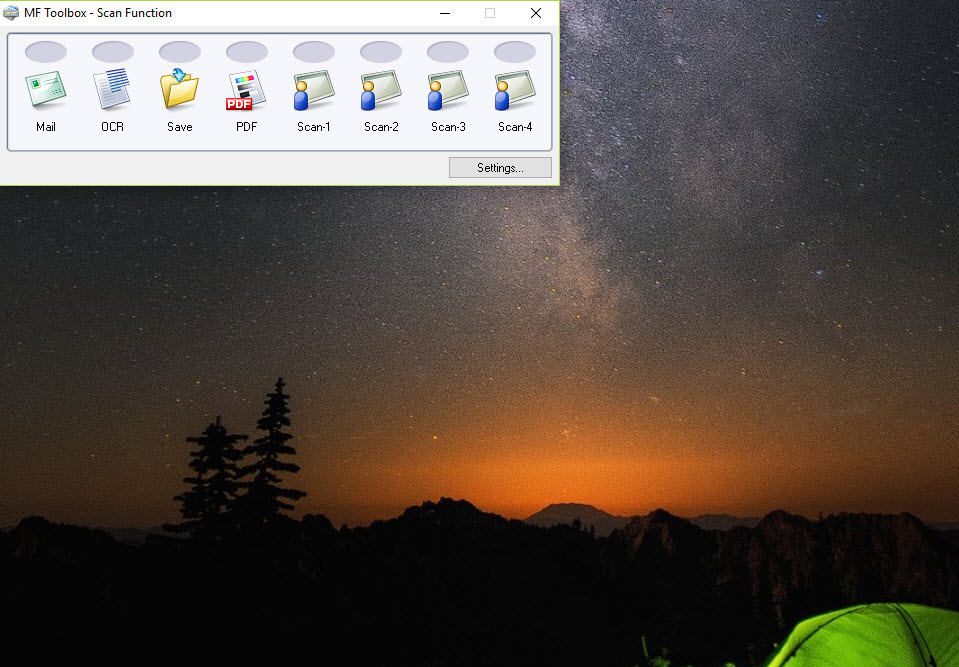
Canon MF ToolBox is the scanning front end for Canon’s MF series of laser multifunction printers. It is a single window with a row of large buttons, Mail, OCR, Save, PDF, Color Scan, Custom 1 and Custom 2, and each button is a saved recipe.
Click one and the machine scans with the settings you stored for it, then does whatever that button is for, whether that means dropping a PDF in a folder, attaching a JPEG to a new email, or pushing the page through text recognition and opening the result in a word processor.
The tool exists because the driver alone gives you a raw scan dialog and nothing more. Canon MF ToolBox adds the destinations and the memory, so a repetitive job like scanning receipts to a folder becomes one click instead of six.
It works only with Canon MF machines and only when the matching driver is already installed, so anyone with a different scanner or a PIXMA inkjet should stop reading here.
Seven buttons, seven stored recipes
Each button opens a settings dialog with a scan mode (colour, greyscale or black and white), a resolution from 75 to 600 dpi, a paper size, a source (platen glass or document feeder), and a file type, then a destination. Click Apply and those choices are stored for that button alone, so the PDF button can be set to 300 dpi greyscale from the feeder while the Color Scan button stays at 600 dpi colour from the glass.
The custom buttons can be renamed with up to eight characters and pointed at any program, such as a PDF editor that reorders and deletes pages, which this tool cannot do itself.
Doubling resolution quadruples the file size, so 150 dpi suits anything read on screen and 300 dpi is the sweet spot for recognition.
PDF options that people miss
The PDF button hides the most useful settings. Save as Type offers PDF, PDF (Single Page), PDF (Multiple Pages) and PDF (Add Page). The multiple-page option scans a stack from the feeder into one file, and Add Page appends the new scan to an existing PDF you pick, so a two-sided document scanned in two passes ends up in a single file without a separate merge tool. Create Searchable PDF runs text recognition invisibly behind the image, so the result looks like a scan but can be searched and copied from.
The recognition engine is adequate for clean printed text, poor for anything skewed or in a small typeface, and useless for handwriting. For serious document work, NAPS2 drives the same hardware through its driver with a better recognition engine and page reordering that this tool lacks.
Scan from the glass or hand it to ScanGear MF
Ticking Display the Scanner Driver in any button’s dialog opens ScanGear MF before the scan, which is the advanced scanner dialog with a preview, crop frames, brightness and contrast curves, descreen for printed material and a threshold setting for black-and-white scans. Canon MF ToolBox is the quick path and ScanGear MF is the careful one, and you switch between them per button rather than globally.
The Scan key on the machine’s own panel also lands here, but only while the tool is running, and that route breaks more often than the one from the desktop.
When it cannot find the scanner
The error everybody hits reads “a supported scanner is not installed”, usually after a system update, while other scanning programs still see the machine. The causes are consistent. The driver package needs to be present before this tool is installed, and reinstalling both in that order fixes most cases.
Running the tool as administrator fixes another batch. On a network connection the printer’s scan patch, distributed alongside the driver, has to be applied before the scanner is visible at all.
Failing all that, reinstall the printer’s own driver package from scratch, not this tool, which is only a front end.
Conclusion
Canon MF ToolBox is for anyone with a Canon MF printer who scans the same kinds of documents repeatedly and wants each kind to be one click. Small offices filing invoices to PDF and home users scanning a page to email will get exactly what they need from the buttons, and the Add Page option covers two-sided documents without a second program.
It is not a document manager and its text recognition is basic. When the scanner disappears after an update, the fix is always the driver and never the tool, and knowing that saves the hour most people spend reinstalling the wrong thing.
Pros & Cons
- One-click buttons keep separate scan settings and destinations each
- PDF (Multiple Pages) and PDF (Add Page) build a single file from several passes
- Create Searchable PDF adds invisible recognised text behind the image
- Custom buttons open the scan in any program you choose
- Works only with Canon MF machines with the driver already installed
- Recognition engine struggles with skewed pages and small type
- Frequently loses the scanner after system updates
- No page reordering or deletion after scanning
Frequently asked questions
The driver is missing, was installed after the tool, or needs its scan patch on a network connection. Reinstall the driver first, then the tool, and run it as administrator.
Yes. Choose PDF (Multiple Pages) and feed a stack through the document feeder, or use PDF (Add Page) to append a new scan to an existing file.
Select a PDF type on the PDF button, tick Create Searchable PDF, and scan at 300 dpi for the best recognition.
Yes. Every button has its own settings dialog. Click Apply to keep the choices, and rename the custom buttons to point at any program.


