

BGInfo
About BGInfo
BGInfo writes facts about the computer straight onto its wallpaper. Host name, IP address, logged-on user, disk space left, boot time, memory, system build, and whatever else you choose, rendered as text in a corner of the desktop where anyone sitting at the machine can read it without opening anything. Run it once and the background updates. Run it again and the numbers refresh.
That sounds trivial until you have twelve servers open in remote desktop sessions and cannot remember which one you are typing into. Or you are on a support call and the other person cannot find their IP address.
The desktop answers before anyone asks. BGInfo is a single executable with no installer, and it is the standard way to do this in most server rooms.
Choosing what to show and where it goes
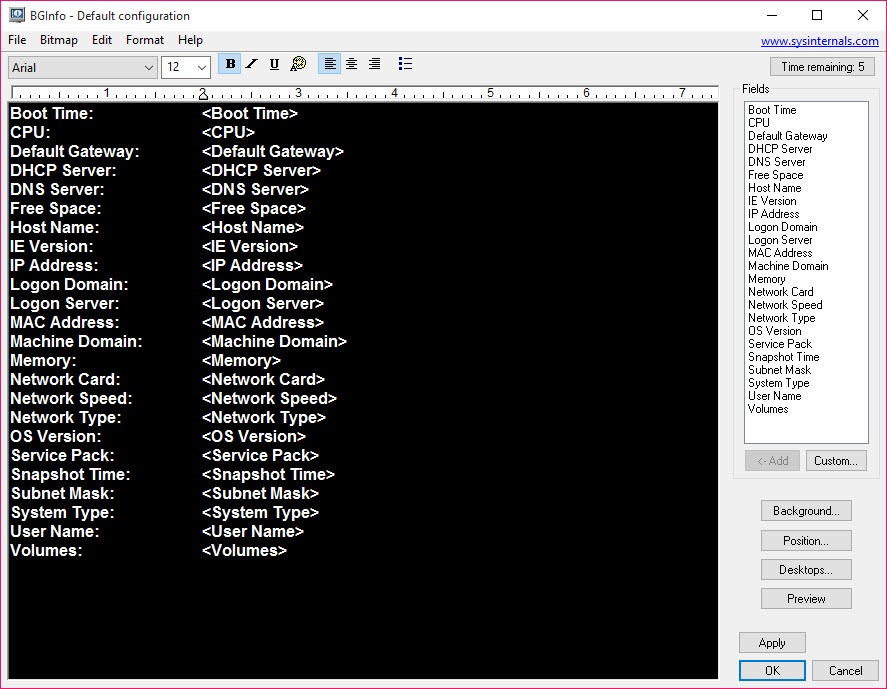
Start it and a ten-second countdown appears, after which it applies the default layout and exits. Click anything and the countdown stops, leaving you in the editor. The left side is a text area where fields sit between whatever labels and punctuation you type. The Fields list on the right holds everything available. Double-click one and it drops in at the cursor.
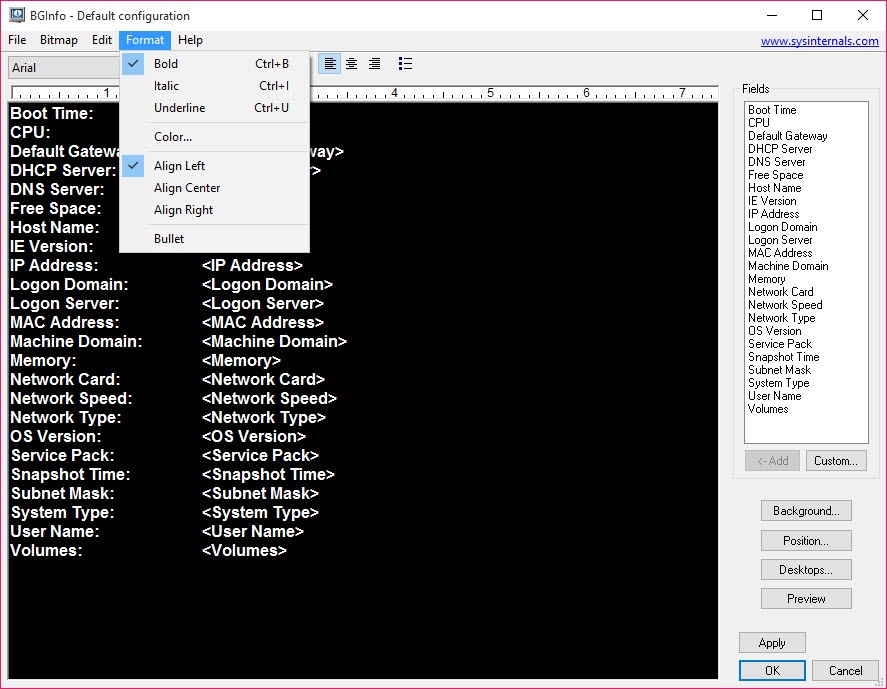
Networking fields create an entry per adapter, so a laptop with wired, wireless and a VPN adapter shows three IP lines. Font, colour and size apply to selected text, and Position pins the block to a corner or a custom offset, with an option to compensate for the taskbar so nothing ends up hidden underneath it.
Background can be a solid colour or your existing wallpaper with the text drawn over it, and multiple monitors can each get their own copy.
Custom fields from WMI, the registry or a script
The built-in fields cover most needs, and Custom covers the rest. A custom field can read a registry value, an environment variable, the contents of a text file, the build stamp of an executable, a WMI query or the output of a VBScript.
The WMI option opens a browser of classes and properties, which is how you get the machine’s model and serial number onto the desktop from the same dialog, the details you would otherwise dig out of a hardware information viewer.
Scripts have one rule that trips people up. The value must be sent back with Echo, and only VBScript runs directly. Anything written for a newer shell needs wrapping in a VBScript that calls it and echoes the result. Test a WMI query elsewhere first, because one that returns nothing produces a blank on the desktop rather than an error.
Running it at logon and keeping it current
Nothing updates on its own. BGInfo runs, writes a bitmap, sets it as the wallpaper and quits, so an IP address that changes at noon stays wrong on the desktop until the next run.
The usual answer is a shortcut in the startup folder or a logon script, calling the executable with a saved .bgi configuration and the switches /timer:0 /silent /nolicprompt so no countdown, no window and no licence prompt appear. For values that change during the day, a scheduled task repeating every half hour keeps them honest.
Configurations save to .bgi files, and keeping one on a network share means every machine picks up a layout change at its next logon. Fleet administrators manage the wider utility suite it belongs to through a front end, but this one tool tends to be deployed on its own.
The wallpaper trade-offs
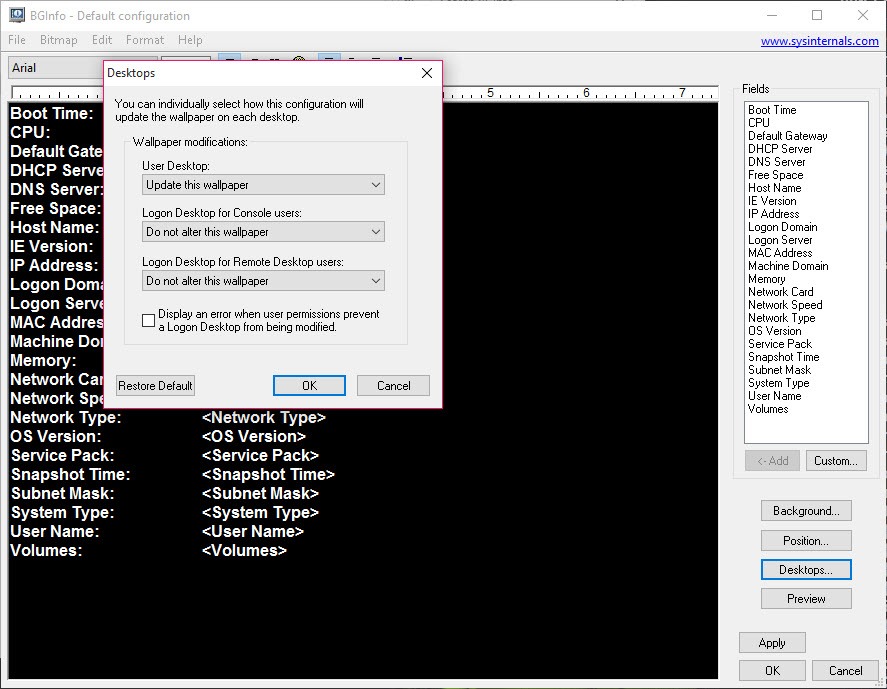
Because the output is a bitmap, anything that manages the wallpaper fights it. A slideshow background or an animated wallpaper engine will overwrite the text at the next change, and the text will overwrite them at the next run. Pick one. The generated image is also sized for the display it ran on, so a laptop that docks to a different monitor shows a stretched or misplaced block until it runs again.
There is no live monitoring here either. For CPU temperatures and fan speeds that change by the second, a hardware monitor with a tray readout does the job, and the desktop text is better kept for facts that change rarely.
Conclusion
BGInfo suits administrators managing many machines and anyone who supports people remotely, because the facts that matter most in those situations are the ones it writes on the desktop. Setting it up as a logon script with a shared configuration takes ten minutes and pays back on the first mistaken server.
Home users get less from it, and the wallpaper conflicts are a nuisance for anyone who likes a rotating background. It shows a snapshot, not a live feed, and it is best kept for information that changes rarely and needs no clicking to find.
Pros & Cons
- Puts host name, IP addresses and system facts on the desktop in one run
- Custom fields from WMI, the registry, files, environment variables or scripts
- Per-adapter network entries and per-monitor placement
- Command-line switches for silent logon-script deployment
- Single executable with no installation
- Values go stale until the next run
- Conflicts with slideshow and animated wallpapers
- Scripts must be VBScript and return values with Echo
- Layout sized for one display looks wrong after a monitor change
Frequently asked questions
It only updates when run. Schedule it at logon, or as a repeating task, so the desktop refreshes after the address changes.
Yes, as a custom field pointing at a VBScript file. The script must output its result with Echo. Other script types need a VBScript wrapper.
Call it with a saved configuration and the switches /timer:0 /silent /nolicprompt from a logon script or scheduled task.
Yes. The Position settings let you choose which monitors receive the text, including all of them.


