

Automatic Screenshotter
About Automatic Screenshotter
Automatic Screenshotter photographs your screen on a timer. Set an interval anywhere from a few seconds to an hour, and from the tray it captures the whole desktop, the active monitor, the current window or a chosen region at every tick, saving each image to a folder with a name built from the date and time. It is a flight recorder for the desktop. When something went wrong an hour ago and nobody remembers the exact sequence, the folder holds the frames, and when a long process ran overnight, the pictures show where it stalled.
Left running without rules, a timer like that fills a disk with near-identical pictures of nothing happening, so most of the program is about not capturing. It skips frames when the computer is idle, when a screensaver or a full-screen game is in front, when the new image barely differs from the last one or when the capture comes out blank. Application rules capture only the programs you name or ignore the ones you list.
Old captures prune themselves by count, by disk space or by age. Automatic Screenshotter runs from a single portable executable and asks for nothing beyond a folder with room in it.
Setting the interval and the target
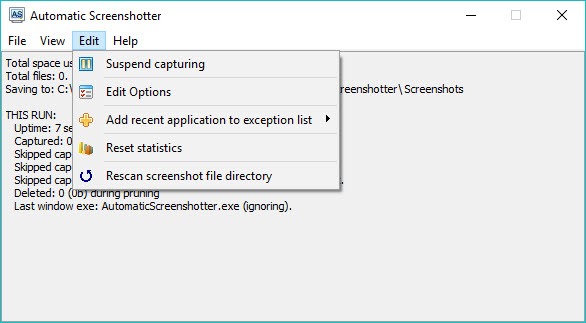
The Automatic Screenshotter tray menu holds the essentials. Pick a capture frequency from a list of presets or type a number of seconds, choose between the full desktop, the active monitor, the foreground window or a fixed region, and the timer starts. A manual capture is a click away for the moment an error dialog appears, and a hotkey does the same, so the tool doubles as an ordinary screenshot utility when needed. Suspend pauses the timer and resume starts it again, which covers a stretch of work that should not be recorded.
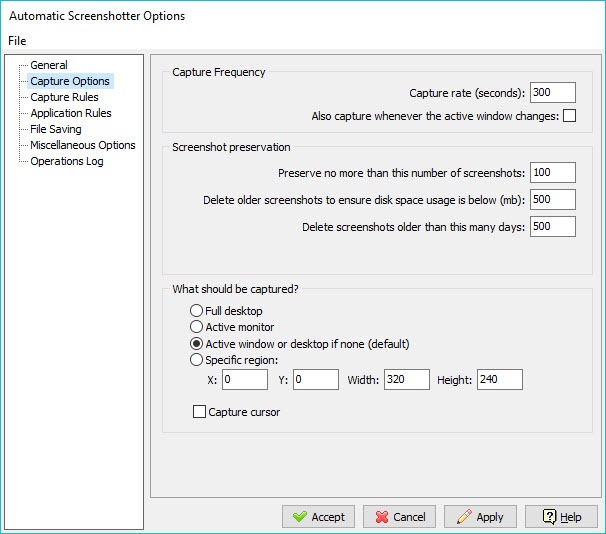
Multiple monitors are handled, with the choice of all screens in one image or the monitor the pointer is on. The default interval is five minutes, which is generous for troubleshooting and right for a loose diary of a day.
For a build or a render you want to watch in detail, ten or fifteen seconds with a smaller image is the usual setting, and the quality and compression options keep the folder size down at that pace.
Rules that stop the folder filling with nothing
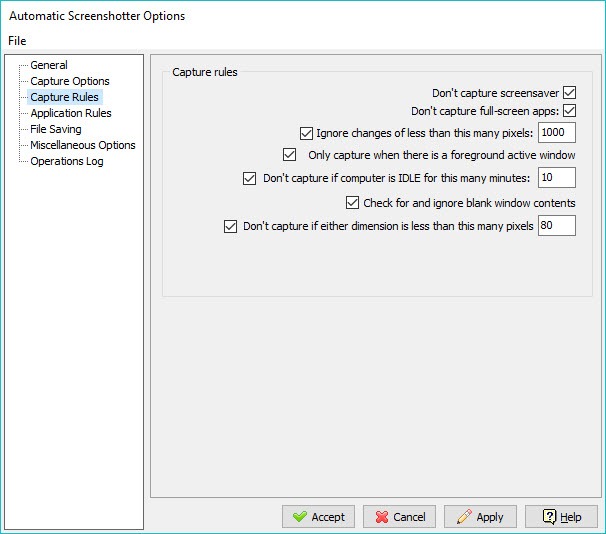
The Automatic Screenshotter capture rules do the quiet work. Idle detection skips frames once no mouse or keyboard input has arrived for a time you set, so a lunch break produces no pictures. Full-screen applications and screensavers suppress capture, which keeps games out of the record. A change threshold compares each new image with the previous one and discards it when fewer than a chosen number of pixels differ, which removes the long runs of identical frames while a document sits open. Blank captures are dropped, and an option captures only when there is a foreground window at all.
Those rules turn an all-day recording into a folder of frames that each show something happening, and the difference in disk use between rules on and rules off is enormous. Setting the change threshold a little higher than the clock in the taskbar moves per minute is the trick that removes the last of the near-duplicates.
A day that would have produced several thousand frames comes down to a few hundred that each mean something, and turning those into a short time-lapse is a job for a video editor that imports image sequences.
Application rules for the programs that matter
Two lists shape what Automatic Screenshotter records. Ignore these applications stops capture whenever a named program is in the foreground, which keeps a password manager, a banking site or a private chat out of the record. Only capture these applications flips the logic and records nothing unless one of the named programs is in front, which is how a session in a single tool is documented without the rest of the day.
Entries are the program’s executable name or its full path, and the two lists can be used together. A further option captures whenever the active window changes, so switching programs produces a frame regardless of the timer, which gives a trail of what was opened and when.
For documenting an interface step by step with annotations and arrows, Greenshot is the tool to take the individual frames afterwards, and this one supplies the raw sequence.
Naming, pruning and the log
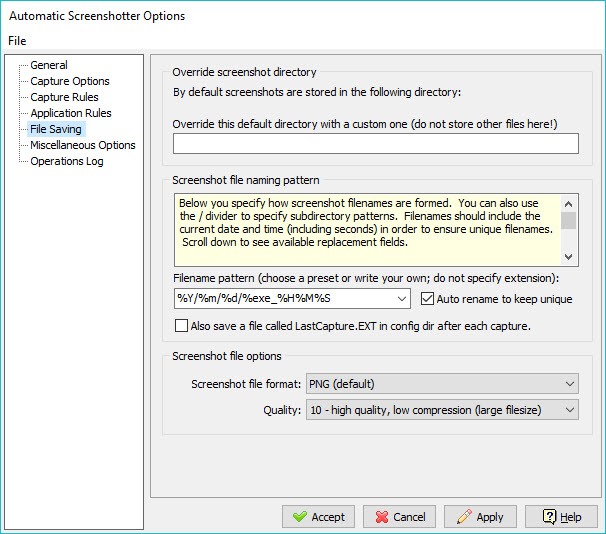
Automatic Screenshotter file names follow a pattern with the date, the time and optional counters, and a separate folder per day can be created automatically, so a month of captures stays browsable. Output is PNG for exactness or JPEG with a quality slider for size, and a prefix identifies captures from a particular machine when several feed one folder. Pruning deletes the oldest images once a count, a disk quota or an age is exceeded, and it is on by default so the tool can run indefinitely without a cleanup.
A log window shows uptime, the number of captures taken and where they went, and the whole configuration lives beside the executable. For a screenshot tool with every capture mode but no timer of this depth, Screenshot Captor is the natural companion, and the two share a configuration style.
Together they cover the single deliberate picture and the long unattended record.
Where it asks care
Automatic Screenshotter records everything on the screen, so the ignore list deserves setting up before the first long run, and the folder deserves a location other people cannot open. Captures happen only while the program runs, and a machine that sleeps stops the record. The interface is plain and the options dialog is dense with checkboxes whose effects are not always obvious until a few hours of captures show what they did.
It is not a monitoring tool for watching another person, and using it that way raises legal questions the program does nothing to answer.
Conclusion
Automatic Screenshotter suits anyone who needs to reconstruct what happened on a screen, from troubleshooting an intermittent fault to keeping a visual diary of a project or a record of a long unattended job. The skipping rules and the pruning make it safe to leave running for weeks, and the application lists keep private programs out of the frames. Support staff reconstructing a user’s steps and researchers logging how an experiment ran get the same benefit from a tool that needs no attention once set.
It is not a screenshot tool for a single picture, and it records whatever it sees until told otherwise. Set the ignore list and the change threshold before the first day, pick a folder nobody else can reach, and it becomes the quiet record you only look at when something needs explaining. For that one job it has few rivals and no learning curve beyond its own checkboxes.
Pros & Cons
- Captures desktop, monitor, window or region on an interval from seconds to an hour
- Skips idle periods, full-screen programs, screensavers, blank frames and near-duplicates
- Application rules capture only named programs or ignore them
- Pruning by count, disk space or age keeps the folder from growing without limit
- Capture on window change for a trail of what was opened and when
- Portable single executable with a manual capture hotkey
- Records everything on screen unless the ignore list is set up first
- Options dialog is dense and the effect of some rules shows only after hours of use
- Stops recording when the machine sleeps or the program is closed
- Plain interface with no built-in viewer for browsing the captures
Frequently asked questions
Anywhere from a few seconds to an hour, chosen from presets or typed as a number of seconds, with manual and hotkey captures at any moment.
It skips idle periods, full-screen programs and frames that barely differ from the last one, and it prunes old captures by count, disk space or age.
Yes. Add the program's executable to the only-capture list and nothing is recorded unless that program is in the foreground.
Yes. Add its executable or path to the ignore list and capture pauses whenever that program is in front.


