

Any Video Converter
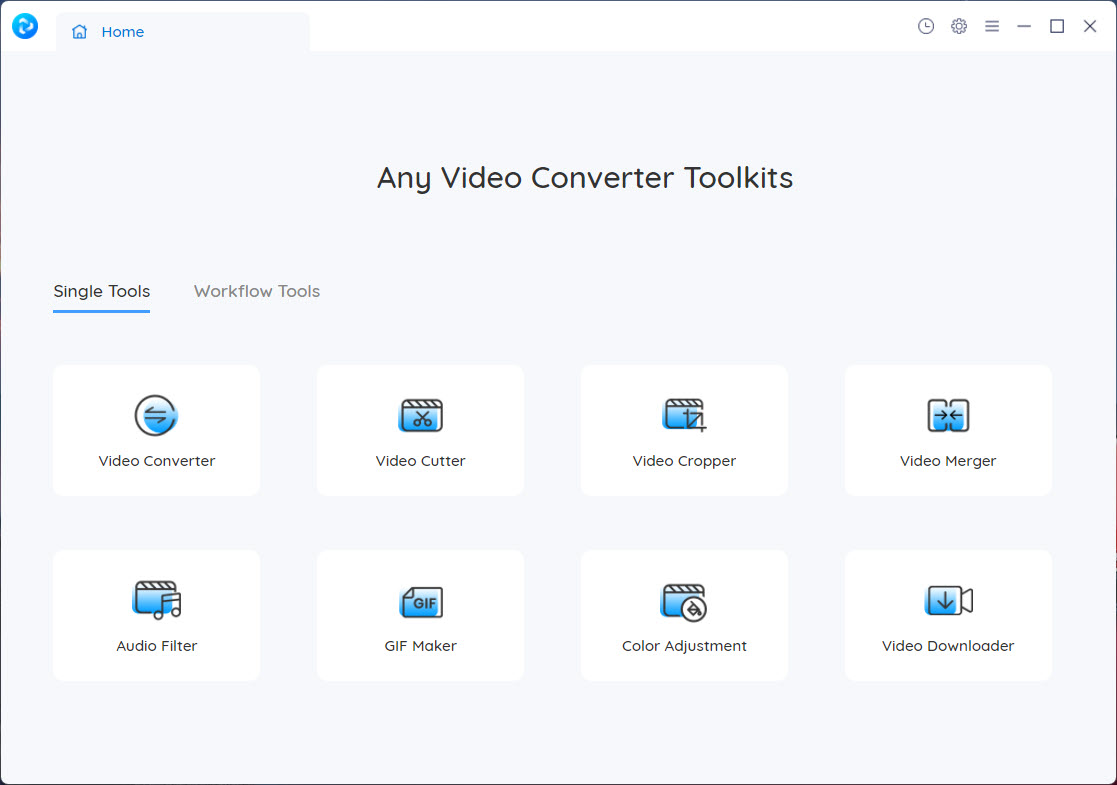
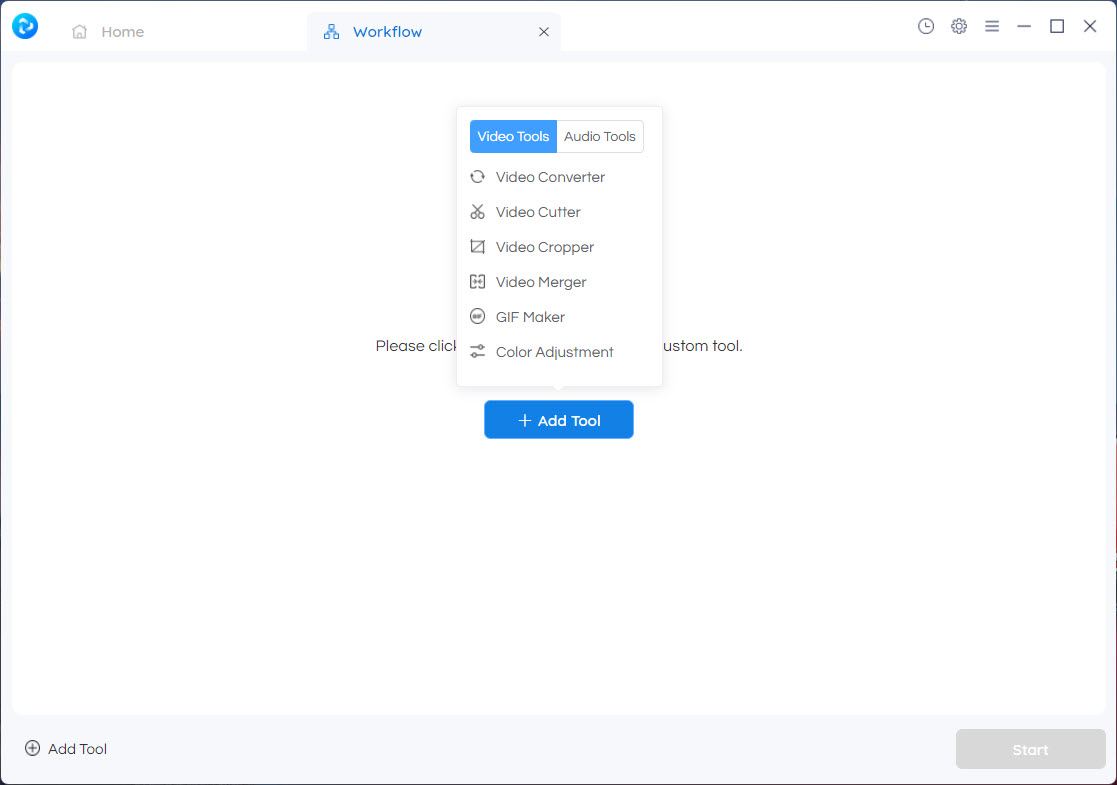
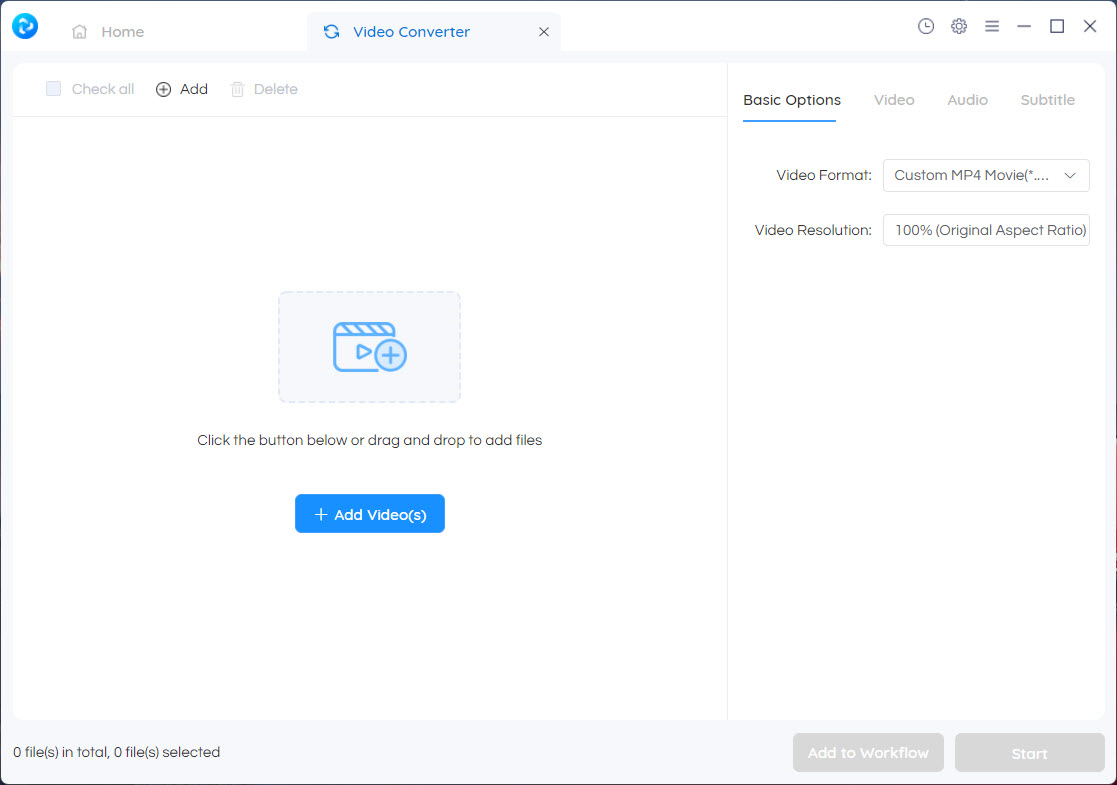
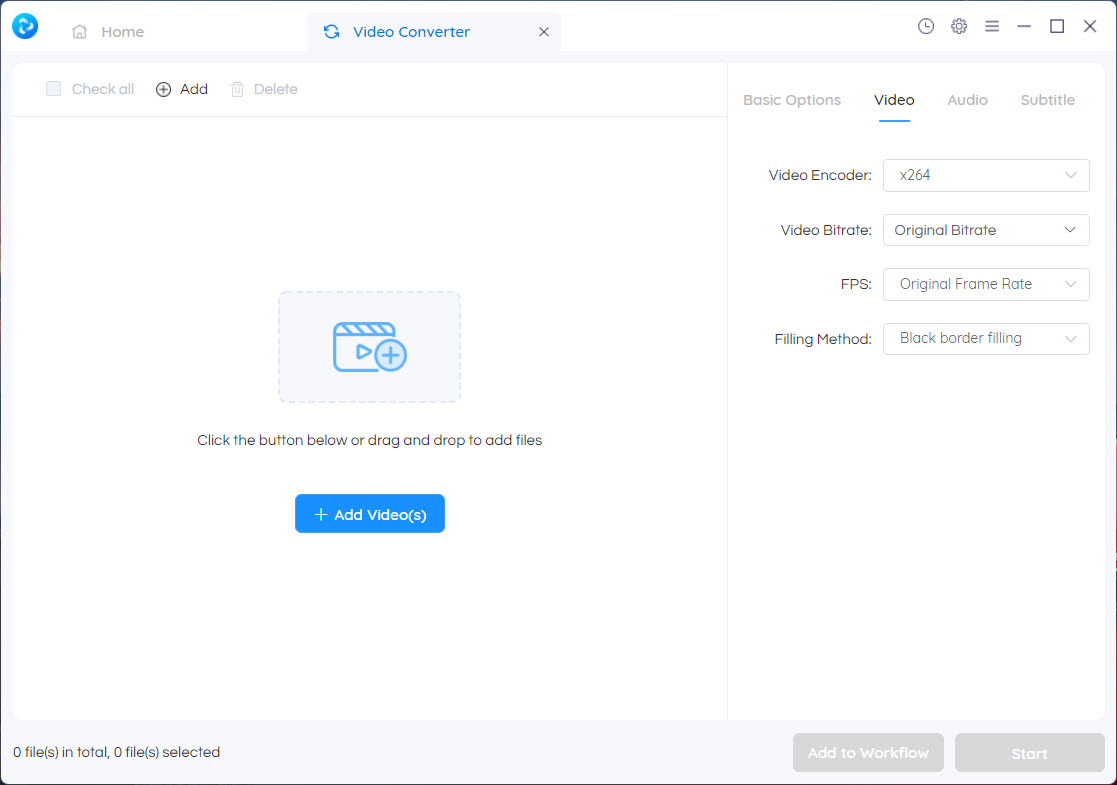
About Any Video Converter
Any Video Converter takes a video in almost any format you throw at it and turns it into the one you actually need. Feed it an MKV, a MOV, an old AVI, a WMV, even a folder full of mixed clips, and it spits out clean MP4, WebM, MP3, or whatever target you pick. That’s the core job, and it does it without watermarks, file-size caps, or the daily limits that plague web-based converters.
What lifts it above a bare format-swapper is everything bundled around the conversion. You can rip a DVD to a digital file, pull the audio track out of a music video, trim and merge clips before you export, compress a bloated 4K file down to a sane size, and lean on your graphics card to make all of it run several times faster. One window, one workflow, and you rarely need a second tool.
The interface keeps things grounded. You add files or a whole folder, choose an output profile, and hit convert. No timeline to wrestle, no project files to manage. For the enormous category of people whose actual need is “make this video play on my device” rather than “produce a film,” that simplicity is the entire appeal.
What formats and devices does it actually handle?
This is where breadth matters. On the input side it reads the usual suspects and a long tail of older or awkward formats, the DivX and XviD and VOB files that other converters choke on. On the output side you get MP4, MKV, MOV, AVI, WebM, and the rest, plus dedicated audio targets like MP3, AAC, M4A, WAV, FLAC, and OGG when you only want the sound.
The clever part is the device presets. Instead of making you guess at resolution and codec settings, Any Video Converter offers ready-made profiles for phones, tablets, game consoles, media players, and TVs.
Pick the profile that matches where the video is going and it sorts out the technical details. If you’d rather drive manually, you can crack open the video options and set the codec, resolution, frame rate, and bitrate yourself.
How much faster is GPU acceleration, really?
Conversion is heavy work, and this is the feature that turns a coffee-break wait into a quick one. If you have a compatible graphics card, the application offloads the encoding to your GPU instead of grinding it out on the CPU. With NVIDIA CUDA and x264 or x265 encoding switched on, the difference is real. We’re talking roughly three to five times faster on the large files that used to tie up a machine for ages.
It’s not magic, and it depends on your hardware. A modest integrated GPU won’t see the same leap a dedicated card does, and you’ll want current drivers for it to kick in properly. But for anyone regularly converting long or high-resolution video, it’s the single setting most worth turning on.
Tools like HandBrake and FFmpeg offer their own acceleration, but here it’s a checkbox rather than a config file.
Ripping DVDs to something you can actually use
Got a shelf of home-recorded discs slowly going obsolete? The converter reads an inserted DVD and turns it into a standard digital file you can keep on a drive and play anywhere. Point it at the disc, pick MP4 or whatever format suits, and let Any Video Converter carry the encoding on your GPU.
Worth being honest here. This handles your own unprotected and home-made discs cleanly, but it isn’t a tool for defeating commercial copy protection, and you shouldn’t expect it to crack a store-bought movie.
For straightforward digitizing of discs you have every right to convert, though, it’s about as painless as this gets. If your needs run more toward batch DVD work, VidCoder is built around that specifically.
The editing you get before you export
Don’t expect a full editing suite, and that’s fine, because most conversion jobs only need light touch-ups. The built-in tools let you trim a video into segments, cut away unwanted footage, crop out black borders, rotate a clip shot at the wrong angle, and merge several files into one. You can nudge brightness, contrast, and saturation, drop in a subtitle track, or stamp on a watermark.
There’s a trimming mode that analyzes the footage to suggest natural cut points, which is handy when you’re chopping a long recording into shareable pieces. It won’t replace a dedicated editor like Shotcut for anything ambitious, but for prepping a clip before conversion it saves you bouncing between programs.
Pulling audio and shrinking files
Two quieter features carry a lot of weight. The first is audio extraction. Feed in a concert clip or a lecture recording and pull just the sound out to MP3 or FLAC, no video attached. People use this constantly for music, podcasts, and ripping audio from footage they shot themselves.
The second is compression, and it’s smarter than a blunt quality slider. You can compress by percentage or to a specific target size, then pick a strategy. Keep the frame rate, keep the resolution, or let it balance both against quality.
The result is a file small enough to email or upload without the muddy, over-squeezed look you get from cruder tools. For wrangling oversized 4K and 8K footage, that control is the difference between usable and frustrating.
Conclusion
Any Video Converter is practical, do-the-job software that earns a permanent spot on a lot of machines. It converts nearly anything to nearly anything, rips your own discs, extracts audio, trims and compresses, and uses your graphics card to make the heavy jobs quick. For the everyday task of getting a video into the right format for the right device, without watermarks or limits getting in the way, it’s hard to beat.
It isn’t trying to be a video editor or a tool for cracking protected media, and judged on what it actually sets out to do, the gaps are easy to forgive. If you want a fast, format-flexible converter with enough light editing and compression built in to skip a second program, this one delivers. Power users will still keep a dedicated editor around, but for conversion itself, the application covers the ground that matters.
Pros & Cons
- Reads a huge range of input formats, including older ones other converters reject
- Exports to MP4, MKV, MOV, AVI, WebM, and audio targets like MP3 and FLAC
- Device presets remove the guesswork for phones, consoles, TVs, and players
- GPU acceleration cuts conversion time on large files by roughly three to five times
- No watermarks, no file-size caps, and batch processing for whole folders
- Built-in trimming, cropping, merging, and rotation handle light edits
- Compression by percentage or target size with selectable quality strategies
- Rips your own unprotected DVDs to standard digital files
- Editing tools are basic and won't replace a real video editor
- GPU speedup depends heavily on having a capable, current graphics card
- Won't bypass commercial DVD copy protection, by design
- The sheer number of options can feel busy to first-time users
- Some of the more advanced extras sit behind the upgraded tier
Frequently asked questions
It outputs to MP4, MKV, MOV, AVI, WebM, and more, plus audio-only formats like MP3, AAC, M4A, WAV, FLAC, and OGG. On the input side it reads almost everything, including older formats like DivX, XviD, and VOB.
Yes. The audio extraction feature pulls the sound out of any video and saves it as MP3 or another audio format, with no video attached. It's a common use for grabbing music or speech from a clip.
It uses your graphics card to handle the encoding instead of relying on the CPU. With a compatible NVIDIA card and the right encoder enabled, large files convert roughly three to five times faster.
Yes. You can add multiple files or an entire folder, set your output format and options once, or apply a saved custom preset, then convert everything together in one pass.
It can read an inserted disc and convert it to a digital file like MP4. This works for your own unprotected and home-recorded DVDs, but it doesn't remove commercial copy protection.
Not noticeably if you choose sensible settings. The compression tools let you target a size or quality strategy, so you can shrink a file while keeping it looking clean rather than over-compressed.


