

Alcohol 120%
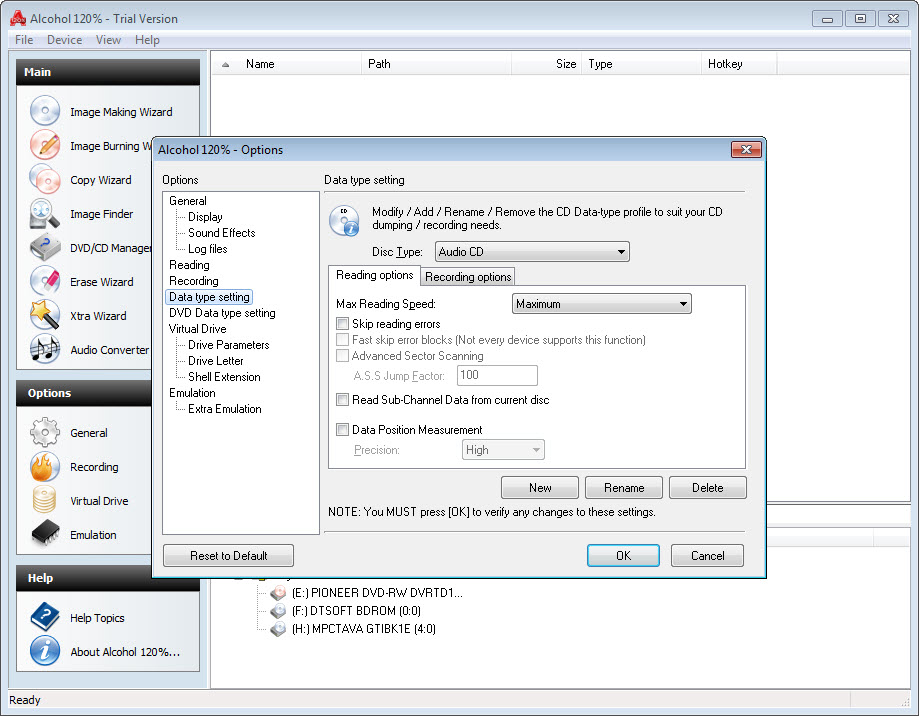
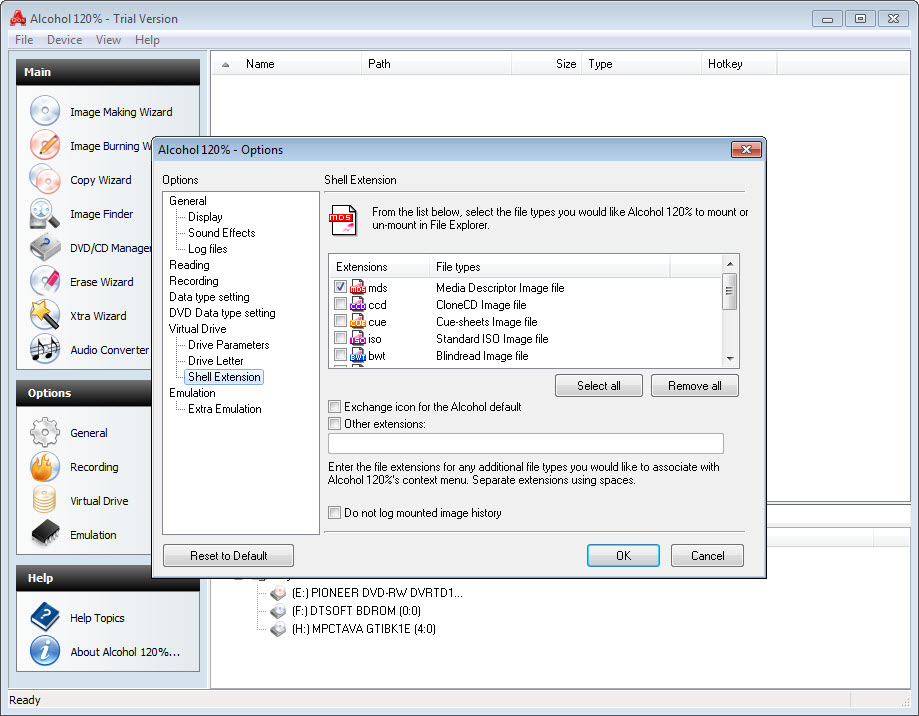
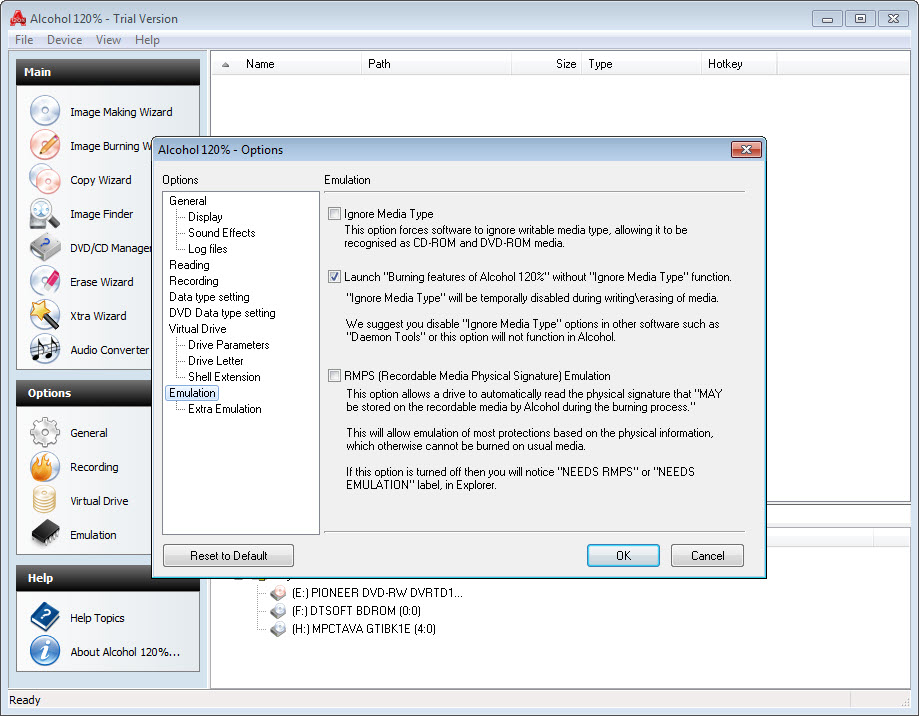
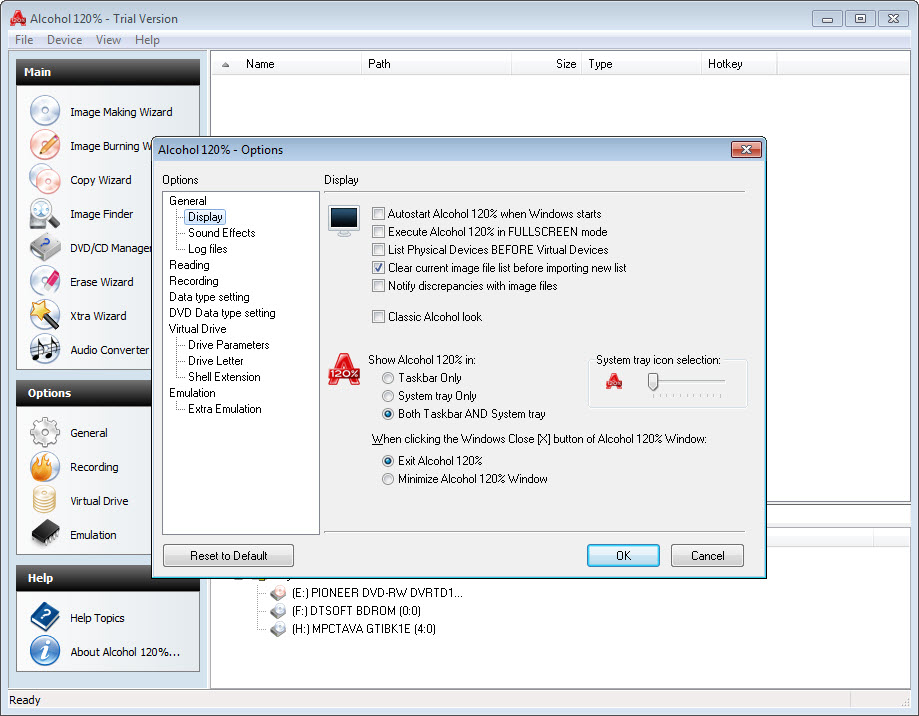
About Alcohol 120%
The era when Alcohol 120% mattered most has passed. Optical media has largely been replaced by USB drives, digital distribution, and cloud storage, and most users who once burned DVDs now stream the same content from a subscription service. What remains is a specialist niche where the application still has genuine value.
Users maintaining libraries of older game discs that no longer have working physical media. Audiophiles digitizing CD collections. Software preservation enthusiasts archiving discs before the drives that read them disappear from store shelves. Anyone who needs to work with multiple disc images simultaneously without juggling physical hardware.
The application has been around since 2002, predating the dominance of digital downloads, and the current builds support Windows 11 alongside backward compatibility extending back to Windows XP-era image formats.
The development pace has slowed compared to the active years, but the core feature set has not needed major changes because the underlying technology (optical disc image manipulation) has not changed substantially in that time.
Up to 31 virtual drives, and what to do with them
This is the headline number that separates the application from most competitors. You can mount up to 31 separate virtual drives simultaneously, each appearing in Windows Explorer as if it were a real optical drive with media inserted. Most virtual drive applications cap at four or eight. For users who only need to mount one image at a time, the difference does not matter. For users with workflows that require multiple discs accessible at once (multi-disc games, audio CD archives, archival projects with multiple parallel image references), the headroom is the practical advantage.
The use case for so many drives sounds unusual until you encounter it. Some older PC games shipped on multiple discs and check for specific volume labels on specific drive letters during installation or runtime.
Game preservation work often involves comparing multiple revisions of the same disc. Audio archivists mounting both source and verification images alongside each other. The 31-drive capacity exists because the developers built it for users who needed it, not as a marketing number.
Compared to Daemon Tools Lite, which caps the free version at four drives and requires payment for more, this application’s drive capacity is consistently available across its paid tier without per-drive limitations.
The free edition of the application (Alcohol 52%) provides virtual drive functionality without burning, similar to what Daemon Tools Lite offers.
Image format breadth
The format support is where the application’s age becomes an asset rather than a liability. Native format is MDS/MDF (Media Descriptor Sidecar / Media Descriptor File), a pair of files where the .mds describes track and session structure while the .mdf contains the raw data. This format was designed specifically to preserve information that ISO files cannot represent, including subchannel data, multiple sessions, and copy protection markers from the original disc.
Beyond the native format, the application reads and writes ISO (the universal format), BIN/CUE (common for older games and audio), NRG (the Nero native format), CDI (DiscJuggler format used in some console emulation), CCD/IMG/SUB (CloneCD format), B5T/B6T (BlindWrite format), BWT (older BlindWrite), ISZ (compressed ISO), and PDI (Pinnacle Instant Copy format).
The list reads like a museum tour of optical disc image history, and that breadth is exactly what older archives require. A collection of game backups assembled across two decades will contain images in formats that no current tool supports comprehensively except this one.
For modern use cases where ISO is sufficient, simpler tools like ImgBurn handle the standard format adequately. The reason to use this application specifically is when the format diversity becomes a requirement.
Burning, ripping, and the disc-to-disc workflow
The application can write images to physical discs, which still matters for users whose target devices are older systems that only read optical media. CD/DVD/Blu-ray burning, including dual-layer DVD and BD-XL, with detailed control over burn speed, write strategy, and verification. The write engine handles burning data discs, audio CDs (including conversion from compressed formats during the burn), and bootable discs from images.
Disc-to-disc copying skips the intermediate image file when you just want to duplicate a disc. The source goes into one drive, the destination blank into another (or the same drive with intermediate copy to disk), and the application handles the rest. For bulk archival or duplication work, the option to operate on physical discs without manual image management is faster than the two-step alternative.
DVD ripping extracts content from movie DVDs, including handling of regions and basic copy protection circumvention. This is the feature that has historically attracted both legitimate users (backing up purchased discs to image format for use without the original) and controversial use.
The legal status varies by jurisdiction, and the application performs the technical operation without making judgments about purpose.
Pre-mastering and the manual control angle
The pre-mastering feature lets you assemble a disc layout before burning, defining the file system structure, naming conventions, and session arrangement. This is useful for creating data discs with specific organizational requirements, mixed-mode discs combining data and audio tracks, or archival discs that need to follow particular formatting conventions.
The interface for pre-mastering is detailed in a way that betrays the application’s professional roots. You can specify ISO 9660 levels, Joliet extensions, UDF versions, volume labels, copyright information, and timing parameters that affect compatibility with older readers. For most users this is overkill.
For users producing archival discs that need to be readable on systems they cannot directly test against, the explicit control matters.
Sector-by-sector copying and what it preserves
Standard image creation reads the disc at the file system level. The application can also create images at the sector level, copying every block of the disc including the file system structures, unused space, and subchannel data. The resulting image is a true bit-for-bit copy of what was on the original media.
This matters specifically for preservation work and for working with discs that contain non-standard data. Audio CDs benefit from sector-level copying because the standard file system view does not represent CD-DA tracks properly. Old PC games with custom copy protection schemes typically required sector-level images to function correctly when mounted in virtual drives.
Mixed-mode discs and discs with unusual session structures need this depth of copying to preserve their structure.
The RMPS feature and its history
This is the part of the application that requires honest explanation. RMPS (Recordable Media Protection Scheme) is a marker that the application can write to recordable discs, identifying them as legitimate originals to certain copy protection systems. Combined with the application’s ability to read protected discs into images, this historically enabled users to create working backup discs of games that otherwise refused to run from copies.
The feature exists, the application includes it, and it remains functional. The copy protection schemes it was designed to work with (SafeDisc, SecuROM, StarForce, and others from the 2000s) have largely been abandoned by current software publishers, who use online activation and digital distribution instead. For modern software, RMPS is not relevant. For working with older game discs that still use those protection methods, it remains the technical reason the application persists in the preservation community.
The application’s continued maintenance of features designed around obsolete copy protection sits in awkward territory. Users with legitimate archival needs benefit from these capabilities, users seeking to circumvent active copy protection are mostly out of scope because the protection systems have changed. The application’s developers have not removed the features, which reflects the reality that the user base depends on them for legitimate preservation work.
Audio CD handling and the ripping workflow
CD audio extraction is more capable than the basic ripping that many burning applications include. The application can extract tracks with various error correction levels, handle pre-emphasis flags, preserve subchannel timing information, and rip directly to image format that preserves the original disc structure for later burning of perfect copies.
Output formats for individual tracks include WAV, FLAC, MP3, OGG, and APE, with bitrate and quality settings exposed in detail. Metadata fetching from CDDB and freedb (when those services were active) populated track information automatically.
The current version handles the legacy data appropriately but online lookup has degraded as the original services have shut down. For new rips, users typically populate metadata manually or paste from external sources.
Conclusion
Alcohol 120% is the right tool for users who still need to work with optical media in serious ways. Game preservation enthusiasts maintaining libraries of older PC titles, archivists digitizing CD and DVD collections, audio preservationists creating bit-accurate copies of music discs, and anyone supporting systems that depend on the breadth of image formats this application handles will find capabilities here that no current alternative matches comprehensively. The 31 virtual drives and the format support across decades of disc image history are the practical differentiators.
The honest assessment is that the application serves a shrinking audience. Users whose work does not involve optical media will find newer, simpler tools sufficient for the rare ISO mount or USB-based bootable creation. Users whose work does involve optical media will continue to find the application’s depth and longevity meaningful in ways that no current competitor has tried to replicate.
For the second group, this remains the reference tool for what it does. For the first group, lighter alternatives like MagicDisc for free virtual drives or CDBurnerXP for occasional burning cover the basics without the complexity.
Features & benefits
Pros & Cons
- Up to 31 simultaneous virtual drives without per-drive licensing or upgrade prompts
- Wide image format support including MDS/MDF, ISO, BIN/CUE, NRG, CDI, CCD, B5T/B6T, BWT, ISZ, IMG, and PDI
- Sector-by-sector image creation preserves subchannel data, audio CD timing, and structural details that file-level imaging loses
- Pre-mastering with detailed control over file system parameters, session arrangement, and volume metadata
- Disc-to-disc copying with intermediate image option for bulk duplication
- Active Windows 11 compatibility despite the application's mature codebase
- Free Alcohol 52% edition provides virtual drive functionality without the burning features for users who only need disc emulation
- The application's broader relevance has diminished as optical media has been replaced by USB drives and digital distribution
- Paid full version is required for burning features, with the free 52% edition limited to virtual drives only
- User interface design reflects an older era of Windows applications and has not been substantially modernized
- RMPS and other copy protection-related features carry ambiguous status that varies by jurisdiction and use case
- Online metadata lookup for audio CDs has degraded as the original CDDB services have shut down
- Development cadence has slowed compared to active years, with maintenance updates rather than new feature releases
- The application's audience continues to shrink as preservation moves to other tools and use cases for optical media decrease
Frequently asked questions
The 120% edition is the paid version with full disc burning capability alongside virtual drive emulation, image creation, and copying features. The 52% edition is free and provides virtual drive emulation only. Users who only need to mount disc images without burning physical discs can use the free edition.
The application supports up to 31 simultaneous virtual drives. This is significantly more than most competing virtual drive applications, which typically cap at four or eight drives.
Native MDS/MDF format alongside ISO, BIN/CUE, NRG, CDI, CCD/IMG/SUB, B5T/B6T, BWT, ISZ, IMG, and PDI. The breadth covers most disc image formats produced by other software over the past two decades.
Yes, the application supports CD, DVD (including dual-layer), and Blu-ray burning, including BD-XL for higher capacity formats. The required hardware is a compatible Blu-ray burner; the software handles the formats.
The application remains useful for specific use cases including game preservation, audio CD archiving, working with multiple disc images simultaneously, and supporting older image formats that current tools no longer handle. For users who do not interact with optical media regularly, simpler virtual drive software covers basic needs.
The application can copy discs at the raw sector level rather than reading only the file system contents. This preserves subchannel data, audio track timing, copy protection markers, and other low-level information that file-level imaging discards. The resulting images are bit-for-bit copies of the original media.
The application supports Windows 11 alongside earlier Windows versions. Backward compatibility extends to image formats from Windows XP-era software, which is part of why the application remains useful for legacy media work.


