

AdwCleaner
About AdwCleaner
AdwCleaner is built for one specific kind of mess: the gradual accumulation of adware, browser hijackers, potentially unwanted programs (PUPs), unauthorized toolbars, and other low-grade infestations that don’t quite qualify as full malware but make using your computer noticeably worse.
The kind of thing that happens when you install free software and miss the bundled offer checkboxes, or when somebody else used your computer and clicked through installers without paying attention. Your homepage changes to something you didn’t pick, search results route through services you’ve never heard of, browser extensions appear that you don’t remember installing, and something in the system tray shows ads at random.
What separates this from a regular antivirus is the focus. Full security suites scan for everything from kernel rootkits to cryptominers, with detection databases optimized for malware that’s actively trying to hide.
AdwCleaner scans for the bundled, semi-legitimate, often-impossible-to-remove-through-Add/Remove-Programs software that traditional antivirus typically ignores or only flags inconsistently.
What it actually targets
The detection categories tell you exactly what this tool is built to clean. Adware: software that displays ads in your browser or system, often through injected scripts or modified browser settings. Browser hijackers: programs that change your homepage, default search engine, or new-tab page without permission, often making the changes hard to undo through normal browser settings.
Potentially unwanted programs: applications that may have been installed legitimately but provide questionable value (system “optimizers” that slow your computer down, free utilities that install dozens of bundled extras, dubious driver updaters).
Beyond these main categories, AdwCleaner also targets unauthorized toolbars (those Yahoo and Ask.com toolbars that appeared after you installed something else), preinstalled bloatware on new computer systems, and various scheduled tasks and registry entries that legitimate antivirus often ignores.
The detection logic is tuned specifically for these grey-area threats rather than for the malware that gets the headlines, which is why running it after your main antivirus has cleaned your system often turns up substantial additional findings.
Portable design with no installation
The application is genuinely portable. There’s no installer, no Start menu entry, no system service running in the background, no auto-start configuration. You download the executable, run it directly from wherever you saved it, and when you’re done you can delete the file. The configuration and quarantine data live in a folder created during use, but the core application doesn’t embed itself anywhere in the system.
This matters for the typical use case. Most users run AdwCleaner when they’re already dealing with a problem, often on a friend or family member’s computer where they don’t want to add another piece of software permanently. The portable design means cleanup can happen quickly without committing to long-term software installation, and the executable can live on a USB stick alongside other troubleshooting tools.
For technicians and IT professionals supporting multiple machines, the portable design is essential infrastructure. Run the same tool across dozens of computers without worrying about installation conflicts, license tracking, or registry footprints.
The application doesn’t even require administrator privileges for basic scanning, though removal operations do need elevation to modify system files and registry entries.
The scan, review, clean workflow
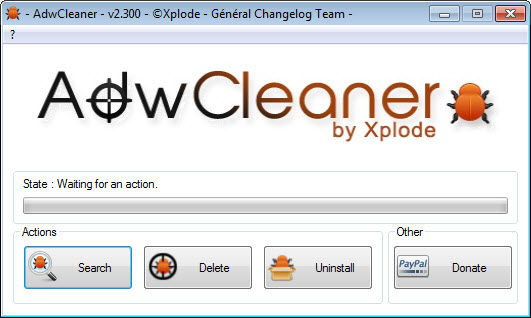
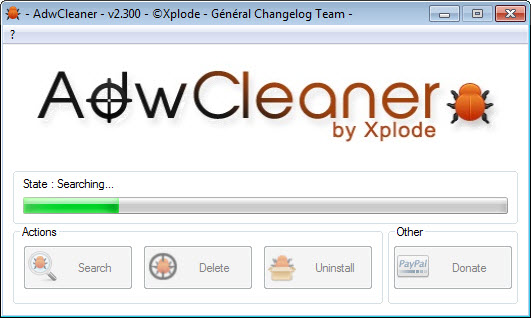
The standard workflow has three stages. The Scan stage runs a full system check, looking through file system locations, registry entries, browser profiles, scheduled tasks, services, and various other categories where adware and PUPs typically install themselves. Scans typically complete in under five minutes on modern systems, with progress visible throughout.
The Review stage shows everything found, organized by category. Each detected item shows its location, the type of threat detected, and enough information to evaluate whether removal is appropriate.
This review step matters because automated cleanup occasionally flags items that you actually want to keep (a legitimate browser extension that the heuristics misidentify, for example). Unchecking specific items lets you exclude them from the cleanup operation.
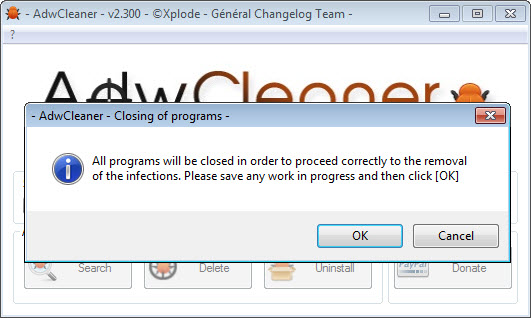
The Clean stage handles removal of everything still selected. Most cleanup operations complete quickly, with the application terminating relevant processes, removing files, deleting registry entries, resetting browser settings, and handling whatever else the detected items require.
A reboot is sometimes needed for items that hold open file handles, but many cleanups complete without requiring a restart.
Browser cleanup that goes deeper than browser settings
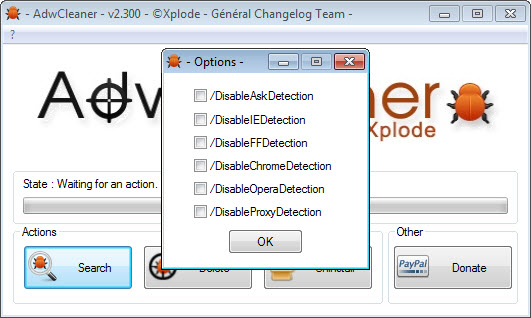
Browser hijacking is the specific problem AdwCleaner handles best. The cleanup goes deeper than what built-in browser settings let you do, removing extensions that resist normal uninstall, resetting hijacked search engines and homepages, clearing modified proxy settings, and removing scheduled tasks that re-apply hijacks after you remove them.
For Chrome, Firefox, Edge, and other major browsers, the application can reset the browser to a known-clean state without losing your bookmarks and saved passwords. This selective reset is more aggressive than what the browser’s own settings offer, since hijackers often modify settings that aren’t easily user-accessible.
The reset functionality also handles the case where multiple browsers share hijacker components. Some adware installs in ways that affect every browser on the system simultaneously.
Cleaning each browser individually wouldn’t catch the shared component; this software identifies and removes the underlying source so the cleanup actually sticks rather than coming back next time you launch a browser.
Quarantine and restore as a safety net
Removed items go to quarantine rather than being deleted permanently. If your cleanup operation accidentally removed something you actually wanted to keep, the Quarantine section lets you restore it. The quarantine retains items indefinitely until you explicitly clear it, which means you can reverse cleanup decisions days or weeks after the fact.
This safety net matters because automated heuristic detection isn’t perfect. Borderline cases (legitimate software that exhibits adware-like patterns, or adware-like extensions you actually installed intentionally for some reason) can be removed initially and restored later if you discover the removal broke something you needed. The quarantine data is portable along with the application, so backups are straightforward.
For most users, quarantined items can be ignored after a few days of confirming nothing important was removed. The data takes minimal disk space, and the option to restore exists if needed without requiring you to remember details about what was removed.
What changed after the Malwarebytes acquisition
In October 2016, Malwarebytes acquired AdwCleaner from its original developer. The acquisition brought several practical changes. Development pace picked up substantially, with regular updates expanding detection signatures and improving cleanup techniques. The detection database now benefits from Malwarebytes’ larger threat research operation, which catches new adware variants more quickly than the smaller original team could manage.
The application remained free, which was a concern at the time of acquisition (commercial buyouts of free tools often end with the free version being phased out). Several years later, this concern has not materialized. The free version continues to be the only version, with no paid tier or premium features that would push users toward purchasing something.
The integration with Malwarebytes’ broader product line is loose enough that this software remains usable on its own without needing other Malwarebytes products.
Some users run only this tool when they have specific adware or PUP problems. Others use it alongside Malwarebytes’ main antivirus product. Either pattern works, with the focused tool covering its specific category regardless of what else is installed.
Where it fits alongside full antivirus
The reasonable question is whether you need a specialized adware tool when you already have antivirus software running. The answer depends on what your antivirus actually catches. Major antivirus products including Windows Defender, Norton, Bitdefender, and others handle traditional malware well.
Their performance against adware and PUPs varies substantially, with many products either ignoring grey-area items entirely or detecting them inconsistently.
The reasoning is partly philosophical. Antivirus vendors generally prefer not to label legitimate-but-questionable software as malware because the legal and reputational risks are real (the software vendors object, sometimes with lawsuits, to being labeled malware). AdwCleaner has fewer constraints in this area, with detection signatures specifically tuned to flag adware and PUPs even when their distributors object.
The result is that running this tool after a clean antivirus scan often produces additional findings. The findings aren’t malware your antivirus missed (in the strict definition), but they’re items that affect your system’s behavior in ways you probably didn’t choose. For users who specifically want their browser hijackers removed and their bundled bloatware cleaned out, this tool covers ground that general antivirus doesn’t.
Considerations and limitations
The detection scope is genuinely limited compared to full antivirus. AdwCleaner doesn’t catch traditional malware (viruses, worms, ransomware, banking trojans), which means it isn’t a replacement for proper antivirus protection. Running this without an antivirus leaves you exposed to the threats this tool doesn’t try to handle.
False positives occasionally occur, particularly with legitimate software that exhibits adware-like patterns (some legitimate ad-supported applications, certain browser extensions).
The review step exists specifically to catch these cases, but new users sometimes blindly accept all detections and discover later that something they wanted was removed. The quarantine restore option mitigates this, but reading detections before clicking Clean is still the right approach.
The application focuses on detection and removal rather than ongoing protection. Once you clean your system, the tool doesn’t run continuously to prevent new infections. Real-time protection requires different tools (Windows Defender, full Malwarebytes, or any other proper antivirus). This is by design rather than a flaw, but users expecting set-and-forget behavior will be disappointed.
Some adware and PUPs use sophisticated techniques to resist removal, particularly newer variants that integrate deeply into the system. The tool handles most threats it targets, but the most stubborn cases occasionally require manual removal alongside whatever automated cleaning the application provides.
Conclusion
For users dealing with the specific problem of adware, browser hijackers, unwanted toolbars, and bundled PUPs, AdwCleaner is the focused tool that solves it. The combination of specialized detection, portable design, fast scanning, and the safety net of quarantine restore covers the practical needs of cleaning up adware-infested systems without committing to permanent software installation or paid subscriptions.
It isn’t a complete security solution. Users without separate antivirus protection are exposed to traditional malware that this tool doesn’t try to handle, and the lack of real-time monitoring means new adware can install after cleanup if the underlying habits that caused the original infection don’t change.
Used alongside proper antivirus and reasonable browsing practices, the tool covers a specific category of problems that other software handles less effectively.
Pros & Cons
- Specialized detection of adware, PUPs, browser hijackers, and unwanted toolbars
- Genuinely portable with no installation, no system service, no permanent footprint
- Fast scans typically complete in under five minutes on modern systems
- Quarantine system allows restoring removed items if cleanup goes too far
- Browser cleanup goes deeper than built-in browser settings allow
- Malwarebytes acquisition brought ongoing development and stronger detection database
- Works alongside any antivirus without conflicts
- Doesn't catch traditional malware (viruses, ransomware, trojans)
- No real-time protection or ongoing monitoring after cleanup
- Occasional false positives on legitimate software with adware-like patterns
- Some advanced or newer threats may resist automated removal
- Not a replacement for full antivirus protection
Frequently asked questions
This software is a specialized anti-malware tool that targets adware, browser hijackers, potentially unwanted programs (PUPs), unauthorized toolbars, and other grey-area threats that traditional antivirus often ignores. It runs as a portable executable without installation, scans your system in minutes, and lets you review and remove findings through a clean three-step workflow.
Run the executable directly without installation. Click Scan to start the system check, which typically completes in a few minutes. Review the findings organized by category, unchecking anything you want to keep. Click Clean to remove the remaining selected items. The cleanup runs automatically, with a reboot sometimes needed for items holding open file handles.
The application is portable, so there's nothing to uninstall in the traditional sense. Delete the executable file from wherever you saved it. The folder it creates during use (containing logs, quarantine data, and configuration) lives in your AppData directory by default and can be deleted manually if you want to remove all traces. Some versions include an Uninstall option in the application's settings menu that handles this cleanup automatically.
No, but they're related. Malwarebytes is a full antivirus and anti-malware product with broad detection across all threat types. AdwCleaner is a specialized tool focused specifically on adware, PUPs, and browser hijackers. Malwarebytes acquired this software in 2016, with both products now under the same company. The two tools complement each other: Malwarebytes for general protection, this software for specific adware and PUP scenarios.
Scanning works without administrator privileges, but cleanup operations need elevated access to modify system files and registry entries. The application prompts for elevation when needed, with a UAC dialog appearing during the cleanup phase. For thorough cleaning, running with administrator privileges from the start avoids interruption mid-operation.
Windows Defender provides general antivirus protection with broad threat coverage, including some adware and PUP detection. The detection scope and aggressiveness for adware specifically is more limited than what this tool provides. Running both makes sense for users dealing with adware problems: Windows Defender for ongoing protection, this software for periodic deeper cleaning of the specific threats it targets.
PUP stands for "potentially unwanted program," a category of software that wasn't installed maliciously but provides questionable value or behavior. Examples include system optimizers that don't actually optimize, free utilities bundled with multiple unwanted extras, dubious driver updaters that push paid versions through scary warnings, and various other categories of software that's technically legitimate but generally not desirable. PUPs are the main detection category for this tool alongside adware and browser hijackers.
Yes, this is actually one of the most common use cases. Running this tool after your main antivirus has finished cleaning typically reveals additional adware and PUPs that the antivirus either ignored or only partially detected. The two tools cover different categories of threats, and using both produces more thorough cleanup than either alone.


