

Adobe Acrobat Reader
About Adobe Acrobat Reader
Every contract, invoice, tax form, and user manual seems to end up as a PDF sooner or later, and while any browser can display one, the moment you need to fill in a field, drop a signature, or leave a comment for a colleague, the browser tab quietly gives up. Adobe Acrobat Reader is the application most people install at that exact point.
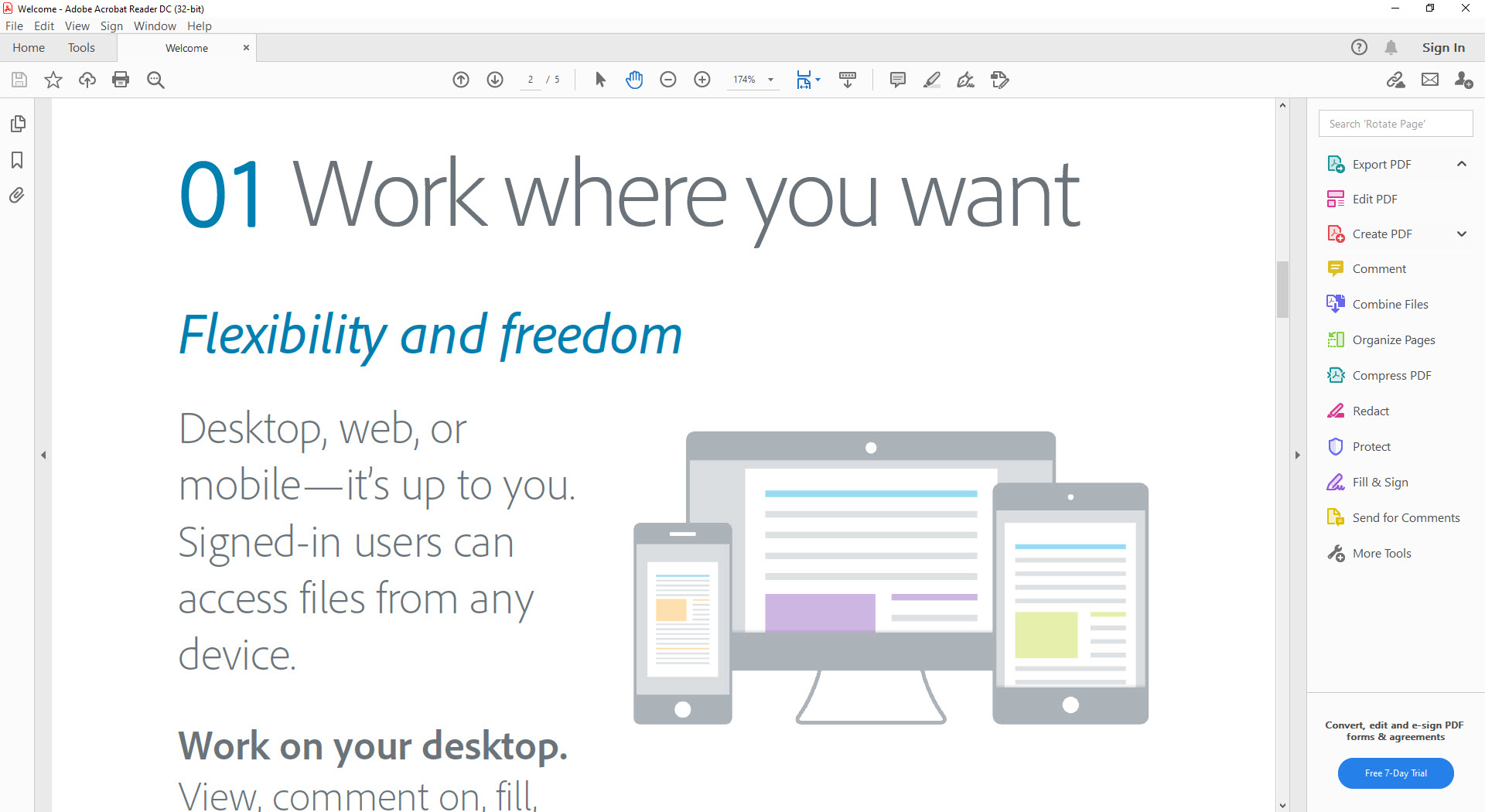
Its rendering engine treats the format with a fidelity nothing else quite matches. Fonts, vector graphics, embedded images, and layered content appear exactly as the author intended, even in files that make other viewers stumble.
What you get when you install Adobe Acrobat Reader is a viewer first, but a surprisingly capable one. It opens documents in tabs, reads text aloud, fills forms, collects signatures, runs shared reviews with threaded comments, and connects to OneDrive, Dropbox, Google Drive, SharePoint, and Box so your files follow you around.
There is also an AI Assistant that answers questions about whatever document you have open. Not everything in the interface belongs to the Reader itself, though, and we will get to that.
Rendering accuracy and everyday reading
The core job, displaying a PDF correctly, is where Adobe Acrobat Reader has no real rival. Files with unusual font embedding, transparency effects, or layered CAD exports that render as garbage elsewhere open here without complaint. Tabs keep a dozen documents in one window, page thumbnails and bookmarks handle navigation in long reports, and the search covers not just body text but comments and bookmarks too.
Read Out Loud converts any page into spoken audio, which matters more than it sounds if you review long documents or rely on accessibility features.
A dark theme and single-page, continuous, and two-page spreads round out the reading options. On a 400-page technical manual, scrolling stays smooth, though the initial load takes noticeably longer than in Sumatra PDF, which opens the same file almost instantly but strips away nearly everything else.
What can you actually do with the markup tools?
Quite a lot, as long as you accept one boundary. You can highlight, underline, and strike through text, attach sticky notes, draw freehand shapes, add text boxes, and stamp documents with approved, draft, or custom marks. Comments collect in a side panel where they can be filtered by author or checked off as resolved, which turns a messy review round into something manageable.
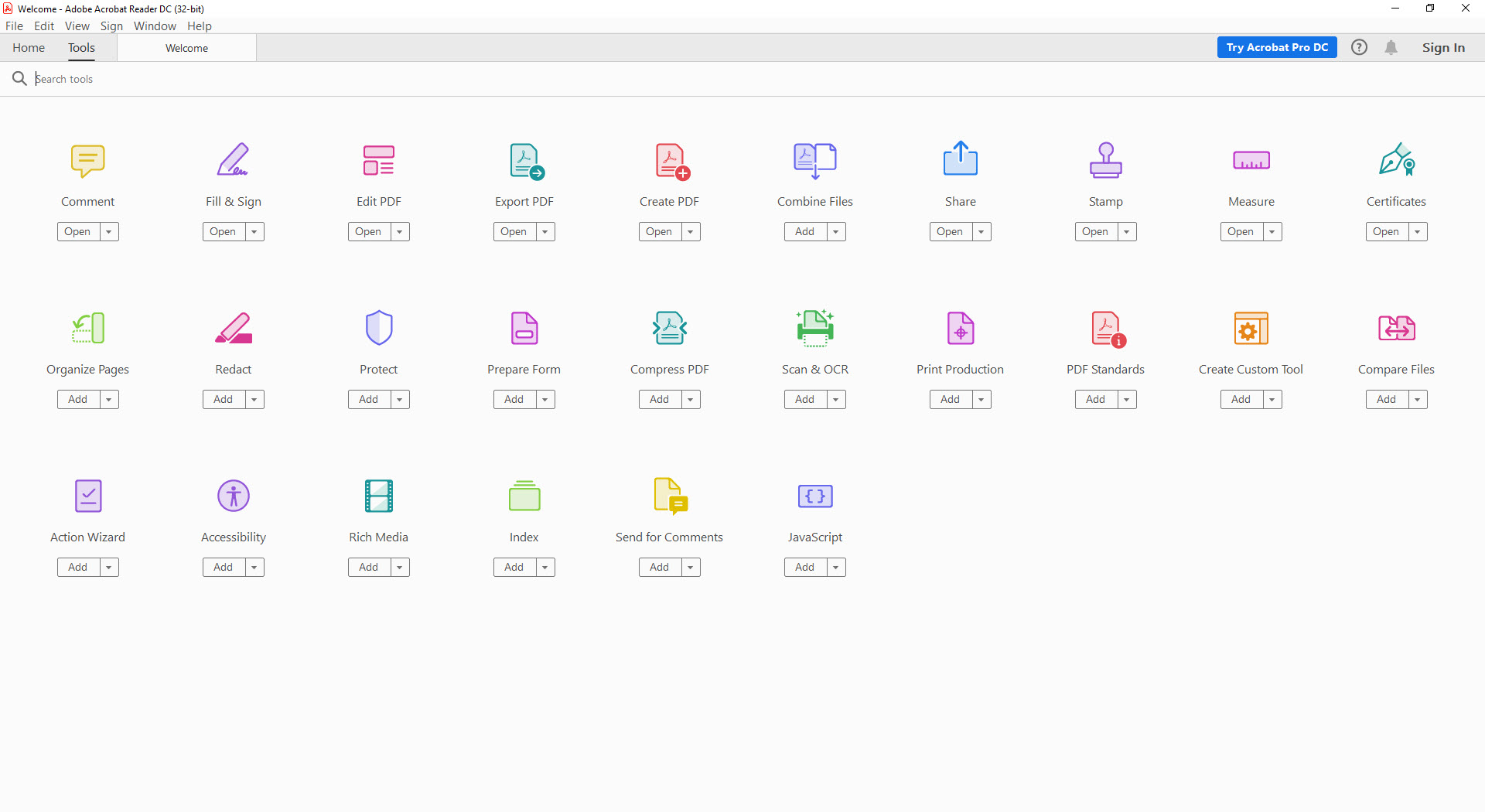
What you cannot do is change the underlying text. If a paragraph needs rewriting or a page needs deleting, the buttons exist in the toolbar, but clicking them opens a prompt for the full Acrobat editor rather than performing the action.
For genuine content editing, something like PDF-XChange Editor does the job directly, OCR included. Knowing that boundary in advance saves a lot of frustration.
Fill and Sign replaces the printer
Forms are where this software justifies the download. Interactive forms with real fields work as expected, with tab navigation between fields and the ability to save your progress. Flat forms, the scanned kind with no actual fields, get handled by the Fill and Sign tool, which lets you place text, checkmarks, and dots anywhere on the page.
Signatures deserve their own mention. You can type one, draw it with the mouse, or import an image of your handwritten signature, and Adobe Acrobat Reader stores it so the next document takes two clicks.
Sending a file out for someone else to sign works from the same panel, with tracking that shows when the recipient opened and signed it. And yes, that whole print-sign-scan ritual becomes unnecessary.
Shared reviews and cloud connections
Sharing a document as a link instead of an attachment changes how reviews happen. Everyone comments on the same copy, @mentions notify specific people, and you see the discussion in one thread rather than merging feedback from five emailed versions. The connected storage accounts mean a file on Dropbox or SharePoint opens directly, without a download-edit-reupload cycle.
If your workflow leans toward creating PDFs rather than reviewing them, pairing the viewer with PDF24 Creator covers merging, splitting, and page extraction that the Reader leaves out.
What about the AI Assistant?
The AI Assistant sits in a side panel and answers questions about the open document, with citations that jump to the exact passage supporting each answer. Ask it to summarize a 200-page report, list the obligations in a contract, or draft an email from the key points, and it produces usable results with sources you can verify. It works on files up to 600 pages and 100 MB, refuses password-protected documents, and keeps prompts under 500 characters.
Is it useful? For long, text-heavy documents, yes. For anything built around diagrams or tables of figures, the answers get thinner, and the feature depends on an internet connection and a signed-in account.
The weight problem
Honesty requires saying it. Adobe Acrobat Reader is heavy. The installer runs into hundreds of megabytes, background processes keep running after you close the window, and cold starts take several seconds on machines where Foxit PDF Reader opens in under one.
The interface also promotes tools the Reader cannot perform on its own, so the toolbar is part viewer, part preview of the full Acrobat. If you only ever read PDFs, that is a lot of baggage. If you fill, sign, comment, and share them weekly, the baggage earns its place.
Conclusion
Adobe Acrobat Reader makes the most sense for people whose PDFs demand interaction. If documents arrive that need filling, signing, commenting, or circulating for review, this is the tool that handles the entire loop in one place, and its rendering accuracy means the file your recipient sees matches the one you sent.
Readers who only ever open and scroll should look at lighter alternatives, because the weight here buys features they will never touch. For everyone in between, the verdict is that the annoyances, the slow start, the placeholder buttons, the background processes, are what you accept in exchange for the one viewer that does paperwork properly.
Pros & Cons
- Reference-quality rendering that handles files other viewers break on
- Fill and Sign works on both interactive and flat scanned forms
- Signature workflow with tracking for documents sent to others
- Shared reviews with threaded, filterable comments and @mentions
- Direct connections to OneDrive, Dropbox, Google Drive, SharePoint, and Box
- AI Assistant answers document questions with verifiable citations
- Large installer and persistent background processes weigh on older hardware
- Text editing, page rearranging, and conversion open prompts for the full Acrobat instead of running
- Toolbar mixes usable tools with placeholders, which confuses first-time users
- AI Assistant requires an account, a connection, and files under its size limits
Frequently asked questions
No. You can highlight, comment, fill fields, and sign, but rewriting text or deleting pages requires the full Acrobat editor. The buttons appear in the toolbar, yet they act as shortcuts to that separate application.
Yes. The Fill and Sign tool places text, checkmarks, and symbols anywhere on a flat page, so even a photographed paper form can be completed and signed without printing it.
You create a signature once, by typing, drawing, or importing an image, and the application saves it for reuse. You can also send a document to someone else and track when they open and sign it.
It handles files up to 600 pages and 100 MB, skips password-protected documents, and caps each question at 500 characters. Answers include citations that link back to the source passage.
The application loads several background services and a large rendering engine at launch. On modest hardware, expect a few seconds before the first document appears, well behind what minimal viewers manage.


