

Adobe Creative Cloud Uninstaller
About Adobe Creative Cloud Uninstaller
Adobe Creative Cloud Uninstaller removes the Creative Cloud desktop app when the ordinary way refuses to. That desktop app is the launcher and manager behind every program in the suite, and it guards its own removal.
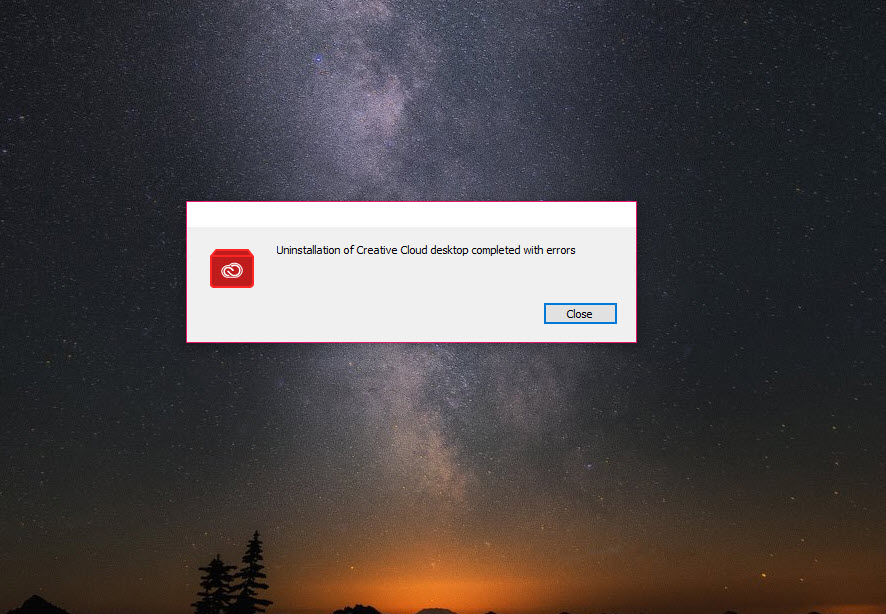
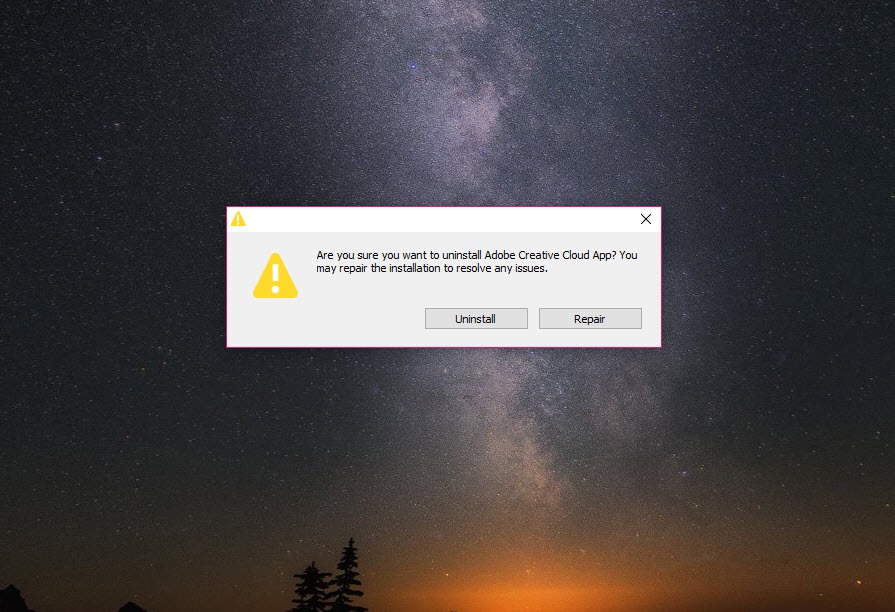
Try to uninstall it from the system’s list of programs and you usually meet an error saying it cannot be removed while other apps depend on it. This small tool is the dedicated remover. Run it and confirm, and it takes the desktop app off the machine once the conditions are met.
The condition is the whole story, and it trips most people. Adobe Creative Cloud Uninstaller removes only the desktop app, and it will do that only after every program in the suite, the photo editor, the video editor and the rest, has been uninstalled first. It is not a tool for wiping the whole suite in one click, and it is not the cleaner that repairs a broken install.
The sections below cover the order that works, what to do before running it, and the separate cleaner for when things go wrong.
Why the ordinary uninstall fails
The desktop app that Adobe Creative Cloud Uninstaller removes is not an ordinary program. It installs and updates the suite and keeps the licence signed in, and it syncs files to the cloud, so the suite’s programs depend on it being there. The system’s own uninstall routine sees those dependencies and stops, which is the error most people hit and the reason this tool exists.
The tool sidesteps the system’s routine and removes the desktop app directly, but it respects the same logic. If any program in the suite is still installed, it refuses, because removing the launcher would leave those programs unable to start or update.
That refusal is the most common complaint, and not a fault.
The order that works
The sequence for Adobe Creative Cloud Uninstaller is short and must be followed in order. First, uninstall every program in the suite, one by one, from the Apps tab of the desktop app itself. Open each installed app’s menu, choose uninstall, and repeat until none remain. Second, run this tool to remove the desktop app. Third, restart the machine.
If a program in the suite will not uninstall from the desktop app, remove it from the system’s list of programs instead, then continue. Doing the programs first is the step that guides and forums repeat most, because skipping it is why the tool appears to fail.
For removing a stubborn program along with the leftovers it scatters, a thorough uninstaller scans for the files and registry entries an ordinary uninstall leaves behind.
Before you run it
Sync your files before running Adobe Creative Cloud Uninstaller. The desktop app syncs a folder of your work to the cloud, and any file that has not finished syncing could be lost when the app goes. Open the desktop app, let the sync complete, and check that the files you care about appear in your cloud storage before running the tool.
Close the suite’s programs and any background helpers too. A program still running can make the removal fail quietly. Anyone leaving the suite for good will find much of its photo editing in GIMP. A restart beforehand clears those processes.
When it is not enough
A separate, more aggressive utility exists for the cases this one cannot handle, the Creative Cloud Cleaner Tool. It does not uninstall programs in the ordinary sense. It removes the files and registry entries that a broken or corrupted install leaves behind, the leftovers that stop a fresh install or an update from working. It also fixes sign-in problems caused by damaged settings.
The usual escalation runs from the gentle tool to the aggressive one. Uninstall the programs, run this tool for the desktop app, and only if a reinstall then fails, run the Cleaner Tool and restart before installing again.
For that next step, Adobe Creative Cloud Cleaner Tool is the companion download. Even it is not trusted to catch everything, so uninstall properly first and clean second.
Conclusion
Adobe Creative Cloud Uninstaller suits anyone who wants the Creative Cloud desktop app off their machine and has hit the error that stops the ordinary uninstall. It does one job, and it does it once the programs in the suite are gone.
It removes only the launcher, it insists on the right order, and it is not the tool for a broken install. Sync your files and uninstall every program first, then run it and restart. Keep the Cleaner Tool in reserve for a reinstall that will not take.
Pros & Cons
- Removes the desktop app when the system's own uninstall refuses
- Dedicated to the one job, with nothing else to configure
- Protects the suite by refusing while programs still depend on it
- Pairs with the Cleaner Tool for broken installs
- Removes only the desktop app, not the whole suite
- Refuses until every program in the suite is uninstalled first
- Unsynced files can be lost if the sync is not completed first
- Leaves some folders behind, which may need the Cleaner Tool
Frequently asked questions
At least one program in the suite is still installed. Uninstall every program from the Apps tab of the desktop app first, then run the tool again.
No. It removes only the desktop app. Each program in the suite must be uninstalled separately first.
This tool removes the desktop app. The Cleaner Tool removes the leftover files and settings of a broken install so a fresh install can work.
It does not target your documents, but unsynced files in the cloud folder could be lost. Let the sync finish before running it.


