

Adapter
About Adapter
Adapter converts video and audio, and images too, through one drag-and-drop queue, and it shows you the result before committing. Two players sit side by side in the preview panel, the original on one side and the converted output on the other, rendered at the settings you picked. Next to them a live estimate tells you how large the output file will be. Adjust the bitrate, watch the number change, check the picture, and only then press Convert.
Underneath is an FFmpeg engine, so the format list is effectively whatever FFmpeg reads, and the previews come from an embedded VLC. The point of the application is the layer on top of those two, a queue and a set of presets that let people who would never type a command line get the same results.
Presets, advanced settings and the file size estimate
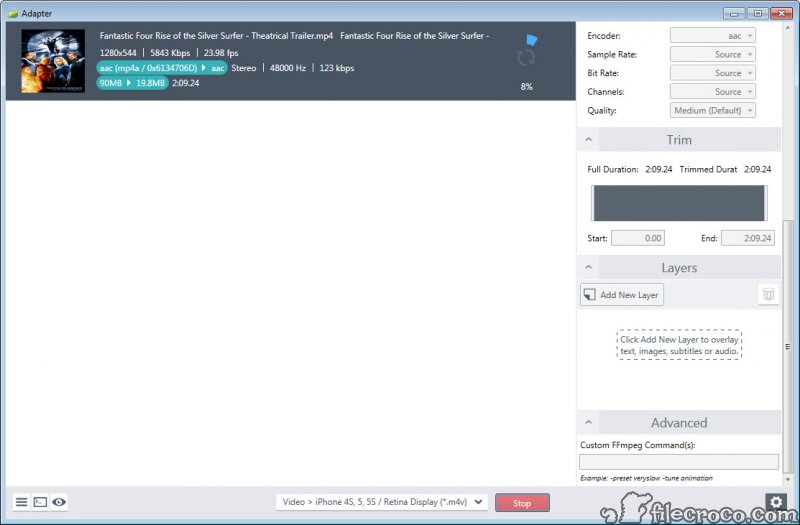
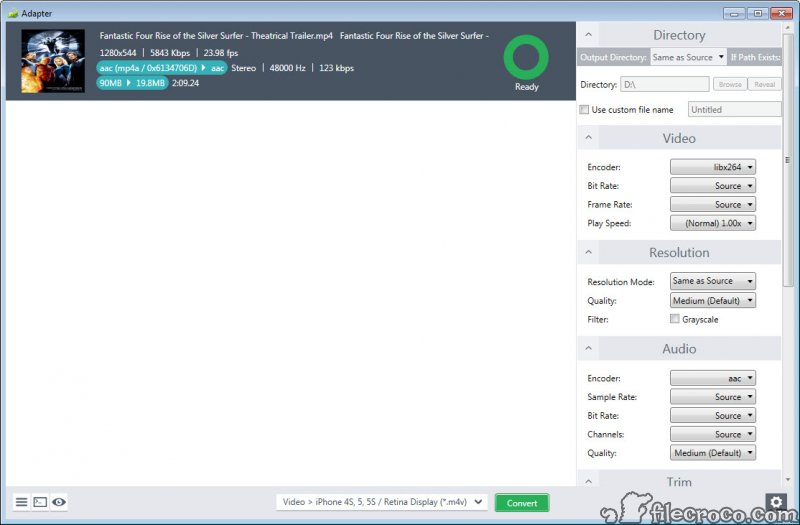
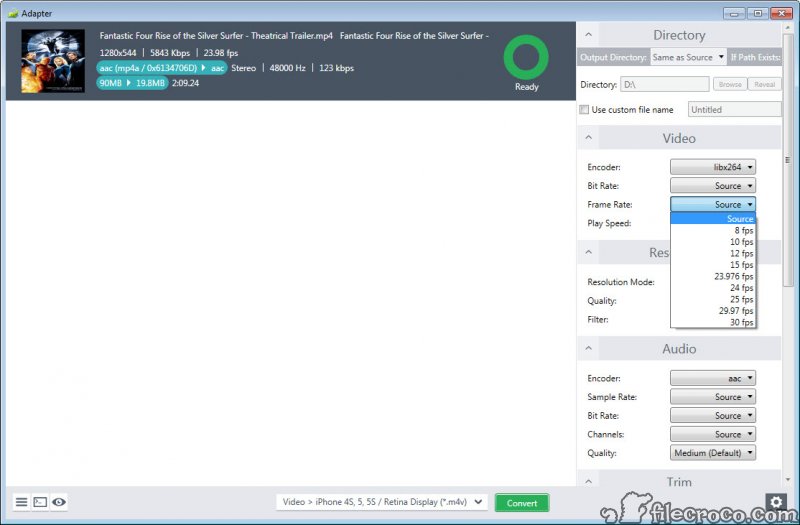
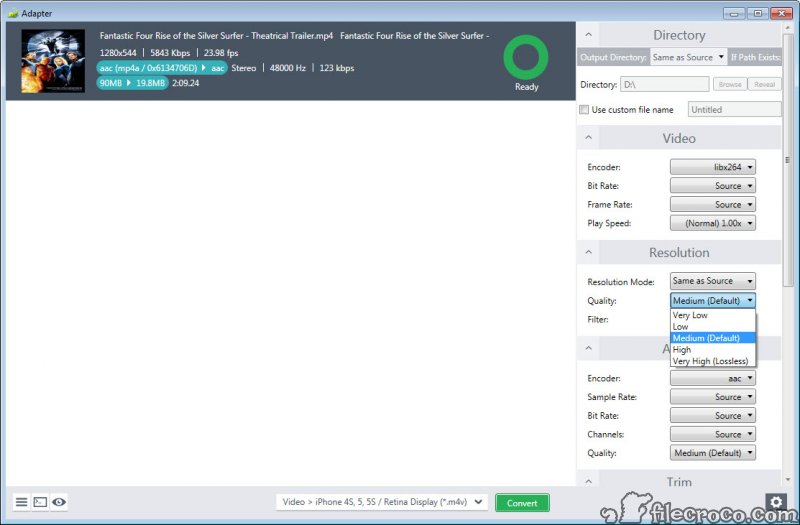
Output starts from a preset list sorted into media and device categories. Pick MP4 for general use or a device profile, and the resolution, codec and bitrate are filled in for you. Open the advanced panel and every one of those can be changed by hand, along with frame rate, aspect ratio, audio sample rate and quality.
The file size estimate is the feature people end up relying on. Target a video under 25MB for an email attachment, drag the quality down until the figure fits, and check the preview to see whether the picture survived.
Converters that make you encode first and find out later waste far more time than this.
Batches and trimming, then ripping audio
Drop a folder of files into the queue, set one output format, and the whole lot converts in a single run. Individual items can carry their own settings if one file needs different treatment. A trim control on each item cuts the start and end points, which is the quickest way to pull a clip out of a long recording or shape a ringtone.
Audio can be ripped from any video by picking an audio format as the output. A lecture recording becomes an MP3, a music video becomes a track. The same batch logic applies to compressing a folder of WAV files, with bitrate and sample rate under your control.
Image sequences, GIFs and layers
This is where Adapter goes further than a basic converter. Drop in a folder of photos and pick a video output, and they become a time-lapse at the frame rate you set, which suits action camera stills or a stop motion project. Reverse it and a video exports as individual frames in JPEG, PNG or TIFF.
Animated GIF is an output option, fed by either video or images, and the size estimate is especially useful here since GIFs balloon quickly. Layers overlay a watermark, burn subtitles into the picture or add an extra audio track, applied across a whole batch.
For heavier GIF work, a dedicated animator gives frame-level control that this does not.
Where it falls short
The engine is where it shows its age. The FFmpeg build bundled with the application is old, so newer codecs such as AV1 are missing and hardware encoding on current graphics cards is not used. That matters most on long videos, where the conversion runs on the processor alone and takes several times longer than it would on a modern encoder.
The installer also pulls in its own copies of FFmpeg and VLC, which some people find surprising. For serious transcoding work, a current open-source video transcoder is faster and knows the newer codecs.
Conclusion
Adapter suits people who convert media occasionally and want to see what they are getting before they get it. Shrinking a video for an email, pulling the audio out of a recording, building a quick time-lapse from action camera stills or turning a clip into a GIF are all jobs it handles with less guesswork than most converters.
It has fallen behind for anything heavy. The old engine, the missing modern codecs and the lack of hardware encoding make it the slow choice for large or frequent jobs. Keep it for the preview and the size estimate, and reach for a current encoder when speed matters.
Features & benefits
Pros & Cons
- Side-by-side preview compares the original with the converted output before encoding
- Live file size estimate updates as settings change
- Batch queue with per-file settings and trim controls
- Turns image sequences into time-lapse video and exports video frames as images
- Layers for watermarks, burned-in subtitles and extra audio tracks
- Bundled FFmpeg is old and lacks newer codecs such as AV1
- No hardware encoding on current graphics cards
- Long videos convert slowly on the processor alone
- Installer bundles its own copies of FFmpeg and VLC
Frequently asked questions
Yes. The preview panel plays the original and the converted output side by side, and a live estimate shows the output file size as you change settings.
Yes. Drop them into the queue, choose one output format, and the batch converts in a single run. Individual files can carry their own settings.
Yes. Drop a folder of images in, choose a video format and frame rate, and the sequence becomes a video.
It encodes on the processor with an older FFmpeg build and does not use hardware acceleration on current graphics cards.


