

RapidTyping
About RapidTyping
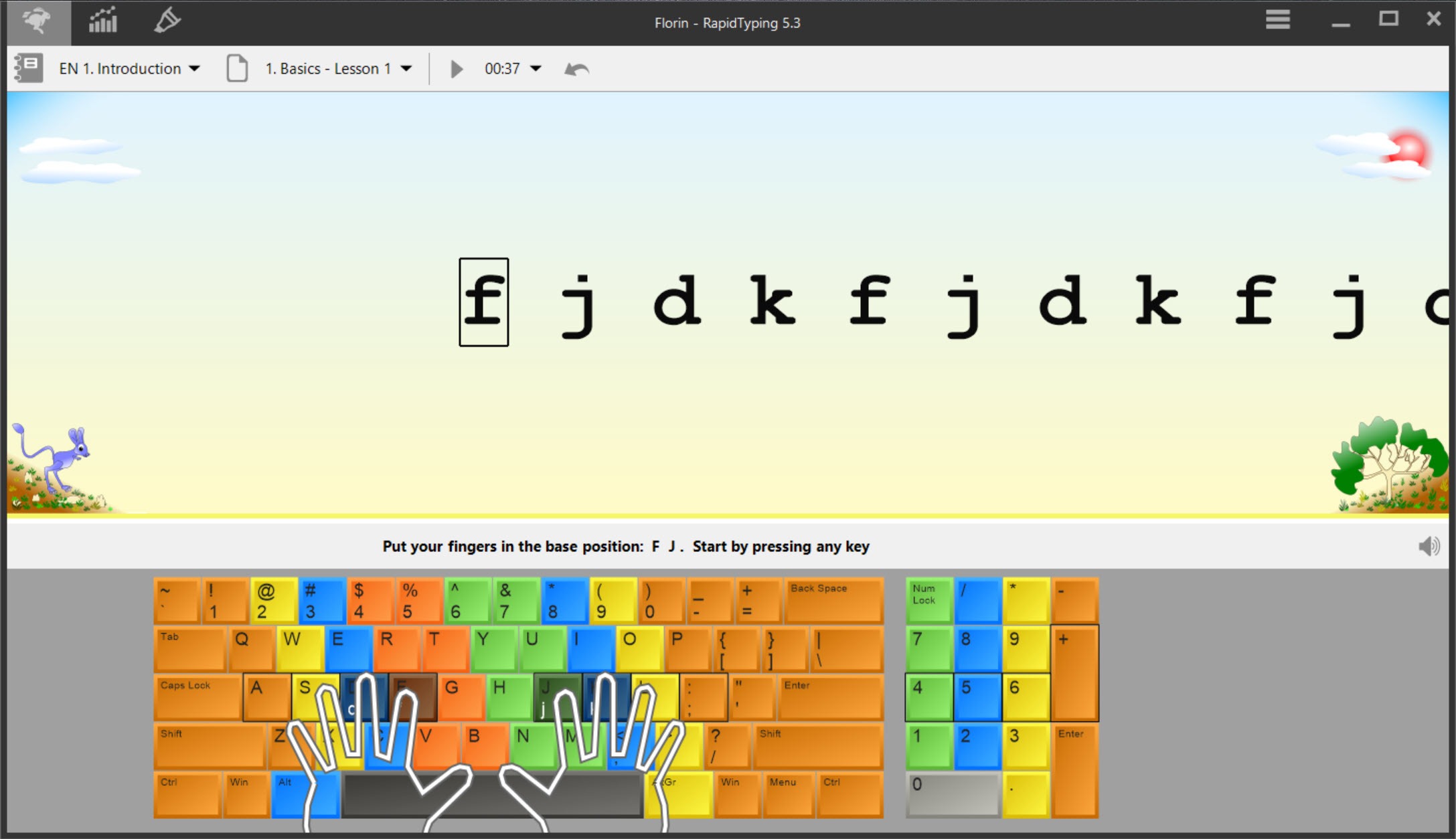
RapidTyping teaches touch typing with a colourful keyboard on the screen and a pair of hands that show you where your fingers belong. Start a lesson and the next letters appear above a virtual keyboard. The key to press lights up, the finger zones are shaded, and one or two animated hands hover over the keys in the correct position. Look at the screen, not at your own keyboard, and the habit forms. A set of courses takes a beginner from the home row to full text, and the program records every session.
What lifts it above a bare drill program is how much you can change. The layout list is long. You can write your own lessons, import text from a file, and keep separate profiles for a whole class, with statistics that export to a spreadsheet.
RapidTyping also suits a teacher who wants one copy on the staff machine and every pupil’s computer running it over the local network. It is a cheerful tool built for schools and families, and the sections below cover what it teaches, how it measures you and where it stops short.
The virtual keyboard and the moving hands
The keyboard on screen in RapidTyping is colour-coded by finger, so a glance tells you which finger owns which key. Letters covered by the current lesson are highlighted, and one or two virtual hands move over the keys to show the position for each. You press a key and the screen answers. A correct press moves you on. A wrong one is flagged, and the program counts it.
The effect is gentle but effective for children and for anyone who learned to type with two fingers and wants to unlearn it. The hands can be hidden once you stop needing them, and the sound and the skins can be switched off or changed.
An animated background that some find distracting turns off in the settings.
Layouts, and the course for each
The layout list in RapidTyping is among the broadest of any typing tutor. QWERTY comes first, then QWERTZ and AZERTY, the Brazilian ABNT2, Colemak, Bepo, and Dvorak in standard, left-hand and right-hand forms. An introduction course and a beginner course exist for every one of them, which is unusual. If you are moving to an alternative layout on purpose, the tutor teaches it from the first key.
For a layout the program does not list, it builds a virtual keyboard from the layout you choose, so the on-screen guide matches your hardware. Switching between layouts takes a click, which suits a household where one person types in one layout and another in a second.
For remapping physical keys when a layout will not do, a keyboard remapper changes what each key sends, and the tutor then teaches the result.
Writing your own lessons
The RapidTyping lesson editor is the second reason schools choose it. You can modify the standard lessons or write new courses from scratch, selecting the keys a lesson drills, the length of each exercise and the text typed. Text can be imported from a plain file or a rich-text file, so a teacher can turn a poem, a passage of vocabulary or a set of legal terms into a lesson in a minute.
Special lessons cover the numeric keypad and the punctuation marks, which many tutors skip. Typists who enter figures all day, and writers who want comfortable fingers on the symbols, get their own drills.
Courses can be made for a single student, which matters when one child struggles with a handful of keys and the rest of the class does not.
Statistics and reports
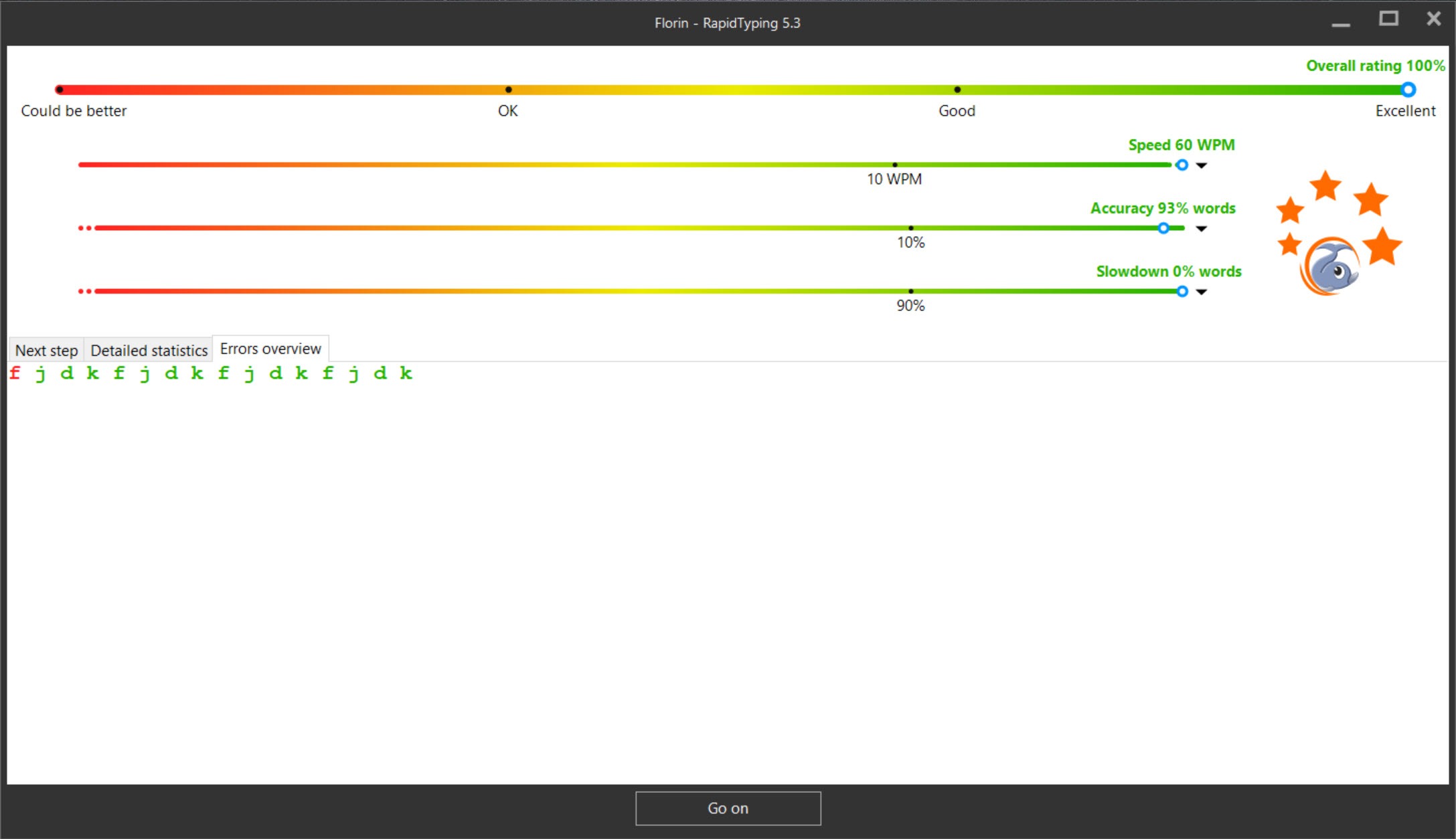
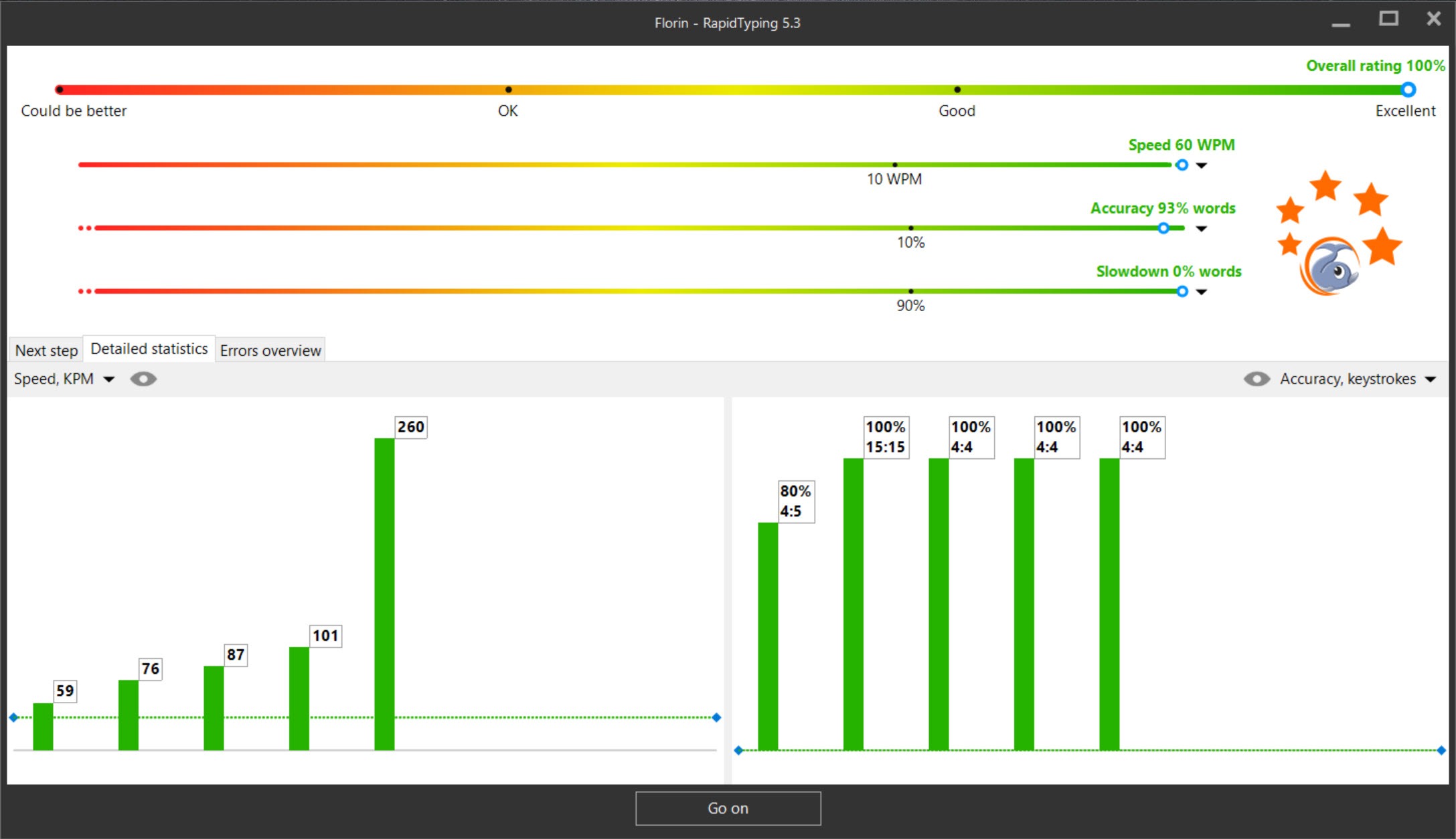
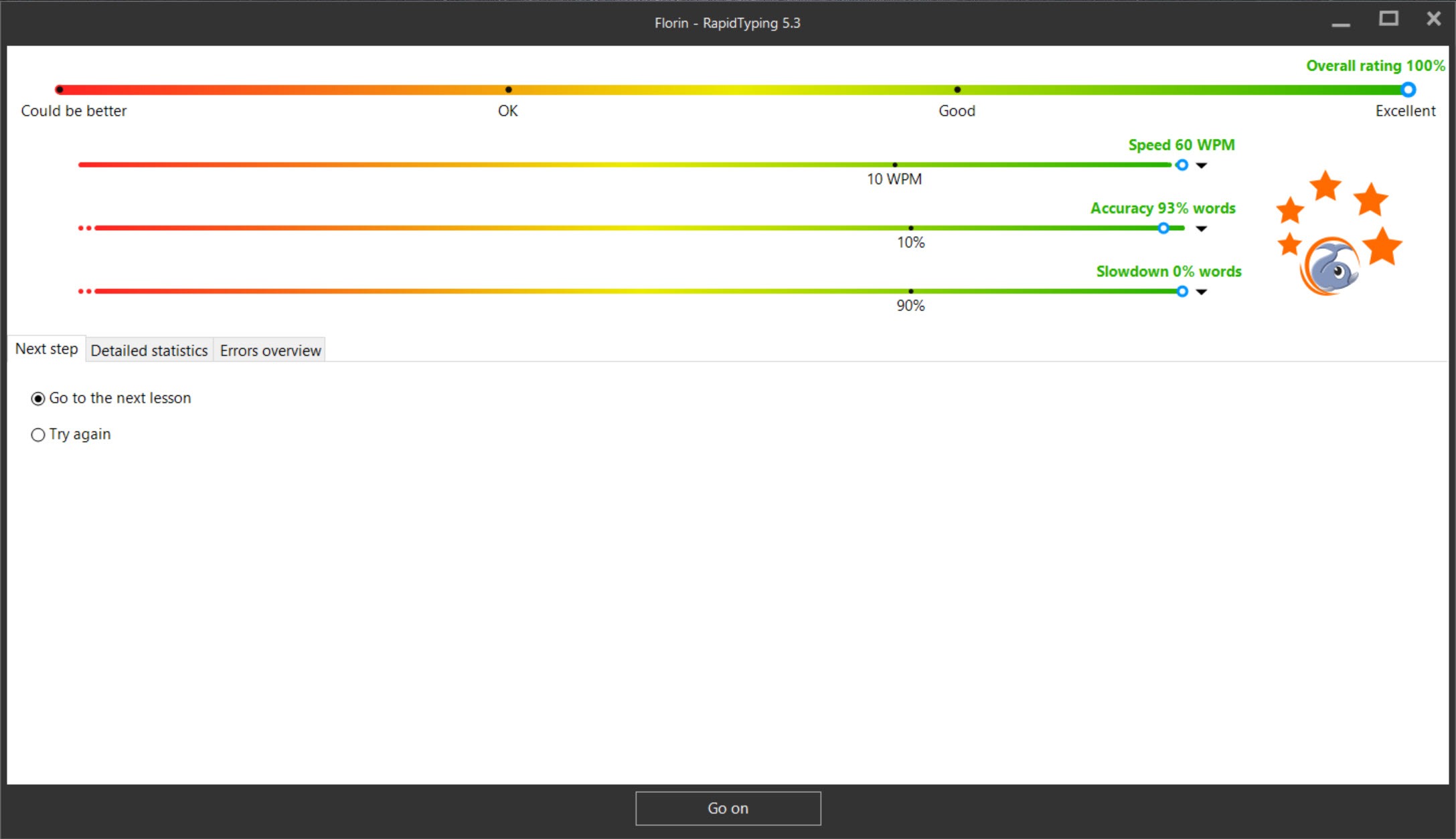
Every RapidTyping session is recorded for each user. The statistics screen draws tables and charts of speed in words and characters a minute, accuracy and errors, and the program lists fifteen parameters in all. You see the trend across weeks, not just the last test. That is what keeps a learner going, since a slow upward line shows effort rewarded.
Results export as PDF, HTML, XML or CSV, for a single student or a whole group, which hands a teacher a report and a parent a certificate without retyping. The statistics describe what happened and where. They do not steer the next lesson by themselves.
For another tutor with a simple lessons-and-tests package aimed at beginners, Kiran’s Typing Tutor is the lighter alternative, with weaker reporting.
Classes, groups and the local network
Several people can share one RapidTyping installation, each with a profile. In a classroom, the program is installed on the teacher’s computer and every workstation runs it over the local network, so progress for the whole group lands in one place without any cloud service. That suits schools that cannot or will not send pupil data to an outside server. The interface is available in many languages, which helps a mixed class.
Setting the network share up takes a little care, since each machine needs access to the shared folder, and an unreliable network share is the main thing that goes wrong. For a typing tutor aimed at English and Hindi test preparation, a bilingual typing tutor is the closer fit.
Where it falls short
The RapidTyping look is deliberately bright and a little childlike, which suits kids and puts some adults off. The games are simple. The tutor does not adapt. It records your mistakes but does not rebuild the next drill around the keys you miss, so a learner who wants that has to build the lesson by hand. The fifteen measurements and the classroom tools come from the program’s own description, and they matter mainly to teachers.
None of that gets in the way of its main job, which is to turn a hunt-and-peck typist into a touch typist who looks at the screen. For a single learner at home it asks for no setup and no account.
For a classroom it is among the few tutors that run entirely on the school’s own machines.
Conclusion
RapidTyping suits teachers who want a typing tutor that runs on the school’s own machines, families with young learners, and anyone moving to an alternative keyboard layout who wants a course from the first key. The virtual hands make technique visible, the lesson editor makes it flexible, and the exports make progress easy to report.
It is brightly coloured and not adaptive. Choose the layout first, write a lesson for your trouble keys, and let the statistics show the trend over weeks rather than the last test.
Pros & Cons
- Virtual keyboard with colour-coded finger zones and one or two animated hands
- Wide layout list including Dvorak, Colemak, Bepo, QWERTZ, AZERTY and ABNT2, with beginner courses for each
- Lesson editor that modifies standard lessons or imports text from plain and rich-text files
- Lessons for the numeric keypad and punctuation marks
- Statistics per user and group, exportable to PDF, HTML, XML and CSV
- Classroom mode that runs on the school's own network with no cloud service
- Bright, childlike look that some adults dislike
- Does not adapt the next drill to the keys you miss
- Network setup for a class needs a little care
- Games are simple
Frequently asked questions
QWERTY, QWERTZ, AZERTY, ABNT2, Colemak, Bepo and Dvorak in standard, left-hand and right-hand forms, each with introduction and beginner courses. A layout not listed gets a virtual keyboard built from your choice.
Yes. Edit the standard lessons or create new ones, and import text from plain or rich-text files.
Install it on the teacher's computer and run it from each workstation over the local network. Pupils keep separate profiles, and group statistics export to PDF, HTML, XML or CSV.
Yes. Special lessons cover the numeric keypad and the punctuation marks.


